13
Auto Loop
In Auto Loop Mode, each pad triggers or releases an auto-loop of a different length. The software’s
loop grid determines the size of the loop.
To enter Auto Loop Mode, press Auto Loop / Man Loop so that it lights dark blue.
To change which eight lengths for auto loops are shown (in the software), press either of the
Parameter / buttons. The pad layout will shift to match it.
To shift the Auto Loop backward or forward, press Shift and the Parameter / buttons,
respectively.
Manual Loop
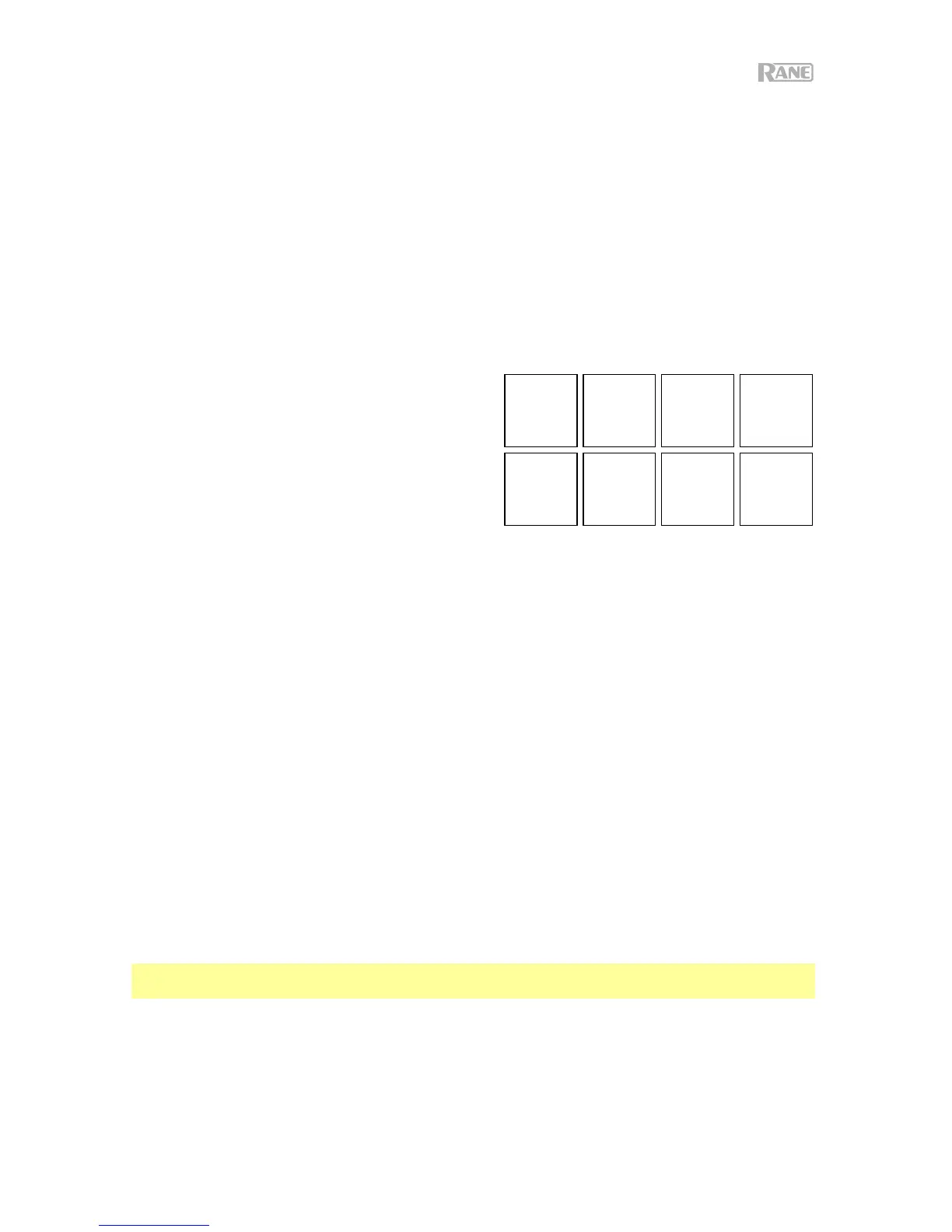
In Manual Loop Mode, each pad will return the track
to a loop you created and saved earlier. The pad
layouts for the two banks are identical.
To enter Manual Loop Mode, press Auto Loop /
Man Loop so that it lights yellow.
To create a loop, press Pad 5 to set the Loop In
point and then press Pad 6 to set the Loop Out point
and activate the loop.
To save a loop, while a loop is active, press an unlit pad in the top row (Pads 1–4). You can do this
regardless of how the loop was created (Auto Loop Mode, Manual Loop Mode, etc.).
To activate or deactivate a saved loop, press a lit pad in the top row (Pads 1–4).
To delete a saved loop, press Shift and a lit pad in the top row (Pads 1–4).
To activate or deactivate the last-activated loop, press Pad 7.
To immediately reactivate the last-activated loop (“reloop”), press Pad 8.
To halve or double the length of a loop, press the Parameter / buttons, respectively.
To shift a loop backward or forward, press Shift and the Parameter / buttons, respectively.
Saved Loops
Hold Shift and press Auto Loop / Man Loop (2) to access Saved Loops. In this mode, all 8 pads are
used to activate or deactivate a saved loop.
Roll
In Roll Mode, each pad triggers a momentary loop roll. Releasing the pad stops the loop roll and
resumes normal playback where the playhead would be if you had not triggered the loop roll (i.e., as
if the track had been playing forward the whole time).
Note: Make sure Show Beat Jump Controls is disabled in the Serato DJ Pro Setup menu. You can
also view and edit the set loop sizes in the software.
To enter Roll Mode, press Roll / Pad FX so that it lights aqua.
To trigger a loop roll, press and hold a Pad.
To change which eight lengths for loop rolls are shown (in the software), press either of the
Parameter / buttons. The pad layout will shift to match it.
To shift the loop roll backward or forward, press Shift and the Parameter / buttons,
respectively.
Loop 1 Loop 2 Loop 3 Loop 4
Set
Loop In
Set
Loop Out
Loop
On/Off
Reloop
1
234
56
7
8


 To Next Page