DRIVING
General: Use for typical road surfaces.
Grass-Gravel-Snow: Suitable for surfaces
which are firm but have a slippery surface,
e.g., grass, snow, loose gravel, pebbles, or icy
conditions.
Mud-Ruts: Suitable for soft, muddy, uneven,
or rutted ground.
Sand: Suitable for soft, predominantly dry,
yielding sandy ground, e.g., sand dunes and
deserts. If the sand is damp or wet, the Mud-
Ruts program may be more beneficial.
Dynamic: Associated with driving style, rather
than with a type of terrain. Dynamic selection
allows the vehicle’s full on-road potential to be
explored. Handling and driving characteristics
are optimised for normal road surfaces.
TERRAIN RESPONSE
See page 2, item 14.
6. Hitch guidance: To aid the process of guiding the
vehicle to the trailer’s tow hitch. A single hitch line
is displayed as the reversing guidance line. As the
vehicle closes to within 0.6 m of the tow hitch, an
automated zoom is operated.
PARKING AIDS
Wading
When wading through water, select the program
most suitable for the surface beneath the water.
DO NOT exceed 500 mm of water depth and enter
the water with a shallow approach angle.
DO NOT stop the vehicle or switch the engine off
while wading. Severe electrical damage may occur.
The Touch screen requires only light touches. Excess
pressure could result in damage.
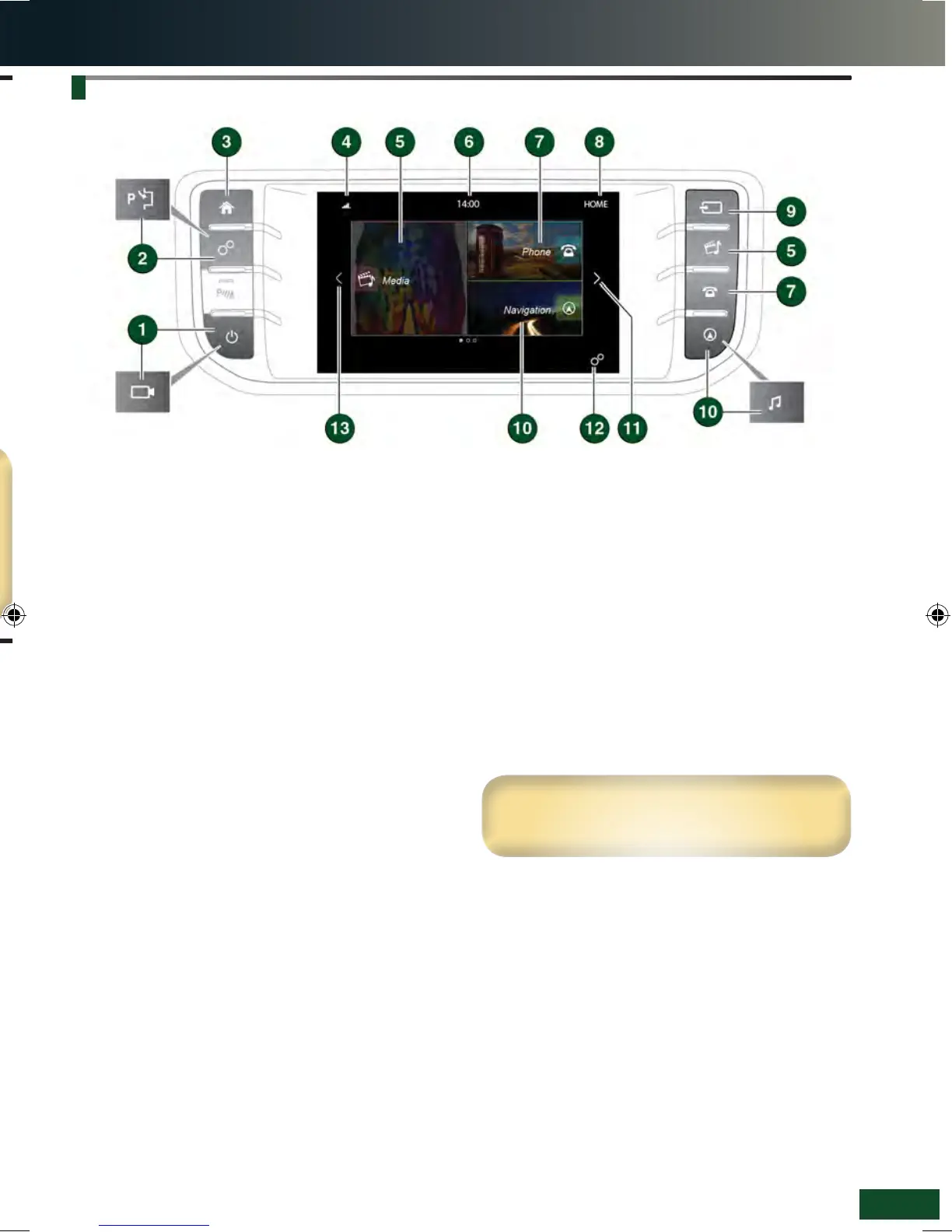
1. Press to switch the Touch screen on/off. If Surround
cameras are fitted, the screen can be switched off in
Extra features.
2. Press to display the GENERAL SETTINGS menu.
If Park assist is fitted, press to switch Park assist
on/off.
3. Press to select the HOME screen.
4. Status icons: When a phone is connected, the battery
level and network strength is displayed. Also,
when selected, TA (Traffic announcements) is
displayed.
5. Touch the screen or press the button, to select the
Media system.
6. Clock. Time can be adjusted via the System
option, in the GENERAL SETTINGS menu.
7. Touch the screen or press the button, to select the
PHONE screen.
8. Screen title.
9. Press to select the media SOURCE list.
10. Touch the screen or press the button, to select
the NAVIGATION system. The current destination
route, or the NAV MENU screen will be displayed.
For vehicles without navigation, press to display the
MEDIA SETTINGS menu.
11. Touch the arrow or swipe the screen, to display the
EXTRA FEATURES screen.
12. Touch to select the GENERAL SETTINGS menu.
13. Touch the arrow or swipe the screen, to display the
next screen to the left.
TOUCH SCREEN
11
See page 2, item 7.
TOUCH SCREEN
LRL219560161 NLI.indd 11 28/04/2015 13:50:32


 To Next Page
 Loading...