12
MEDIA
DAB RADIO
MEDIA
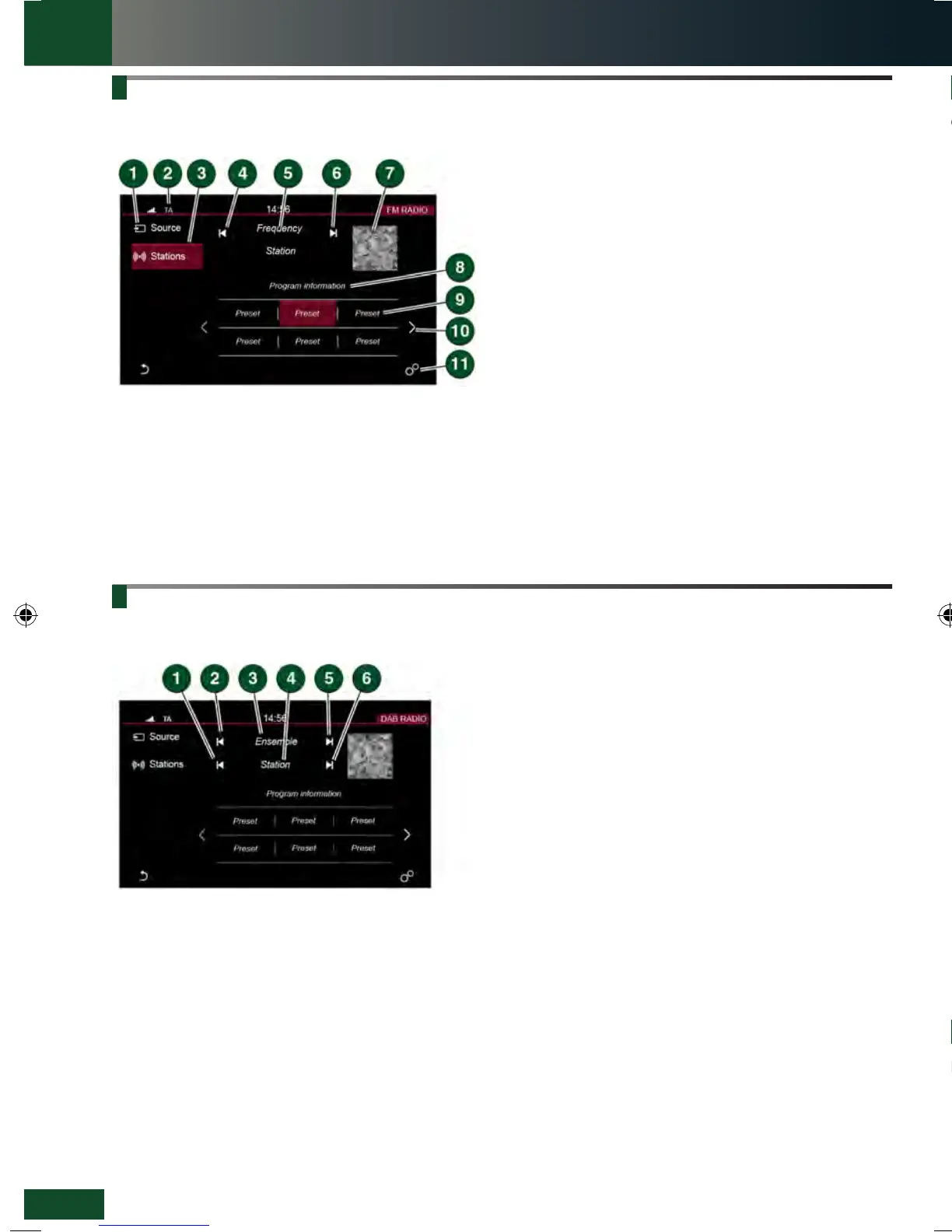
On the Touch screen HOME menu, touch the Media
option. Select Source, followed by DAB Radio.
1. Seek down: Touch to auto-seek down the frequency
to the next radio station.
2. Seek down: Touch to auto-seek down the frequency
to the next radio ensemble.
3. The selected radio ensemble name.
4. The selected radio station name.
5. Seek up: Touch to auto-seek up the frequency to the
next radio ensemble.
6. Seek up: Touch to auto-seek up the frequency to the
next radio station.
Storing a DAB station on a preset soft key
Select a DAB radio station. Touch and hold a preset
soft key to store the station. To subsequently listen to a
stored station, touch the appropriate preset. Use the seek
buttons on the steering wheel to change to the next or
previous stations.
PORTABLE MEDIAAM/FM RADIO
4. Briefly touch for auto-seek down to the previous
station.
5. The selected radio station name and frequency.
6. Briefly touch for auto-seek up to the next station.
7. Waveband image (if available).
8. Information from the selected station.
9. Preset soft keys: Can store 6 stations for each
waveband. Touch and hold a soft key to store the
current radio station.
10. Touch the arrow to scroll through the preset stations.
11. Touch to select the SETTINGS pop-up menu.
Select Media, followed by Radio, to view the RADIO
SETTINGS.
Note: Manual radio station seek up and down can be
achieved with the steering wheel audio controls.
On the Touch screen HOME menu, touch the Media
option. Select Source, followed by FM Radio.
1. Source: Touch to select the media source list.
2. Status icons: Shows the connected phone’s battery
level, network signal strength, and TA (if selected).
3. Touch to view and select stations.
On the Touch screen HOME menu, touch the Media
option. Select a portable media in the Source options.
1. Track list: Touch to select the list of tracks from the
connected device.
2. Browse: Touch to select the menu screen for the
required music or audio source subject list for the
connected device: Playlists, Artists, Albums,
Songs, etc.
3. Information relating to the music or audio being
played.
4. If available, the album art for the current track being
played is displayed.
5. Progress bar: Drag the spot or touch the line to move
forwards or backwards through the track.
6. Continuous play: Touch to play the current track
continuously.
7. Skip/scan forwards: Touch to skip forwards to the start
of the next track, or, touch and hold to scan forwards
through the current track being played. Playback
resumes when the soft key is released.
8. Pause/play: Touch to pause playback; touch again to
resume playback.
9. Skip/scan backwards: Touch to skip back to the
beginning of the current track being played, or, touch
and hold to scan backwards through the current track
being played. Playback resumes when the soft key is
released.
10. Shuffle: Touch to play random tracks from the current
MP3 folder, USB folder or iPod playlist.
STEERING WHEEL AUDIO CONTROL
Media system selections
can also be made from the
steering wheel control.
LRL219560161 NLI.indd 12 28/04/2015 13:50:32


 To Next Page
 Loading...