13
MEDIA
DAB RADIO
MEDIA
5. Seek up: Touch to auto-seek up the frequency to the
next radio ensemble.
6. Seek up: Touch to auto-seek up the frequency to the
next radio station.
Storing a DAB station on a preset soft key
Select a DAB radio station. Touch and hold a preset
soft key to store the station. To subsequently listen to a
stored station, touch the appropriate preset. Use the seek
buttons on the steering wheel to change to the next or
previous stations.
PORTABLE MEDIAAM/FM RADIO
4. Briefly touch for auto-seek down to the previous
station.
5. The selected radio station name and frequency.
6. Briefly touch for auto-seek up to the next station.
7. Waveband image (if available).
8. Information from the selected station.
9. Preset soft keys: Can store 6 stations for each
waveband. Touch and hold a soft key to store the
current radio station.
10. Touch the arrow to scroll through the preset stations.
11. Touch to select the SETTINGS pop-up menu.
Select Media, followed by Radio, to view the RADIO
SETTINGS.
Note: Manual radio station seek up and down can be
achieved with the steering wheel audio controls.
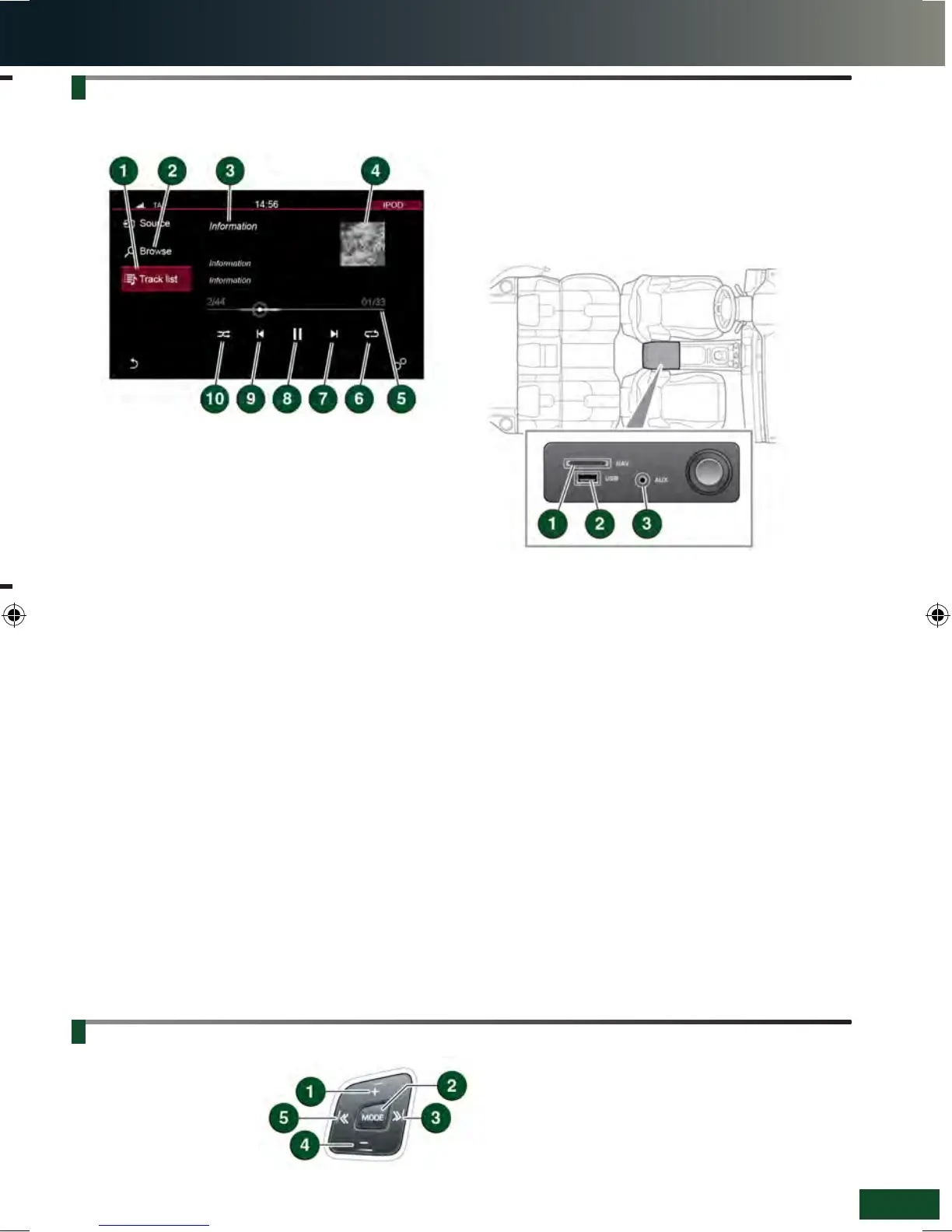
On the Touch screen HOME menu, touch the Media
option. Select a portable media in the Source options.
1. Track list: Touch to select the list of tracks from the
connected device.
2. Browse: Touch to select the menu screen for the
required music or audio source subject list for the
connected device: Playlists, Artists, Albums,
Songs, etc.
3. Information relating to the music or audio being
played.
4. If available, the album art for the current track being
played is displayed.
5. Progress bar: Drag the spot or touch the line to move
forwards or backwards through the track.
6. Continuous play: Touch to play the current track
continuously.
7. Skip/scan forwards: Touch to skip forwards to the start
of the next track, or, touch and hold to scan forwards
through the current track being played. Playback
resumes when the soft key is released.
8. Pause/play: Touch to pause playback; touch again to
resume playback.
9. Skip/scan backwards: Touch to skip back to the
beginning of the current track being played, or, touch
and hold to scan backwards through the current track
being played. Playback resumes when the soft key is
released.
10. Shuffle: Touch to play random tracks from the current
MP3 folder, USB folder or iPod playlist.
Note: When connecting a Bluetooth® wireless
technology device, use the Touch screen to operate and
search the device. Repeat and Shuffle modes are not
available for Bluetooth wireless technology devices.
Connecting a portable media device
The connecting ports for portable media devices, are
located inside the centre console cubby box.
1. SD card slot for Navigation and Voice only. Insert until
it clicks into place.
Note: Only use the SD card provided with the vehicle. The
media system will not play music or display saved images
from an SD card.
2. USB.
3. 3.5 mm AUX socket.
Note: Auxiliary devices have no Touch screen control.
Note: If an iPod is connected to the vehicle via its
Bluetooth® wireless technology facility and also, via a
USB cable, for music playback, make sure that the USB
connection is made last.
If alternative connections are made, track title and time
information is shown on the Touch screen but no audio
will be heard through the vehicle speakers. To address
this issue, disconnect and reconnect the USB cable.
STEERING WHEEL AUDIO CONTROL
Media system selections
can also be made from the
steering wheel control.
1. Volume increase.
2. Press repeatedly for media source options.
3. Seek/scan/skip up.
4. Volume decrease.
5. Seek/scan/skip down.
See page 2, item 2.
LRL219560161 NLI.indd 13 28/04/2015 13:50:32


 To Next Page
 Loading...