Need help?
Do you have a question about the Razer GOLIATHUS CHROMA 3XL and is the answer not in the manual?
Configure mouse mat settings, including lighting effects, profiles, and brightness.
Manage device profiles and link them to specific games and applications for customized experiences.
Configure Synapse behavior, language, theme, and perform device resets.
Important precautions for safe operation, handling, and environmental conditions for the device.
Provides recommended procedures for cleaning and maintaining the mouse mat to ensure optimal condition.
Details copyright, trademarks, product warranty terms, and limitation of liability.
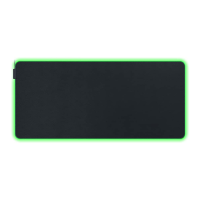
The Razer Goliathus Chroma 3XL is a soft gaming mouse mat designed to enhance your gaming experience with its expansive surface and vibrant RGB lighting. Powered by Razer Chroma RGB, this mouse mat offers a stunning spectrum of colors, allowing you to illuminate your gaming setup with vivid brilliance. Its large 3XL size provides ample space for sweeping mouse movements, ensuring blazing speed and precision during gameplay.
The mouse mat features a micro-textured cloth surface, meticulously balanced to provide both speed and control for your mouse. This surface ensures that your mouse glides smoothly while still offering the necessary friction for precise tracking, catering to a wide range of gaming styles and preferences. Beneath the cloth surface, a non-slip rubber base keeps the mat firmly in place on your desk, preventing any unwanted movement during intense gaming sessions.
Setting up the Razer Goliathus Chroma 3XL is straightforward. Simply connect the Type A cable connector of the mouse mat to any available USB port on your PC. Once connected, the mat's lighting will activate, and you can begin to customize its features using Razer Synapse software.
Razer Synapse is a powerful configuration tool that allows you to personalize various aspects of your Razer Goliathus Chroma 3XL. Upon launching Razer Synapse, you'll be greeted by the Dashboard, which provides an overview of your Razer devices, modules, and online services. The Synapse tab is your default entry point, from where you can navigate to different subtabs to manage your device.
The Modules subtab within Razer Synapse displays all installed and available modules for installation. These modules extend the functionality of your Razer devices, offering features like Alexa voice service integration, Chroma Connect for syncing with third-party hardware, Chroma Studio for advanced lighting effects, Chroma Visualizer for audio-reactive lighting, Philips Hue integration for immersive room lighting, and Macro for creating complex key-combinations.
The Global Shortcuts feature allows you to bind operations or Razer Synapse functions to custom key-combinations, which apply across all your device profiles. This feature is particularly useful for streamlining your workflow and enhancing your gaming efficiency. It's important to note that only Razer Synapse-enabled device inputs will be recognized for global shortcuts.
The Mouse Mat tab is the primary interface for customizing your Razer Goliathus Chroma 3XL. Here, you can adjust various settings, including profiles and lighting. All changes made in this tab are automatically saved to your system and cloud storage, ensuring your personalized settings are always accessible.
Within the Lighting subtab, you can modify your mouse mat's light settings. The Brightness option allows you to toggle the lighting on or off, or adjust its luminance using a slider. This provides flexibility to match the lighting to your environment or preference.
The Razer Goliathus Chroma 3XL offers a variety of Quick Effects for its lighting, which can be easily selected and applied. These include:
If you have other supported Razer Chroma-enabled devices, you can synchronize their quick effects with your Razer Goliathus Chroma 3XL by clicking the Chroma Sync button. This creates a unified lighting experience across your entire setup. However, only devices that support the selected lighting effect will synchronize.
For more advanced lighting customization, the Advanced Effects option allows you to create your own Chroma Effects using Chroma Studio. This feature provides granular control over lighting patterns and colors, enabling you to design unique visual experiences.
A power-saving option, "Switch Off Lighting," is available to disable your device's lighting when your system's display turns off. This helps conserve energy and reduce light pollution when not actively using your computer.
The Profiles tab is a convenient way to manage all your profiles and link them to your games and applications. Profiles are data storages for keeping all your Razer peripheral's settings. By default, a profile is named after your system. You can add, rename, duplicate, or delete profiles using the Miscellaneous button. Each profile can be set to activate automatically when you run a specific application using the Linked Games option. You can also import profiles from your computer or the cloud.
The Linked Games subtab allows you to add games, view devices linked to games, or search for added games. Games can be sorted alphabetically, by last played, or by most played. To link games to your Razer devices or Chroma Effects, simply select a game from the list and then choose a device and its profile to launch automatically during gameplay. This ensures that your preferred settings are applied whenever you play that specific game.
The Settings window, accessible via the gear icon in Razer Synapse, allows you to configure the software's startup behavior and display language. You can also view master guides for connected Razer devices or perform a factory reset. The General tab lets you change display language, theme, and notification settings, and manually sync profiles to the cloud. The Dashboard tab helps customize Razer device recommendations based on your setup. The Reset tab allows for factory resets of connected Razer devices with on-board memory and resetting Synapse tutorials. It's important to note that resetting a Razer device will erase all profiles stored on its on-board memory. The About tab provides software information, copyright statements, terms of use links, and quick access to software updates and Razer's social communities.
For safety and maintenance, it is recommended to adopt certain guidelines. If you encounter issues, unplug the device and contact Razer support. Do not disassemble the device or operate it under abnormal current loads, as this will void the warranty. Keep the device away from liquid, humidity, or moisture, and operate it within a temperature range of 0°C (32°F) to 40°C (104°F). If the temperature exceeds this range, unplug the device to allow it to stabilize.
For maintenance, the Razer Goliathus Chroma 3XL requires minimal care. Once a month, unplug it from the computer and clean it with a soft cloth or cotton swab to prevent dirt buildup. Avoid using soap or harsh cleaning agents. Crucially, do not fold, compress, or overstretch the mouse mat, as this can damage or deform the product and void the warranty. Always allow the mouse mat to settle on a flat surface to remove any creases, ensuring its longevity and optimal performance.
 General
| Model | Goliathus Chroma 3XL |
|---|---|
| Size | 3XL |
| Connectivity | USB |
| Brand | Razer |
| Category | Mouse Pad |
| Surface | Micro-textured |
| Base | Rubber base |
| Lighting | Chroma RGB |
| Compatibility | PC |

 To Next Page