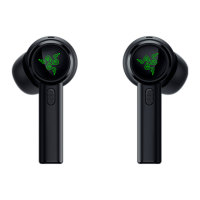
earbuds, followed by another blip two seconds later. This means both earbuds have paired together
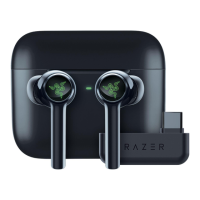
successfully. Try to pair your Razer Hammerhead True Wireless to your phone again.
What is compatibility mode and when do I need to enable it?
Compatibility mode enables your Hammerhead True Wireless earbuds to work with devices that may
have connectivity issues otherwise. These devices may not have implemented all protocols of the
Bluetooth standard in terms of packet size. By default, the setting will be in the “OFF” position to allow
for the best wireless performance. The setting can be adjusted via the smartphone application.
The following devices need compatibility mode enabled:
Apple MacBook Pro with macOS 10.15
Huawei phones running Android 10
Meizu Pro 7 Plus
RedMi Note 4
Note that after switching from “OFF” to “ON” position or vice versa, the earbuds will disconnect for
about four to six seconds. Please wait for the earbuds to reconnect before attempting to play music or
any type of media.



 To Previous Page