
 Need help?
Do you have a question about the Razer Hammerhead True Wireless and is the answer not in the manual?
Checks compatibility with Android, iOS, and PC devices.
Details the operational range and factors affecting it.
Provides instructions for cleaning the earbuds and silicone tips.
Explains manual and automatic power on/off procedures.
Details the process of charging the earbuds and case via USB.
Troubleshoots audio imbalance or non-working speakers.
Confirms individual earbud functionality.
Provides solutions for earbuds not powering off correctly.
Offers workarounds for single earbud connectivity issues.
Lists key hardware specifications like Bluetooth, driver size, and impedance.
Describes the triple-tap gesture to enable/disable gaming mode.
Outlines touch controls for music, calls, and voice assistant.
Explains compatibility mode for devices with connectivity issues.
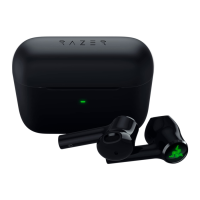
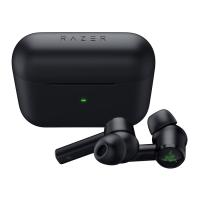
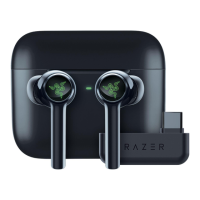
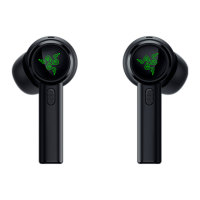
The Razer Hammerhead True Wireless earbuds are designed to provide a seamless audio experience across various devices, primarily mobile phones, but also compatible with PCs that have Bluetooth audio capabilities. These earbuds offer a range of up to 10 meters, though this operational distance can be affected by physical obstacles like walls or doors. The earbuds are exclusively available in a sleek black color.
The Razer Hammerhead True Wireless earbuds are equipped with Bluetooth 5.0 for a stable wireless connection, supporting profiles such as HFP, AVRCP, A2DP, and BLE. They feature dynamic 13mm drivers, delivering clear audio for music, calls, and other media. Each earbud incorporates one-touch controls, allowing users to manage various functions through clicks, double clicks, or long presses. These controls enable users to change music tracks, answer or end calls, and activate their smartphone's voice assistant directly from the earbud's touch interface.
A notable feature is the Gaming Mode, which can be activated by triple-tapping either the left or right function button and holding the last tap for at least 2 seconds. This mode is designed to optimize audio performance for gaming, and the same gesture can be used to disable it.
The earbuds also support a "compatibility mode," which is useful for devices that might experience connectivity issues due to non-standard Bluetooth protocol implementations, particularly concerning packet size. By default, this mode is off for optimal wireless performance but can be enabled via a smartphone application for specific devices like Apple MacBook Pro with macOS 10.15, Huawei phones running Android 10, Meizu Pro 7 Plus, and RedMi Note 4. When switching compatibility mode on or off, the earbuds will temporarily disconnect for about four to six seconds before reconnecting.
The earbuds are designed for ease of use. They automatically turn on and pair when the charging case lid is opened and turn off when placed back inside the charging case with the lid closed. For manual power control, users can press and hold the function button on each earbud for 2 seconds to power them on, accompanied by an audio prompt. If left idle for a few minutes, the earbuds will automatically power off after an audio prompt.
Charging the earbuds is straightforward: simply connect the charging case to a USB port using the provided cable. Both the earbuds and the charging case will charge simultaneously. The charging case features red, orange, and green LEDs to indicate its charging status and battery level. Voice prompts in various languages and tones are also used for notifications from the earbuds.
The earbuds are designed to work individually, meaning if one earbud is lost or not functioning, the other can still be used. In cases where earbuds remain connected to a phone even after being placed in the charging case, it often indicates insufficient power in the charging case (indicated by a blinking red LED). Recharging the case usually resolves this. If a charger isn't available, users can manually power off the earbuds by tapping and holding both earbuds until a "pairing" voice prompt is heard, then triple-tapping one earbud and holding the last tap for 2 seconds until a "power off" prompt is heard.
If only one earbud connects or plays music, several workarounds can be attempted: placing the problematic earbud in the charging case, closing it for about 5 seconds, and then reopening it to allow automatic reconnection; ensuring the charging case has sufficient battery (green LED); or ensuring both earbuds are properly paired with each other. To re-pair, press both earbuds until a "Pairing" voice prompt is heard, then double-tap both simultaneously. A two-blip tone from one earbud followed by another two seconds later confirms successful pairing.
Regular cleaning is recommended to maintain optimal audio quality and prevent output level issues caused by wax build-up. To clean the earbuds, remove any attached silicone tips. Then, wipe the earbuds with a soft cloth lightly saturated with warm water, taking care to prevent liquid from entering the speaker. The silicone tips and cords can be cleaned in the same manner and should be allowed to dry completely before re-installation. If issues persist after cleaning, users are advised to contact the Razer Support Team for further assistance.
 General
| Driver Type | Dynamic |
|---|---|
| Driver Size | 13 mm |
| Frequency Response | 20 Hz – 20 kHz |
| Impedance | 32 Ω |
| Bluetooth Version | 5.0 |
| Water Resistance | IPX4 |
| Wireless Range | 10 m |
| Charging Time | 1.5 hours |
| Battery Life | Up to 15 hours (with charging case) |
| Microphone Sensitivity | -42 dB |
| Weight | 45.0 g |


 To Next Page

