EasyManua.ls Logo

Razer NOMMO V2 X - User Manual

Razer NOMMO V2 X
28 pages
Print Icon
To Next Page IconTo Next Page
Loading...
RAZER NOMMO V2 X
MASTER GUIDE
Question and Answer IconNeed help?

Do you have a question about the Razer NOMMO V2 X and is the answer not in the manual?

Summary

Whats Inside

Whats Needed

Product Requirements

Specifies required hardware ports and connectivity for the speakers.

Razer Synapse Requirements

Lists software and system requirements for Razer Synapse installation.

Lets Get You Covered

Technical Specifications

Setting Up Your Razer Nommo V2 X

Connecting to Your Gaming Speakers

Via PC Mode

Connect the speakers to your PC using a USB cable for audio playback.

Via Bluetooth Mode

Connect the speakers wirelessly to your device via Bluetooth pairing.

Using Your Gaming Speakers

Power On; Off

Instructions on how to turn the gaming speakers on and off.

Adjusting the Volume

How to control the audio volume using the speaker buttons.

Switching Between Audio Sources

Toggle audio input between PC mode and Bluetooth mode.

Toggling Between PC Audio Devices

Switch between speakers and other PC audio devices via Synapse.

Reactivating Bluetooth Pairing Mode

Steps to re-enter Bluetooth pairing mode for new device connections.

Configuring Your Razer Nommo V2 X Via Razer Synapse

Synapse Interface Overview

Overview of Razer Synapse main tabs including Dashboard, Modules, and Global Shortcuts.

Audio Tab Settings

Customize audio output, volume, EQ, and input sources within the Audio tab.

Power Management Settings

Configure standby mode and power saving options for the speakers.

Profiles Tab Management

Manage device profiles and link them to games for automatic configuration.

Synapse Settings Window

Adjust application behavior, themes, and perform system resets within Synapse.

About Tab Information

View software details, copyright statement, and access support links.

Safety and Maintenance

Safety Guidelines

Important precautions for safe operation and handling of the device.

Maintenance and Use

Recommendations for cleaning and maintaining the speakers in optimal condition.

Legalese

Copyright and Intellectual Property Information

Legal notice regarding trademarks, logos, and intellectual property rights.

Limited Product Warranty

Information on the product's warranty terms and conditions.

Limitation of Liability

Legal disclaimer regarding manufacturer liability for damages.

General Legal Terms

Governing law and severability clauses for the product's terms.

Overview

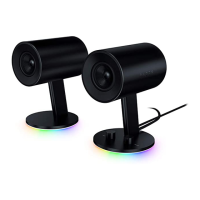
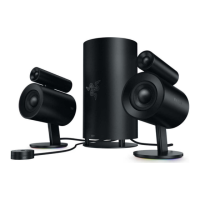
The Razer Nommo V2 X is a 2.0 PC gaming speaker system designed to deliver immersive, room-filling positional audio. It features full-range drivers and is powered by THX Spatial Audio, enhancing the entertainment experience for gamers.

Function Description

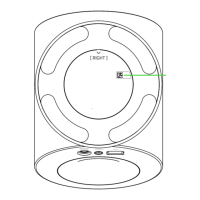
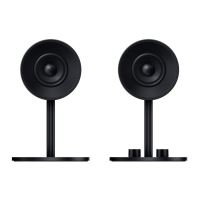
The Razer Nommo V2 X serves as a primary audio output device for PCs and other Bluetooth-enabled devices. It is designed to provide high-quality sound for gaming, movies, and music, with a focus on positional audio for an immersive experience. The system includes a right speaker, which houses the main controls and connectivity ports, and a left speaker that connects to the right speaker.

Usage Features

Power On/Off:

The speakers can be powered on or off by pressing the Power / Multi-function button located on the right speaker. An audible tone confirms the power state change.

Volume Adjustment:

Volume can be adjusted using the dedicated volume control buttons (+ and -) on the right speaker. As the volume is increased or decreased, the status indicator briefly lights up in white. The status indicator will continuously blink white when the volume reaches its minimum or maximum levels.

Audio Source Switching:

The Razer Nommo V2 X supports two main audio modes: PC mode (via USB) and Bluetooth mode.

  • PC Mode: To connect to a PC, the speakers are connected via a USB Type A to USB Type C cable. Once connected, pressing the Power / Multi-function button powers on the speakers, and the status indicator turns solid green, indicating PC mode. The Razer Nommo V2 X should then be set as the default output device on the PC.
  • Bluetooth Mode: To switch from PC mode to Bluetooth mode, double-press the Power / Multi-function button. The status indicator will blink blue, and an audio prompt will confirm that the speakers are in pairing mode. To pair with a device, activate Bluetooth on the device and select "Razer Nommo V2 X (BT)" from the list of available devices. Once connected, the status indicator will turn solid blue, and an audio prompt will confirm the connection. For first-time pairing, it's recommended to keep the mobile device within 1 meter of the speakers. Once paired, the speakers will automatically reconnect when switched to Bluetooth mode.
  • Reactivating Bluetooth Pairing Mode (for new devices): While in Bluetooth mode, press and hold the Power / Multi-function button for 4 seconds to re-enter pairing mode. The status indicator will blink blue, and an audio prompt will be heard.

PC Audio Device Toggling:

While powered on and in PC mode, users can toggle between the gaming speakers and a secondary PC playback device (configured via Razer Synapse) by simultaneously pressing both Volume control buttons (- and +). The status indicator will briefly blink yellow to indicate the toggle. Note that Razer Synapse cannot revert to PC mode if the speakers are set to Bluetooth mode; this must be done by double-pressing the Power / Multi-function button on the speakers.

Personalization via Razer Synapse (PC):

The Razer Nommo V2 X can be configured and personalized using the Razer Synapse software on a PC (Windows® 10 64-bit or higher is required, along with an internet connection for installation and updates).

  • Audio Tab: This tab allows customization of audio settings.
    • Stereo / THX Spatial Audio: Users can toggle between standard Stereo audio and THX Spatial Audio for an immersive 360° positional audio experience.
    • Volume: Adjusts the overall audio volume. It also provides access to the Windows volume mixer for individual application volume control.
    • Toggle PC Audio Devices: Allows setting a secondary PC playback device for quick switching using the speaker's volume buttons.
    • Input Source: Enables switching the speakers to Bluetooth mode directly from Razer Synapse.
    • Audio Equalizer: Offers various equalizer presets (e.g., Default, Game, Movie, Music) optimized for different audio experiences. Manual adjustments to any preset will automatically set it to "Custom."
    • Sound Properties: Launches the Windows Sound Properties window for advanced system sound settings.
  • Power Tab: This subtab allows users to enable a power-saving standby mode for the speakers, which activates after a user-defined period of inactivity (e.g., 15, 30, or 45 minutes).
  • Profiles Tab: This tab is used to manage and link custom profiles to games and applications.
    • Devices Subtab: Displays linked games for each device's profiles or Chroma Effects. Users can add new profiles, rename, duplicate, export, or delete existing ones. Profiles can be set to activate automatically when a specific application is launched.
    • Linked Games Subtab: Allows adding games, viewing linked devices, and searching/sorting added games. Games can be linked to specific Razer devices or Chroma Effects, with the option to select a particular profile or effect to launch during gameplay.
  • Settings Window: Accessible via the gear icon in Razer Synapse, this window allows configuration of software behavior.
    • General Tab: Change display language, startup behavior, theme, and on-screen notifications. Users can also manually sync profiles to the cloud or view master guides.
    • Dashboard Tab: Customize Razer device recommendations and game displays on the Synapse Dashboard.
    • Reset Tab: Perform a factory reset on connected Razer devices with on-board memory and/or reset Razer Synapse tutorials. A factory reset will erase all profiles stored on the device's on-board memory.
    • About Tab: Displays software information, copyright statements, links to terms of use, and provides access to software updates and Razer's social communities.

Maintenance Features

Cleaning:

The Razer Nommo V2 X requires minimal maintenance. It is recommended to clean each speaker once a month using a soft cloth or cotton swab to prevent dirt buildup. Avoid using soap or harsh cleaning agents, as these can damage the device.

Troubleshooting and Support:

If any issues arise with the device's operation that cannot be resolved through basic troubleshooting, users should unplug the device and contact the Razer hotline or visit support.razer.com for assistance.

Safety Guidelines:

  • Do not disassemble the device or attempt to operate it under abnormal current loads, as this will void the warranty.
  • Keep the device away from liquids, humidity, and moisture.
  • Operate the device within a specific temperature range of 0°C (32°F) to 40°C (104°F). If the temperature exceeds this range, unplug or switch off the device to stabilize it.
  • Avoid listening to excessively loud volumes for extended periods to prevent hearing damage. It is recommended to reduce the volume to a comfortable level during prolonged listening sessions.

Razer NOMMO V2 X Specifications

General IconGeneral
Speaker typeFull range
Number of drivers2
Speaker placementTabletop/bookshelf
Audio output channels2.0 channels
Frequency range75 - 20000 Hz
RMS rated power- W
Product colorBlack
Recommended usagePC
BluetoothYes
Bluetooth version5.0
USB connector typeUSB Type-C
Connectivity technologyWired & Wireless
Quantity per pack2 pc(s)
Package depth394 mm
Package width235 mm
Package height192 mm
Package weight3600 g
Harmonized System (HS) code8518220090
Country of originChina
Weight and Dimensions IconWeight and Dimensions
Depth180 mm
Width130 mm
Height184 mm
Weight2390 g

Related product manuals