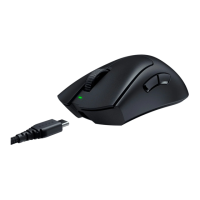
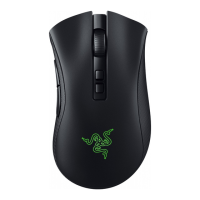
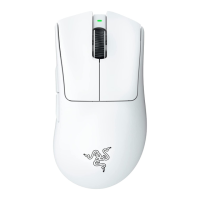
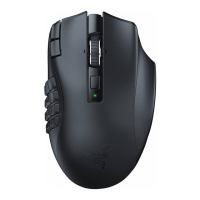
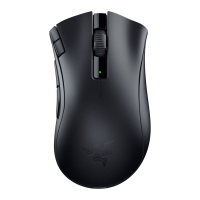
The Razer Viper is a high-performance gaming mouse designed for precision, response, and ergonomic comfort, catering to the demands of competitive gaming. It boasts an ultra-light design, weighing just 69g, making it ideal for extended gaming sessions and rapid movements. The mouse is equipped with Razer™ Optical Mouse Switches, which contribute to its 99.4% resolution accuracy, ensuring that every click is registered with speed and reliability.
Function Description
The Razer Viper serves as a primary input device for computer interaction, specifically optimized for gaming. Its core function is to translate physical movements and button presses into digital commands, allowing users to navigate interfaces, control in-game characters, and execute complex actions with high fidelity. The mouse features eight independently programmable Hyperesponse buttons, providing extensive customization options for various gaming genres and workflows. These buttons include the standard left and right mouse buttons, a scroll wheel, and two additional mouse buttons (Mouse button 4 and Mouse button 5) typically located on the side for easy thumb access. An ultraslick mouse feet design ensures smooth gliding across different surfaces, enhancing tracking consistency.
At the heart of the Razer Viper's tracking capabilities is a True 16,000 DPI 5G optical sensor, which offers exceptional sensitivity and accuracy. This sensor allows for precise cursor control, crucial for competitive gaming where even the slightest movement can impact performance. The mouse also incorporates a DPI indicator and a DPI cycle button, enabling users to quickly switch between different sensitivity stages on the fly without needing to access software. This feature is particularly useful for adapting to various in-game scenarios, such as switching from high sensitivity for general movement to lower sensitivity for precise aiming.
The Razer Viper is designed with an ergonomic ambidextrous form factor, making it comfortable for both left-handed and right-handed users. This design consideration ensures that a wide range of gamers can use the mouse without discomfort, even during prolonged use. The inclusion of a gaming-grade tactile scroll wheel provides satisfying feedback and precise scrolling, whether for weapon selection or navigating menus.
For enhanced connectivity and minimal drag, the Razer Viper utilizes an ultra-flexible Razer Speedflex cable. This cable is designed to reduce resistance and snagging, giving users a near-wireless feel and unrestricted movement during intense gameplay. The mouse also supports Razer Chroma™ lighting, offering 16.8 million customizable color options. This allows users to personalize their device with various lighting effects, which can also be synchronized with other Razer Chroma-enabled peripherals for a cohesive aesthetic.
Usage Features
The Razer Viper's functionality is significantly expanded through Razer Synapse 3, a comprehensive software suite that allows for deep customization. Upon connecting the mouse to a computer, users are prompted to install Razer Synapse 3, which is compatible with Windows 7 64-bit or higher. The software requires an internet connection for installation and updates, and approximately 500 MB of free hard disk space.
Within Razer Synapse 3, the "Mouse" tab is the primary interface for configuring the Razer Viper. This tab is divided into several subtabs: Customize, Performance, Lighting, and Calibration.
The Customize subtab is where users can modify button assignments. Each of the eight programmable buttons can be remapped to a variety of functions, including:
- Default: Restores the button to its original setting.
- Keyboard Function: Assigns a keyboard key or a combination of keys. Turbo mode can be enabled for repeated key presses while the button is held down.
- Mouse Function: Assigns other mouse functions such as Left Click, Right Click, Scroll Click, Double Click, Mouse Button 4 (Backward), Mouse Button 5 (Forward), Scroll Up, Scroll Down, Scroll Left, Scroll Right, Repeat Scroll Up, and Repeat Scroll Down. Turbo mode is also available for some mouse functions.
- Sensitivity: Allows for on-the-fly DPI adjustments. Options include Sensitivity Clutch (temporary DPI change while held), Sensitivity Stage Up/Down (cycles through preset stages), On-The-Fly Sensitivity (adjusts DPI with scroll wheel), and Cycle Up/Down Sensitivity Stages (loops through stages).
- Macro: Assigns a prerecorded sequence of keystrokes and button presses, enabling complex commands with a single click.
- Switch Profile: Changes the active profile, loading a new set of button assignments. An on-screen notification confirms the profile switch.
- Switch Lighting: Toggles between different lighting effects or custom lighting profiles.
- Razer Hypershift: Activates Hypershift mode, which provides a secondary set of button assignments when the designated Hypershift key is held down. By default, this is assigned to the FN key on Razer Synapse 3 supported keyboards, but any mouse button can be assigned.
- Launch Program: Opens a specific application or website.
- Multimedia: Assigns multimedia controls such as Volume Down/Up, Mute Volume, Mic Volume Up/Down, Mute Mic, Mute All, Play/Pause, Previous Track, and Next Track.
- Windows 8 Charms/Windows Shortcuts: Assigns Windows 8 shortcut commands or general Windows Operating System shortcuts.
- Text Function: Types a prewritten text with a single button press, supporting Unicode and special symbols.
- Disable: Renders the assigned button unusable, preventing accidental presses or conflicts.
The Razer Viper can store up to 5 profiles directly on its on-board memory. These stored profiles can be accessed and cycled through using the DPI cycle button, even on systems without Razer Synapse 3 installed. The profile indicator's color visually indicates the currently selected profile.
The Performance subtab allows users to fine-tune the mouse's tracking characteristics:
- Sensitivity (DPI): Adjusts the cursor's travel distance relative to mouse movement. Higher DPI means the cursor moves farther for the same physical movement. Users can enable X-Y Sensitivity to set different values for horizontal and vertical movement. Up to 5 sensitivity stages can be configured and cycled through.
- Acceleration: Increases cursor speed based on how quickly the mouse is moved. Higher acceleration results in faster cursor movement with rapid physical input.
- Polling Rate: Determines how often the computer receives updates from the mouse. Options typically include 125Hz (8ms), 500Hz (2ms), and 1000Hz (1ms), with higher rates providing faster reaction times.
- Mouse Properties: Provides quick access to Windows Mouse Properties for system-level mouse settings.
The Lighting subtab offers extensive customization for the Razer Chroma™ lighting:
- Brightness: Adjusts the overall luminance of the mouse's lighting or turns it off completely.
- Switch Off Lighting: A power-saving feature that disables lighting when the display is off or after a set period of inactivity.
- Quick Effects: Pre-configured lighting effects such as Audio Meter (lights up with audio levels), Breathing (fades in and out of selected colors), Reactive (lights up on button press), Spectrum Cycling (cycles through 16.8 million colors), and Static (solid color). These can be synchronized with other Razer Chroma-enabled devices.
- Advanced Effects: Allows users to create custom lighting effects using the Chroma Studio, offering granular control over lighting patterns and colors.
The Calibration subtab is designed to optimize the Razer Precision Sensor for specific surfaces. Users can select from a list of pre-configured Razer mouse mats or add and calibrate their own custom surfaces. This ensures optimal tracking performance and accuracy on any chosen mouse mat.
The Profiles tab in Razer Synapse 3 provides a centralized way to manage all created profiles. Users can add, rename, duplicate, or delete profiles. A key feature is the "Linked Games" option, which allows profiles to automatically activate when a specific application or game is launched, ensuring the correct settings are always applied.
Maintenance Features
The Razer Viper is designed for minimum maintenance to ensure its optimum condition and longevity. Regular cleaning is recommended to prevent dirt buildup that could affect performance.
- Cleaning: Once a month, users should unplug the device from the computer and clean it using a soft cloth or cotton swab. It is crucial to avoid using soap or harsh cleaning agents, as these can damage the mouse's surfaces or internal components.
- Surface Optimization: For the best movement and control experience, Razer highly recommends using a premium mouse mat from Razer. The Razer Viper's sensor is specifically 'tuned' and optimized for Razer mouse mats, meaning it has been extensively tested to track best on these surfaces. Using non-optimized surfaces may lead to undue wear on the mouse feet, potentially requiring more frequent replacement.
- Ergonomic Guidelines: To ensure comfort and prevent injury during long gaming sessions, users are advised to follow ergonomic guidelines. These include positioning the keyboard and monitor directly in front, keeping elbows close to the body, adjusting chair and table height, maintaining good posture, relaxing the wrist, and taking regular breaks to stretch. Customizing key assignments to minimize repetitive or awkward motions also contributes to ergonomic health.
- Warranty and Support: The Razer Viper comes with a 2-year limited warranty. Users are encouraged to register their product at razerid.razer.com to maximize its potential and access exclusive Razer benefits. In case of operational issues or troubleshooting difficulties, users should contact Razer support at support.razer.com and refrain from attempting to service or fix the device themselves, as this will void the warranty. The device should not be taken apart or operated under abnormal current loads.
- Environmental Considerations: The mouse should be kept away from liquid, humidity, or moisture. It is designed to operate within a specific temperature range of 0°C (32°F) to 40°C (104°F). If the temperature exceeds this range, the device should be unplugged or switched off to allow it to stabilize to an optimal level.
- Health and Safety: If any physical discomfort, such as pain, numbness, or tingling in the hands, wrists, elbows, shoulders, neck, or back, is experienced while using the mouse, users should consult a qualified medical doctor immediately.

 Need help?
 General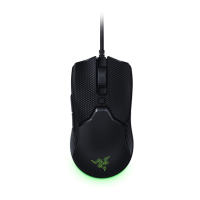



 To Next Page