50
Zooming / Locating desired scene
NOTES:
•You can select the Still Playback, Slow-
motion Playback or Fast Forward
(Review) Playback in the zoom mode.
• Some discs may not respond to zoom
feature.
Zooming
This TV/VCR/DVD will allow you to zoom in on the frame
image. You can then make selections by switching the posi-
tion of the frame.
1
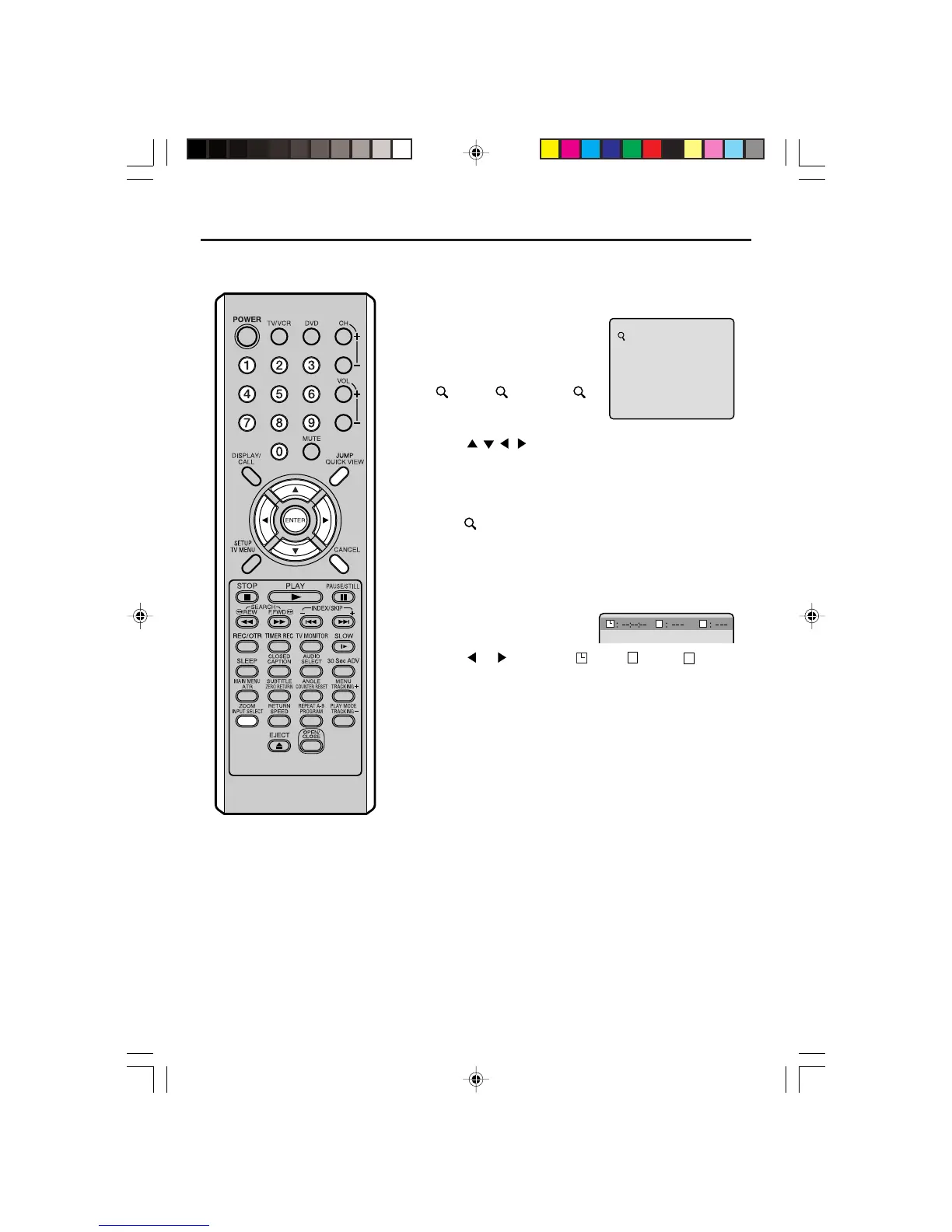
Press ZOOM during playback.
The center part of the image will
be zoomed in.
Each press of ZOOM will
change the ZOOM magnification
1 (x 1.3), 2 (x 1.5) and
3 (x 2.0).
2
Press / / / to view a different part of the frame.
You may move the frame from the center position UP, DOWN,
LEFT or RIGHT.
3
In the zoom mode press ZOOM repeatedly to return to a 1:1
view (
Off).
Locating desired scene
Use the title, chapter and time recorded on the disc to locate
the desired point to play back.
1
Press JUMP during playback.
2
Press or to select the “ Time”, “
T
T
Title” or “
T
C
Chapter”.
3
Press Number buttons (0–9) to input the number.
• If you input a wrong number, press CANCEL.
• Refer to the package supplied with the disc to check the
numbers.
4
Press ENTER.
•Playback starts.
• When you change the title, playback starts from Chapter 1 of
the selected title.
• Some discs may not work in the above operation.



 To Next Page