SECTION 6 – GENERAL INFORMATION
5.1 FAQs
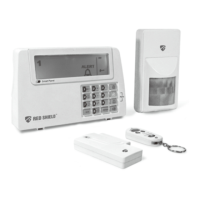
Q.1: What is the best way to set up my system? Where should I put my Smart Panel and the sensors?
A.1: We recommend that you take some time in advance to think about the placement of the Smart Panel and
Sensors. The best location for the Smart Panel is usually by the main entry/exit point, in a hallway, or in another
central location in your home. However, it must be plugged into a power socket, which may dictate where it can
be placed.
• Please note that the alarm is pre-programmed with default settings, allowing you a pre-determined amount
of time to enter (30 seconds) and time to exit (20 seconds) before the alarm sounds. front door you can either
change the default setting to allow more time to enter/exit your home or, alternatively use the Key Fob to disarm
the system.
Q.2: How many Sensors can the Smart Panel support?
A.2. An unlimited number of sensors can be supported by the system, added to different zones in your house,
as you see fit.
Q.3: What wireless range should I expect from Sensors?
A.3: The range will vary depending on the type of structure; however, in an open space, the sensors should be
capable of transmitting a signal up to 150 meters(500ft) from the Smart Panel. Determine the location of the
sensors first and change to a different location for better RF performance.
Q.4: How do I attach my Sensors?
A.4: Adhesive tape and screws are provided for the purpose of securely mounting these items. Please refer to
the user guide for more information about mounting the Smart Panel and the wireless sensors.
Q.5: Do I have to programme the Smart Panel?
A.5: The Wire-free Home Protection System WS500 is designed for easy installation. This means that the
wireless sensors are in a default setting already registered to the Smart Panel and will therefore function
immediately after the sensors are powered up. If you choose to buy additional accessories, these will need to
be added to your system using the easy to follow instructions.
*Note: Due to the strong signal of the alarm, we advise that you change the House Security Code settings
following section 4.3 of this manual, if you suspect that one of your in-range neighbours may also be using this
alarm system.
Q.6: Can I still use the same system if I move?
A.6. The Wire-free Home Protection System WS500 is completely portable. If you move, you can remove your
Smart Panel and wireless accessories and re-install them in your new property.
Q.7: What if I forget my PIN?
A.7: If you forget your PIN, you may press the “Reset” button inside the battery compartment of the Smart Panel
and the PIN will be reset to the factory default PIN 1234.
Q.8: Why does my Motion Sensor not respond to movement?
A.8: Motion Sensor are very sensitive so to preserve battery life the Sensor will go to “Sleep” after an event has
been identified and reported to the panel. This “Sleep” period lasts 3 minutes, after which, if no activity is
detected, the Motion Sensor will again become active and ready to detect other events.
Q.9: Why does my Motion Sensor keep generating false alarms?
A 9: If you have a pet, make sure they have not triggered the system. Remember, sensitivity to pets increases
in certain circumstances e.g. the nearer the pet to the Sensor.
5.2 Troubleshooting
AC power failure:
This may occur if your security system is accidentally unplugged or if there has been a mains power cut. If a
full power failure occurs, please contact your electric company to find out the source of the problem. The
back-up battery will continue to run the system for approximately 6 hours.
System battery failure:
This may occur if the emergency back-up battery has been drained and needs to be replaced. If AC power is
not restored, the low battery symbol will flash indicating that the Smart Panel back-up battery is running low.
The back-up battery should be replaced once the low battery symbol appears.
Sensor failure:
This may occur if a sensor is not communicating with the Smart Panel. It is necessary for you to ensure the
House Security Code dipswitch and jumpers of the sensors are set correctly to the Smart Panel.
6.1 Product Information
Wireless systems are reliable and tested to high standards; however, it is important to consider that there are
some limitations due to their transmitting power and range:
- Receivers may be blocked by radio signals occurring on or near operating frequencies, regardless of the
code selected.
- A receiver can only respond to one transmitted signal at a time.
- Wireless equipment should be tested regularly to determine whether there are sources of interference and
to protect against faults.
6.2 Specifications
6.2.1 Smart Panel
Power source: AC adaptor
Back up power: 9V alkaline battery x1pc
Sensor numbers: Unlimited
House Code: 4 Jumpers
Operating frequencies: 433.92MHz +/-0.5MHz
Siren output: 120dB (Duration-adjustable)
6.2.2 Key Fob Remote Control
Power source: 12V alkaline battery x 1pc
RF working transmission frequency: 433.92MHz +/-0.5MHz
House Code: 4 Jumpers
Wireless range to Smart Panel: <65 meters (215ft,open area)
6.2.3 Door/Window Sensor
Power source: AAA alkaline battery 1.5V x 2pcs
RF working transmission frequency: 433.92MHz +/-0.5MHz
House Code: 4 Jumpers
Zone Code: Pin header: 8 pin
Wireless range to Smart Panel: <150 meters (500ft,open area)
6.2.4 Motion Sensor
Power source: 9V alkaline battery x1pc
RF working transmission frequency: 433.92MHz +/-0.5MHz
PIR detection angle: <110 Degree (@9VDC)
PIR detection range: “H”:< 15M(50ft); “M”:< 6M(20ft); “L”:< 4M(13ft);
House Code: 4 Jumpers
Zone Code: Pin header: 8 pin
Wireless range to Smart Panel: <150 meters (500ft,open area)
Power saving timer: 3 minutes
6.3 Maintenance
The product may be cleaned with a soft damp cloth and then wiped dry. Do not use abrasive, solvent based
or aerosol cleaners as this may damage and/or discolour the product. Do not allow water to enter or attempt
to clean the inside of the unit.
6.4 Batteries
Do not allow batteries to corrode and leak as this may cause permanent damage to the product.
Take care to insert the batteries with the correct polarity as shown inside the battery compartments.
Do not mix new and old batteries or different types of batteries.
Do not fit rechargeable batteries.
At the end of their useful life the batteries should be disposed of via a suitable Recycling Centre. Do not
dispose of with your normal household waste. DO NOT BURN.
FCC Regulation:
This device complies with Part 15 of the FCC Rules. Operation is subject to the following two
conditions: (1) This device may not cause harmful interference, and (2) This device must accept any interference
received, including interference that may cause undesired operation.
Warning: Changes or modifications to this unit not expressly approved by the party responsible for compliance
could void the user’s authority to operate the equipment.
NOTE: This equipment has been tested and found to comply with the limits for a Class B digital device, pursuant
to Part 15 of the FCC Rules. These limits are designed to provide reasonable protection against harmful interference
in a residential installation. This equipment generates, uses and can radiate radio frequency energy and, if not
installed and used in accordance with the instructions, may cause harmful interference to radio communications.
However, there is no guarantee that interference will not occur in a particular installation. If this equipment does
cause harmful interference to radio or television reception, which can be determined by turning the equipment
off and on, the user is encouraged to try to correct the interference by one or more of the following measures:
• Reorient or relocate the receiving antenna.
• Increase the separation between the equipment and receiver.
• Connect the equipment into an outlet on a circuit different from that to which the receiver is connected.
• Consult the dealer or an experienced radio/TV technician for help.
- 21 -
- 20 -


 To Previous Page