OPERATION
1) Power Button
Press the Power Button to turn ON or OFF the unit. A red light means the unit is in
standby, a Blue light means the radio is on.
2) Volume/Select Knob
Rotate the knob left or right to change the volume level.
Press the knob to select one of the following functions:
VOL---BASS---TREB---BAL---FAD
Rotate the knob to adjust the desired setting.
3) Band/Enter Button
Press this button to change radio bands as follows:
FM1—FM2—FM3—AM1—AM2
Press this button to confirm changes in the SETUP menu
4) Mode Button
Press this button to select source mode (RADIO/DISC/USB/CARD/AUX1/AUX2)
*USB and SD card must be inserted to activate these modes
5) Reset Button
If there is a malfunction of the unit, pressing the RESET button will clear the system
6) Scan/Setup Button
Press and hold this button for 2 seconds to auto program available stations into all the
preset memory buttons. This function will erase previous memorized stations and store
the newly searched stations. Once completed, the radio will scan for 5 seconds through
each of the preset stations of either the AM or FM band.
Press this button to automatically preview all radio stations in that band for 5 seconds
Setup Button
During video playback operation only, the Setup button can be pressed to access the
radio’s SETUP MENU. Doing so will PAUSE the source material until the user
exits.
**The SETUP options can only be seen with a monitor connected to the
composite video output. The radio will display PAUSE, continue to press SETUP
to exit this menu.
7) Preset Memory, Scroll, Recall Buttons
Press these buttons momentarily to select the preset stations.
Press and holding a button will preset the current station to the button being pressed.
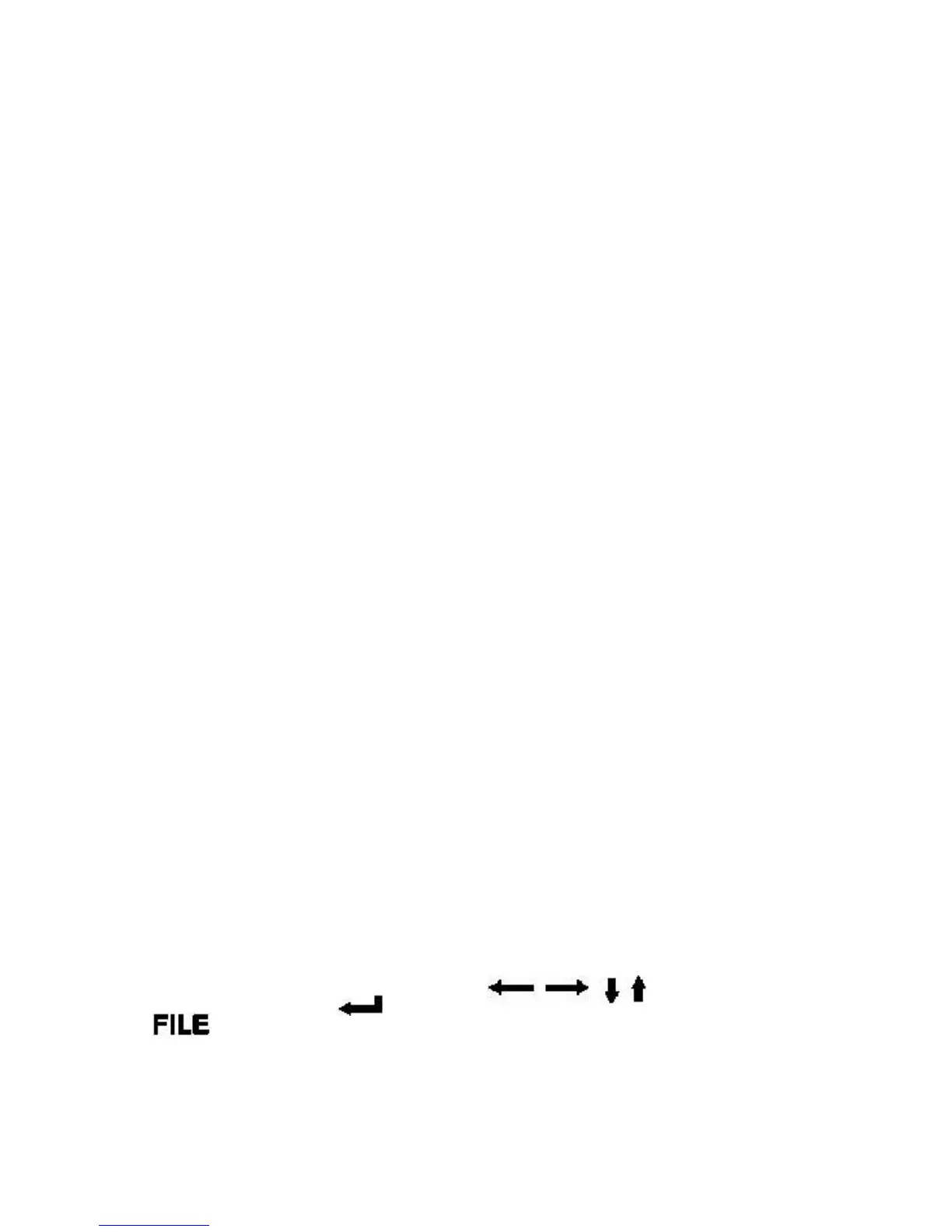
While in video SETUP, use these buttons to scroll through
available options. Press or BAND/ENTER to confirm the desired selection.
The Button selects the desired file format for playback ie. MUSIC, PHOTO, or
MOVIE when multiple formats are available on the source media(CD/DVD/USB/SD).


 To Next Page