SECTION 4
SOFTWARE SETUP INFORMATION
64
Envelope #10, Feeding Flap First:
Valid when using Microsoft Word
®
2007 and the M Series Driver version R9.1.
The following procedure assumes that the printer has been setup to feed # 10 envelopes, flap first and that
you are using Windows 7.
Don’t forget to position the “Media Registration Side Guide” to the outer position.
NOTICE! During this process we found that MS-Word 2007 would over-ride our settings; making this
setup process very frustrating. Therefore we recommend using Satori Bulk Mailer as a better alternative.
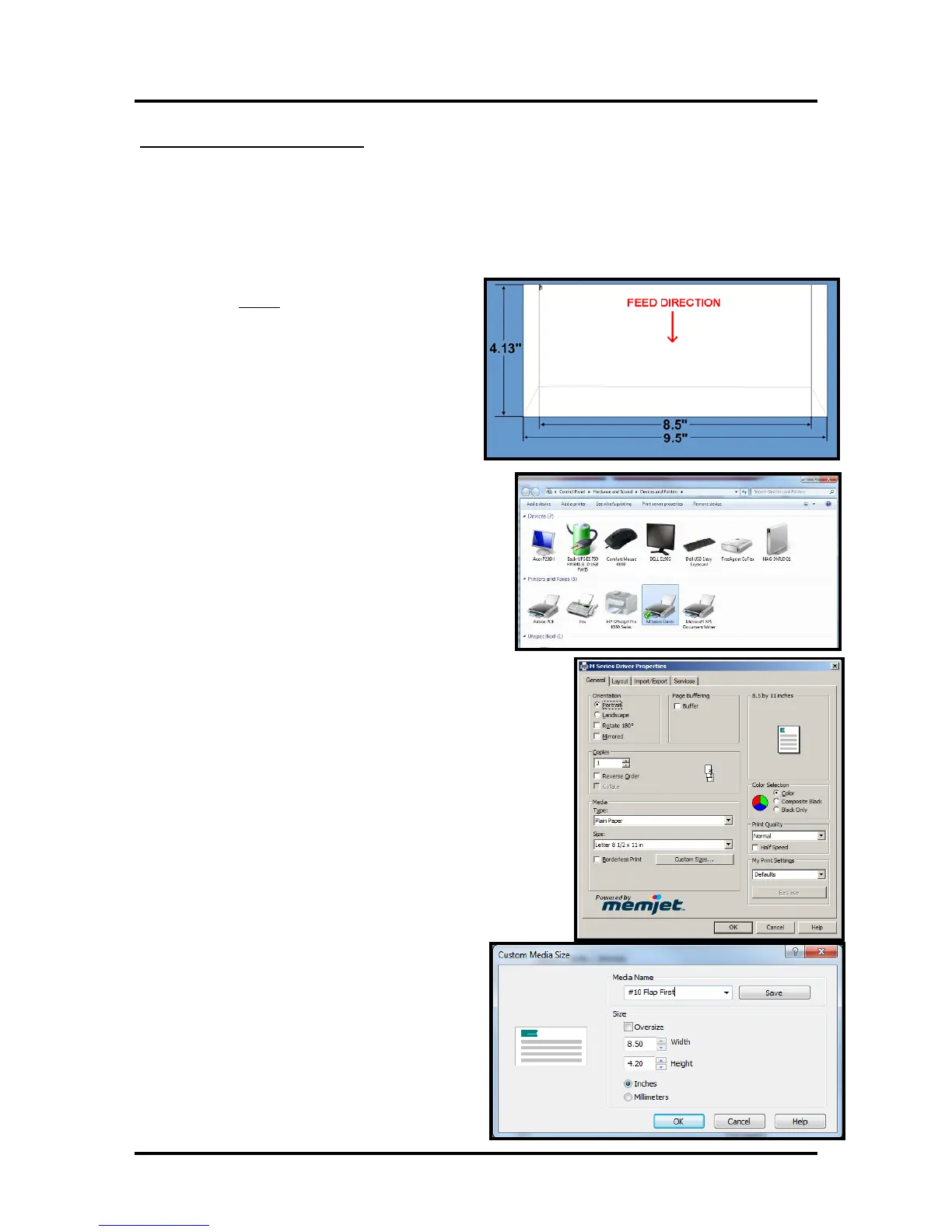
NOTE: When feeding a #10 envelope in this
orientation you cannot
print the entire width of the
envelope. Since the printer’s maximum print width
is 8.5”; the document size in MS Word will be set to
8.5” W x 4.13” H and the orientation will be set to
Portrait.
1. Close MS-Word; if you have it open.
Tip: The custom media size, you define in
step 4-8 below, may not show as a choice
in MS-Word if it is already open.
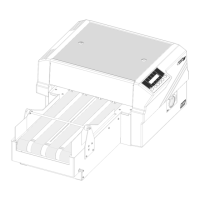
2. Click on the Start icon, and then select “Devices
and Printers”.
3. Right-Click on M Series Driver and select
“Printing preferences”.
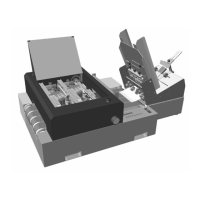
The “M Series Driver Printing Preferences”
window will open.
4. On the “General” Tab, under “Orientation,” click on
Portrait.
5. Then under “Media”, “Size:”, click on the “Custom Sizes”
button.
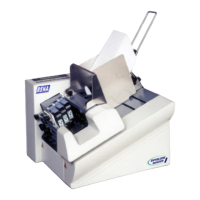
The “Custom Media Size” window will open.
6. In the “Media Name:” area; type a custom name.
Example: “#10 Flap First”
7. Set the Size to:
Width: 8.50”
Height: 4.20”
Tip: If you set height to 4.13” it will default
to 4.20”.
8. Click on Save.
Then Click on OK to close the “Custom
Media Size” window.


 To Next Page