“Write2Go Anywhere” Application
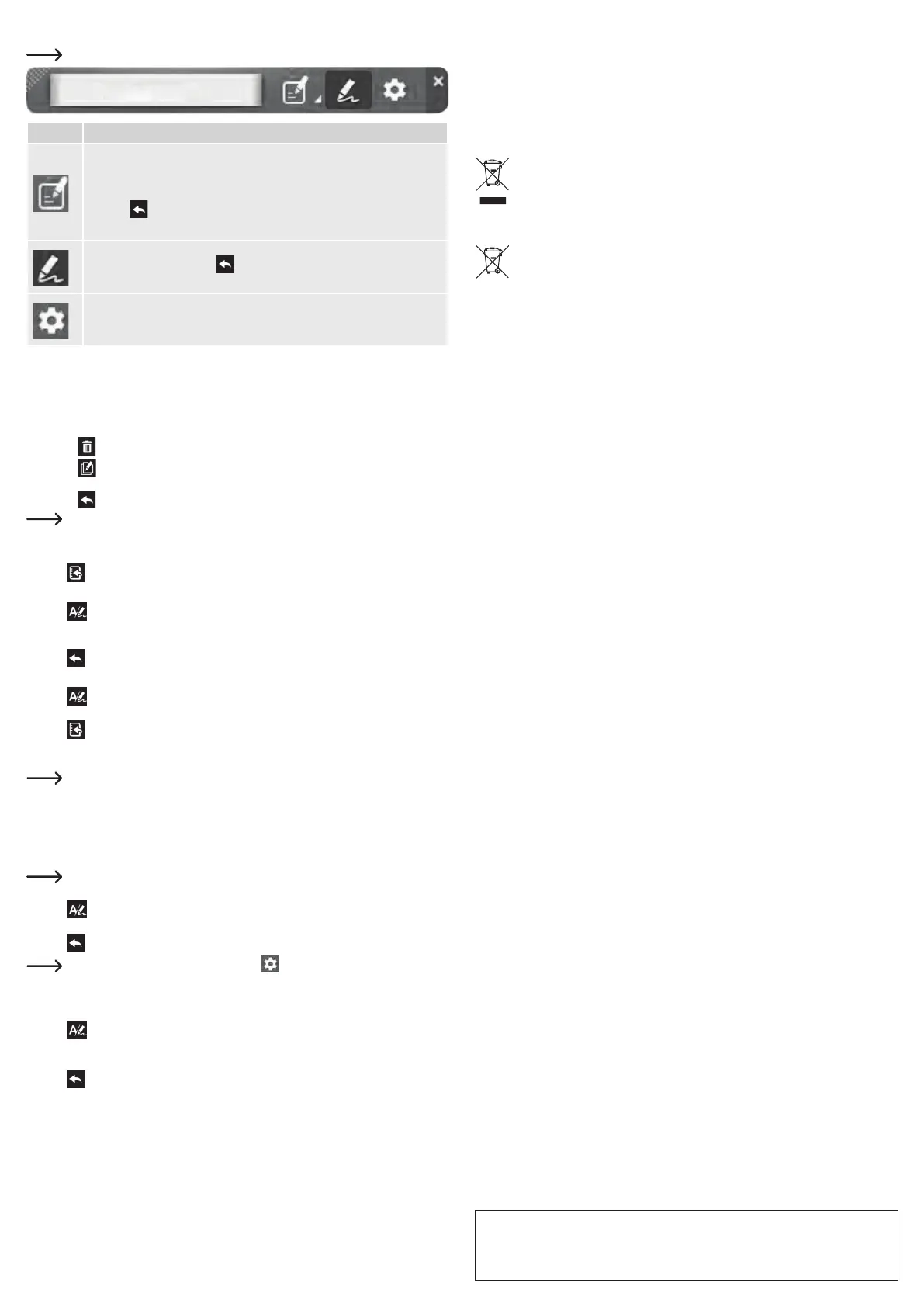
A menu bar will automatically show when your device is connected to a computer.
Icon Description
Send to Application:
• Select an application from the dropdown menu: Application (any supported application),
Google Calendar, or Outlook Calendar.
• Press to transfer a drawing/writing. The application window has to be open and
active for it to transfer.
• Signature Mode: Pressing sends your E-signature to a supported application.
The application window has to be open and active for it to be placed.
Settings: Access General, Memo, and Signature settings.
Operation
a) Writing Notes
• If not connected to a computer, switch the power ON (12).
• Use the pen (2) to write on the LCD notepad (1).
- Press to clear the LCD notepad (1).
- Press to continue a note onto a new page. The appended note will be combined into one after
it is uploaded to a computer.
- Press to save a note.
“Offline” notes will automatically backup after connecting the device to a computer.
b) Upload Notes to a Computer
• Connect the device to a computer via USB.
• Press to upload any saved notes.
c) Place Notes into a Document
• Press and select “Send to Application” on the“Write2Go Anywhere” menu bar.
• Open a document file such as Microsoft Word, and click the cursor on the location you want to send the
handwritten note to.
• Press to place the note into document.
d) Pin Notes as Desktop Memos
• Press and select “Send to Application” in the“Write2Go Anywhere” menu bar.
• Write on the LCD notepad (1).
• Press to send the note to a computer.
• You will be asked to upload the offline memos, select YES. The uploaded notes will be “pinned” to the
desktop as a reminder.
The pin function can be canceled through settings. Written memos are converted to text via the
software to make it searchable and easier to manage. The default text recognition language will
be your system language.
e) Insert a Signature
• Open the document you wish to sign e.g. MS Word, Adobe PDF, and position the cursor where you want
to apply the signature.
For PDF documents, you may need to first left click the blank space on your computer taskbar,
then left click where you want to place it on the document.
• Press and select “Signature Mode” in the “Write2Go Anywhere” application.
• Sign your name on the LCD notepad (1).
• Press to place the signature.
Add a name and timestamp through Settings > Signature. You can manage signatures
using the “PenPower Memo Board” Application.
f) Instant Messaging Notes
Send handwritten notes through your favourite messaging application:
• Press and select “Send to Application” in the“Write2Go Anywhere” application.
• Click the chat box in your messaging application.
• Write on the LCD notepad (1).
• Press to send the handwritten note.
g) Deleting Notes
Notes cannot be deleted from the device when in “offline” mode. Connecting to a computer will upload all
notes. The built-in memory will clear after the data transfer is complete. You can further manage and delete
notes from your computer.
Care and Cleaning
• Always unplug the product from the USB port before cleaning.
• Do not use any aggressive cleaning agents, rubbing alcohol or other chemical solutions as they can
cause damage to the housing and malfunctioning.
• Clean the product with a dry, fibre-free cloth.
Disposal
a) Product
Electronic devices are recyclable waste and must not be disposed of in the household waste.
At the end of its service life, dispose of the product in accordance with applicable regulatory
guidelines.
Remove any inserted batteries and dispose of them separately from the product.
b) Batteries
You as the end user are required by law (Battery Ordinance) to return all used batteries.
Disposing of them in the household waste is prohibited.
Contaminated (rechargeable) batteries are labeled with this symbol to indicate that disposal
in the domestic waste is forbidden. The designations for the heavy metals involved are: Cd =
Cadmium, Hg = Mercury, Pb = Lead (name on batteries, e.g. below the trash icon on the left).
Used batteries can be returned to collection points in your municipality, our stores or wherever batteries
are sold.
You thus fulfill your statutory obligations and contribute to the protection of the environment.
Technical Data
a) General
Power supply ........................................ 2x 1.5 V AAA batteries
Operating voltage/current ..................... 5 V/DC, max. 100 mA
Battery life ............................................. Approx. 50,000 erase cycles
Internal memory .................................... 128 MB
Auto shut-off (offline) ............................30 sec of no activity
Operating conditions ............................. +10 to +40 °C, 10 – 80 % relative humidity (non-condensing)
Storage conditions ................................ -10 to +65 °C, 10 – 80 % relative humidity (non-condensing)
LCD notepad (W x H) ........................... 108 x 60 mm
USB cable length .................................. 150 cm (without connector)
Dimensions (W x H x D) ....................... 136 x 125 x 22 mm
Weight ..................................................95 g (without battery)
b) Software
Name .................................................... Write2Go Anywhere, PenPower Memo Board
Language support ................................. German, English (United States), French (standard), Italian,
Spanish, Japanese, Korean, Chinese (Simplified, Traditional),
Calendar sync ....................................... Google, Outlook
E-signature support .............................. PDF, MS Excel / Word
Supported applications ......................... Windows
®
and MacOS:
Microsoft: Word, Excel, PowerPoint, Outlook, OneNote,
Evernote, Open Office,
Line, QQ, WeChat, Facebook Messenger, Skype, KaKao Talk,
WhatsApp
Windows
®
:
Microsoft: Paint, Sticky Notes
Adobe PDF Reader, Foxlt PDF Reader
Viber, Nimbuzz
MacOS: Keynote
System requirements ............................ 1 GB free storage (for 32-bit operating systems)
2 GB free storage (for 64-bit operating systems)
Supported operating systems ............... Windows
®
7, 8 (desktop mode), 10
MacOS X 10.11 or later
This is a publication by Conrad Electronic SE, Klaus-Conrad-Str. 1, D-92240 Hirschau (www.conrad.com). All rights
including translation reserved. Reproduction by any method, e.g. photocopy, microlming, or the capture in electronic data
processing systems require the prior written approval by the editor. Reprinting, also in part, is prohibited. This publication
represent the technical status at the time of printing.
Copyright 2019 by Conrad Electronic SE. *2115068_v1_0719_02_dh_m_en



 To Next Page
 Loading...