iGo map Operation
Current GPS
position and
starting
point
Waypoint
(intermedi-
ate destina-
tion)
Destination
(end point)
Route color
Streets and
roads that
are exclud-
ed from the
navigation
It is your current position displayed
on the map.
If a vehicle is selected for route
calculation and roads are near, the
arrow jumps to the nearest road.
Normally, if GPS position is available,
the route starts from the current
position. If there is no valid GPS
position, Epsilon Linux device uses
the last known position as the
starting point.
It is an intermediate destination of
the route before reaching the final
destination.
The route always stands out with its
color on the map, both in daytime
and night color modes.
You can choose whether you want to use
or avoid certain road types. However,
when Epsilon Linux device cannot avoid
such roads, the route includes them and
shows them in a color that is different
from the route color.
It is the final destination of the route.
Symbol
/Name
Description
2.3.1 Streets and roads
V2 device shows the streets similarly to paper road
maps. Their width and colors correspond to their
importance; you can easily tell a freeway from a small
street.
2.3.4 The planned route
The planned route is the currently navigated route.
Whenever the destination is set, the route is active
until you delete it, reach your destination or suspend
navigation. Epsilon Linux device displays the route in
the following ways:
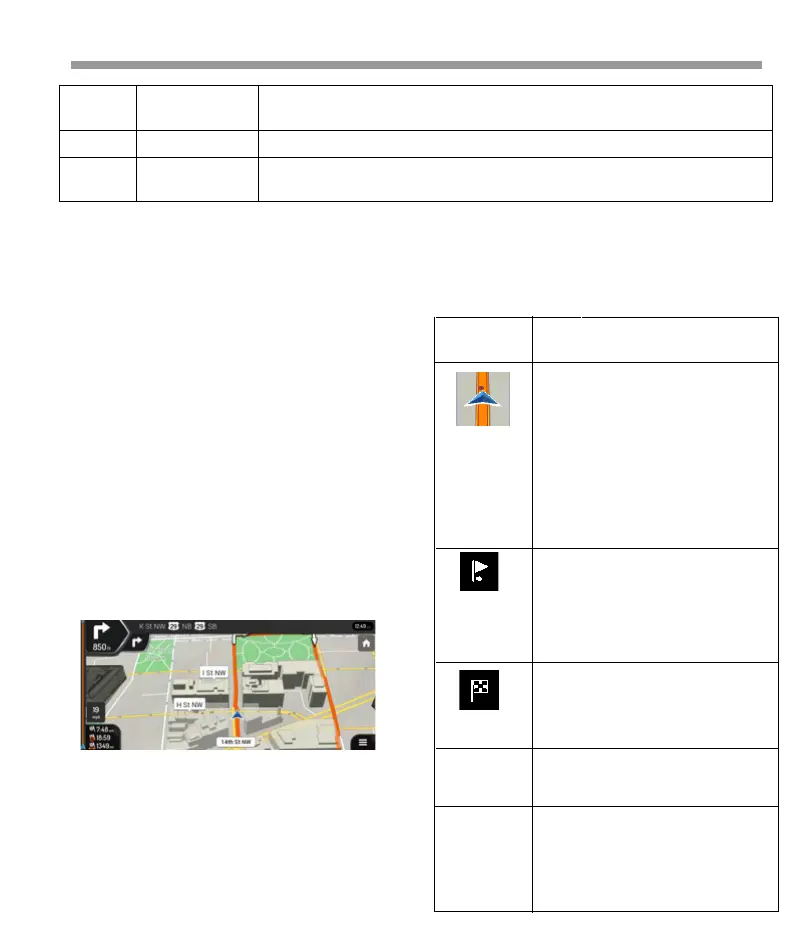
There is a field in the top left corner displaying the
next maneuver. Both the type of the maneuver (turn,
traffic circle, exiting freeway, and so on) and its
distance from the current position are displayed. A
smaller icon shows the type of the second next
maneuver if it is near the first one. Otherwise, only the
next maneuver is displayed. Tap the icon of the actual
maneuver to open the Itinerary screen.
2.3.2 GPS position markers
When your GPS position is available, Epsilon Linux
device marks your current position. By default, this
marker is a blue arrow. The dot near the arrow shows
the GPS position as perceived by the GPS
receiver.When on-road navigation is selected, the
current position marker may not show your exact GPS
position and heading. If roads are near, it is aligned to
the nearest road to eliminate GPS position errors, and
the direction of the icon is aligned to the direction of
the road. If you select off-road navigation, the current
position marker is at your exact GPS position. The
direction of the icon shows your current heading.
2.3.3 Turn preview and next street
When navigating a route, the top section of the
Navigation view shows information about the next
route event (maneuver) and the next street or the
next town.
By tapping it, you can open the Navigation menu, where you can reach other
parts of Epsilon Linux device.
They display hills, mountains, roads, landmarks, and buildings in 3D.
It shows the current street name. By tapping it, you can open the Where Am I
screen.
34


 To Next Page
 Loading...