3. Tap the House number or crossing street field and
browse the list of crossing streets or start entering the
street name in the field. Select one from the list.
3.1.3.1 Using Quick search categories
The Quick search feature helps you quickly find the
most frequently selected types of Places. Perform the
following steps:
4. Continue the search as described previously .
3.1.2.6 Using the ZIP code to select a destina-
tion
You can also select any kind of destination by
entering the ZIP code instead of the city name. To
select the ZIP code, perform the following steps:
iGo map Operation
1. Go to , , and modify the country and
state as described earlier.
3.1.3 Selecting a Place of Interest
You can search for Places of Interest (Places) in the
menu. Using the same screen, you can find a Place by
selecting one of the following options:
*Finding frequently searched types of Places with the
Quick search categories
* Searching for a Place by its name,
*Searching for a Place by its category,
*In case of emergency, you can also find help nearby,
If there is no planned route (destination is not
selected), the search is carried out around the current
position. If the current position is not available either
(no GPS signal), places are searched around the last
known position.
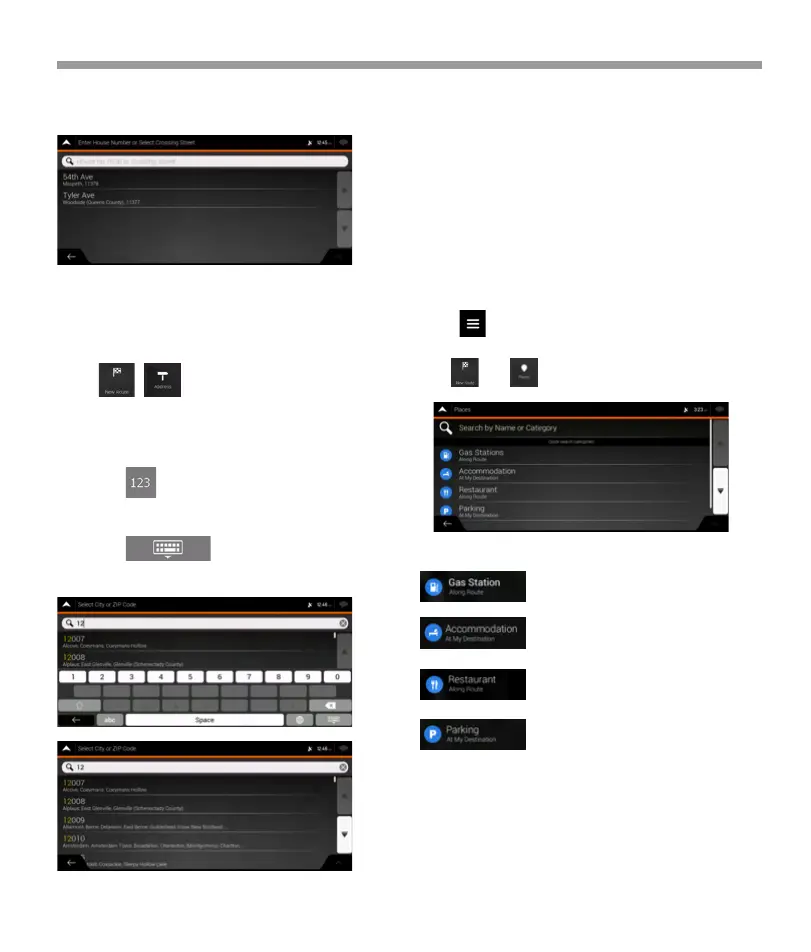
2. Tap the Town or ZIP code field. 3. Enter the ZIP code
by performing the following steps:
1. Tap on the Navigation view to access the
Navigation menu.
2. Tap and .
The following Quick search categories appear: .
: If a planned route exists, gasstations
are searched along the route.
: If a planned route exists, accommo-
dation is searched around the
destination.
: If a planned route exists, restaurants
are searched along the route.
: If a planned route exists, parking
lots are searched around the
destination.
a. Tap to open the numeric keypad.
b. Start entering the ZIP code.
c. Tap to open the list of results.
d. Find the place you need.
45


 To Next Page
 Loading...