iGo map Operation
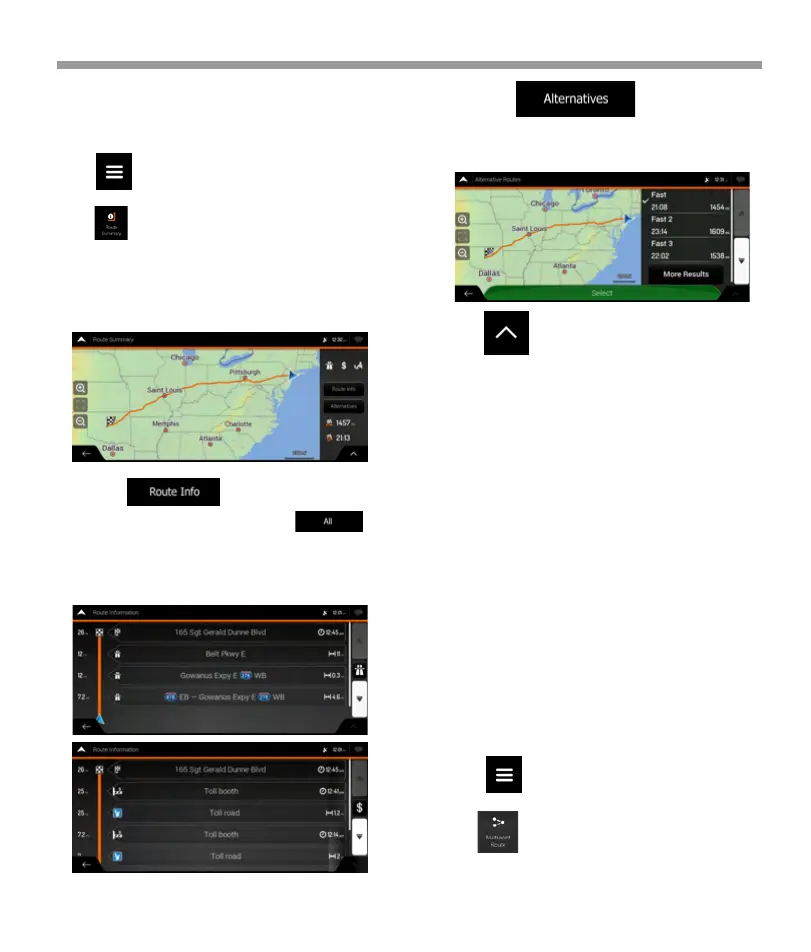
The planned route is displayed in its full length on the
map with the following additional information:
*The total length of route
*The total time of route.
3. Tap on the Route Summary screen to carry
out additional actions, for example edit your route
preferences or display the itinerary.
By tapping , you can check detailed
information about the route. If you tap on
the right side of the screen, you can narrow the route
information, for example to show only freeway
sections or toll roads.
By tapping , your can see a list
of route alternatives and select the most suitable
route.
3.3 Editing the route
When navigation has already started, there are several
ways to modify the planned route. You have the
following options:
*Setting a new starting point,
* Adding an additional destination
*Modifying the list of destinations,
*Saving the planned route,
*Deleting the planned route,
*Selecting a route alternative when planning the
route,
*Selecting a route alternative for an existing route,
* Pausing guidance.
3.3.1 Setting a new starting point
For normal navigation, all routes are calculated from
the current position. You can pause navigation to
check future routes, simulate them or see their length
in time and distance. Then you can set the starting
point of the route to a location other than the current
GPS position.
3.2 Checking route information and alternatives
To get a map overview of the planned route and
check different parameters of the planned route,
perform the following steps:
1. Tap on the Navigation view to access
the Navigation menu.
2. Tap .
1. Tap on the Navigation view to access
the Navigation menu.
2. Tap .
54


 To Next Page
 Loading...