iGo map Operation
4.3.4 Navigation View settings
These settings allow you to fine-tune the appearance of
the Navigation view. You can also adjust how the
software helps you navigate with different kinds of
route-related information on the Navigation view.
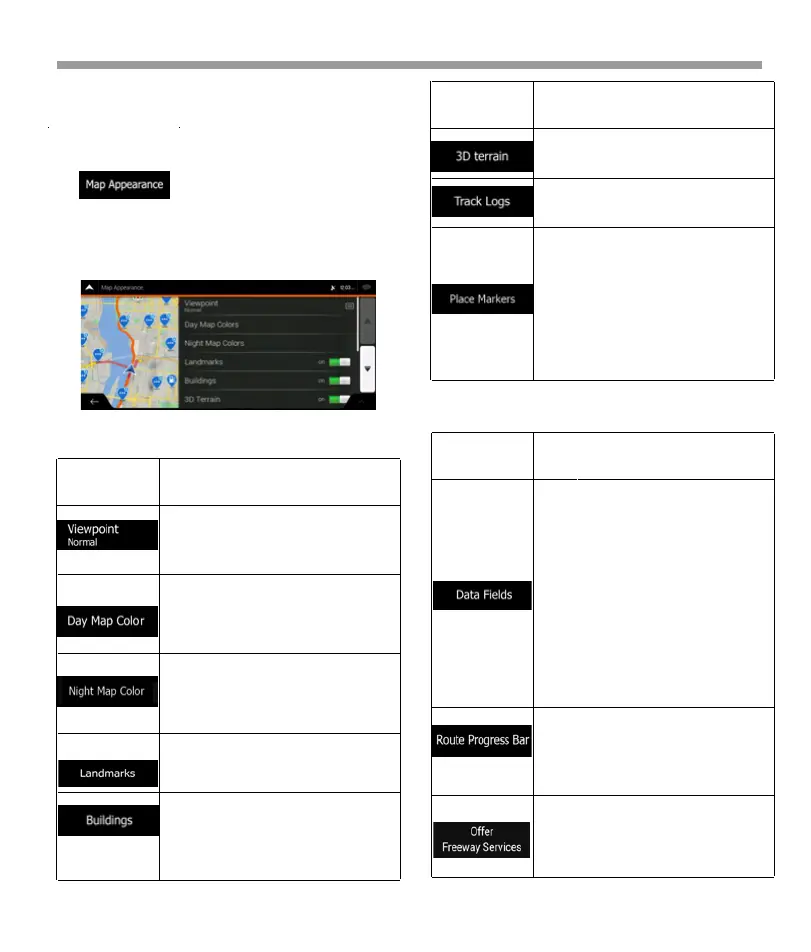
You can modify the following additional settings on the
Navigation View screen:
Tap to adjust the navigation view to your
needs, choose suitable color themes from the list for
both daytime and nighttime use, show or hide 3D
buildings, landmarks, and manage your Place visibility
sets (which Places to show on the map).
Adjust the basic zoom and tilt
levels to your needs. Three levels
are available.
Select the color scheme used in
daytime mode. Daytime colors
are bright and similar to paper
road maps.
Select the color scheme used in
night mode. Night colors are
darker to keep the average
brightness of the screen low.
Show or hide 3D landmarks (3D
representations of prominent or
well-known objects).
Show or hide 3D city models (3D
block representation of full city
building data containing actual
building size and position on the
map).
Button Function
If you are navigating with a
planned route, you can set three
data fields to be displayed on the
Navigation view. You can choose
from the time of arrival at destina-
tion, distance to destination, time
to destination, time of arrival at
waypoint, distance to waypoint,
time to waypoint, heading, or
altitude. Without a planned route,
there is only one data field that
can be set to show the heading or
the altitude.
Turn the Route Progress Bar on or
off. If turned on, an orange line is
displayed on the side of the
screen, and a blue arrow on it
shows your progress.
Turn it on to get freeway service
information (for example gas
stations, restaurants) or turn it off if
you do not need it.
Button Function
Show or hide the 3D elevation of
the terrain.
Turn on Track Logs to show them
on the map or turn them off.
Select which Places to show on
the map while navigating. Too
many Places make the map
crowded so it is a good idea to
keep as few of them on the map as
possible. Tap the name of the
Place category to show/hide it or
to open the list of its subcatego-
ries.
Button Function
You can modify the following settings:
71


 To Next Page
 Loading...