6
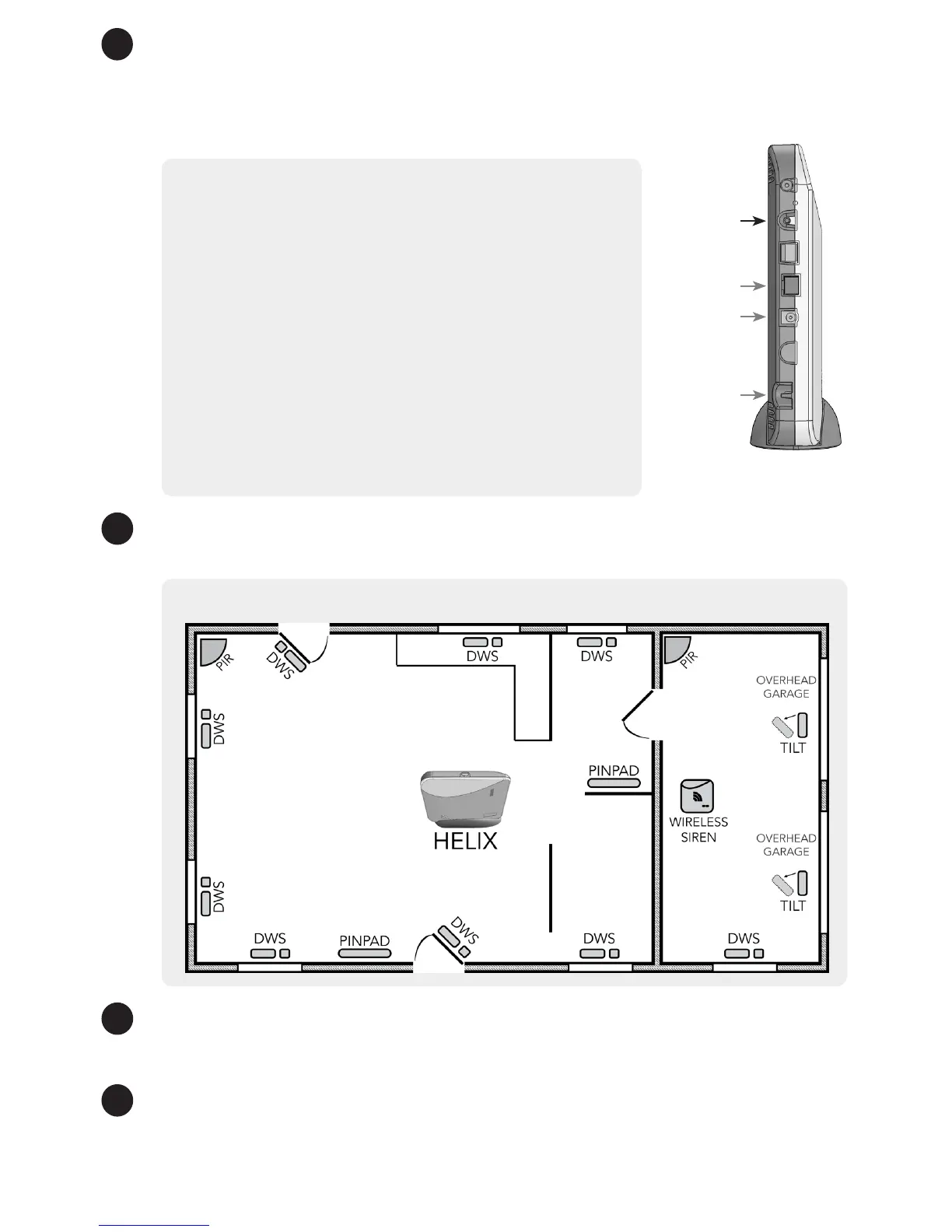
Enroll sensors and peripherals by pressing the Enroll/WPS button on the side of
Helix until it beeps once (roughly 3 seconds) and then sending an enrollment signal
from the sensor or peripheral. Alternatively, a device can be enrolled by scanning its
bar code using the HeliLink app or by entering its 8-character serial number on the
interactive services provider’s web portal.
Enrollment Tips
• Enrollment signals are typically triggered by
removing the battery tab or tampering the device.
See the specic device manual for more information.
• The HeliLink mobile app can be used to enroll and
congure sensors.
• Your interactive services provider’s web portal may
provide a way to enter and exit wireless enrollment
mode.
• Wireless enrollment mode will end 5 minutes after
the last sensor is enrolled.
• Enrolling a HeliPad or other 2.4GHz peripheral will
automatically end wireless enrollment mode.
• Tapping the Enroll/WPS button will end wireless
enrollment mode.
7
Install your sensors & peripherals in desired locations around the house. Refer to
the specic device manual for more information regarding installation and use.
Typical Burglary Protection Installation
8
Congure Helix, sensors, and peripherals using the HeliLink mobile app or the
interactive services provider’s web portal. Conguration options are described in the
conguration guide.
9
Finally, test the system after nishing installation, enrollment, and conguration.
Verify proper operation of all installed sensors and peripherals using the HeliLink app
or the interactive services provider’s web portal. All sensors and peripherals should
score at least one bar on the RF signal strength indicator. See Pro Tips - RF Signal
Strength.
Enroll/WPS
Ethernet Port
Power Jack
Power Strain
Relief


 To Next Page
 Loading...