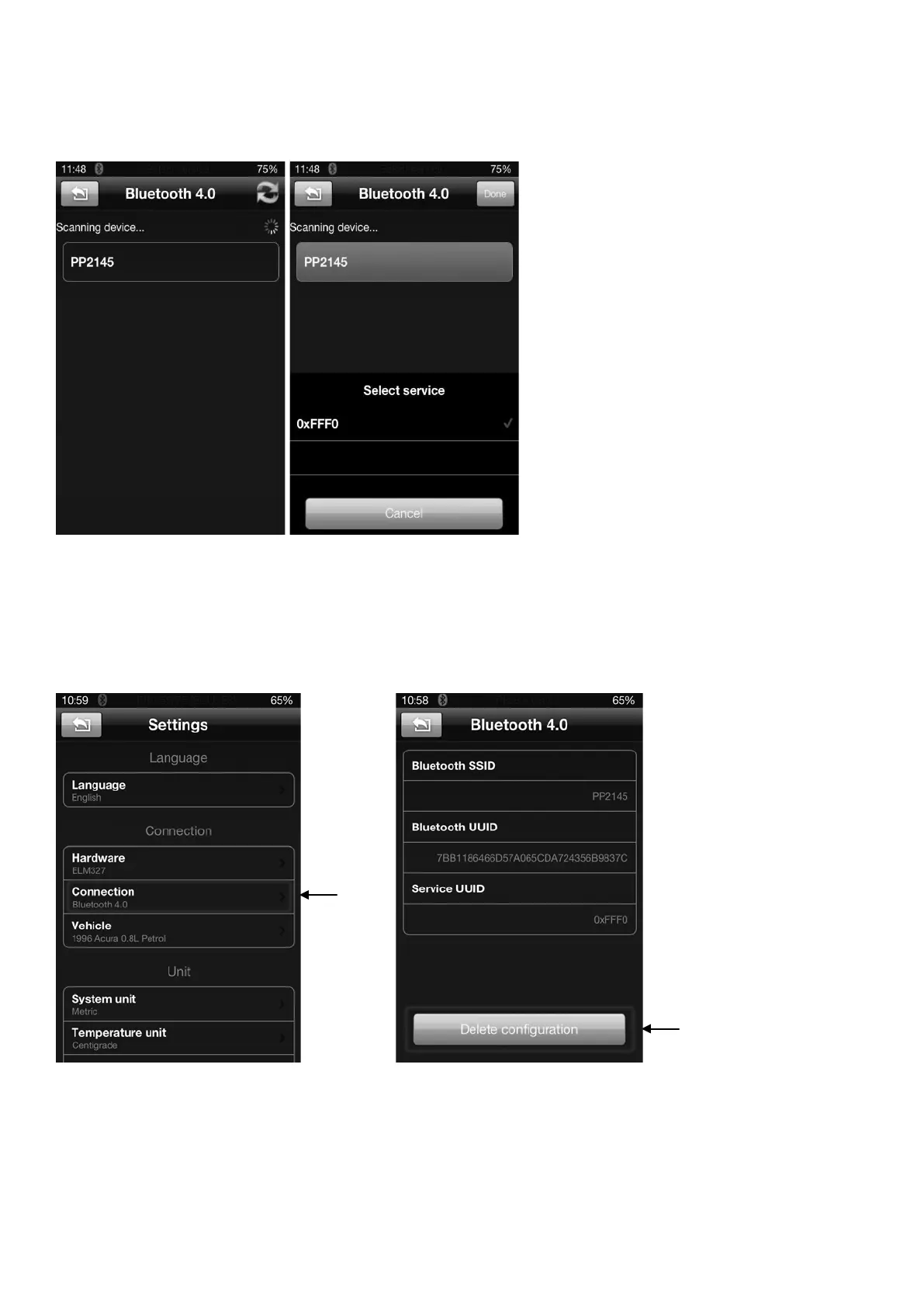
7. After changing these settings, the app will scan for the OBD-II device automatically.
Select PP2145 and click ‘done’ when it is found. If it does not scan automatically, please
to go the ‘Settings’ and ‘Connection’ to check that you have selected the correc
t
connection – ‘Bluetooth 4.0 / PP2145’.
8. W
ait for the app to pair with the OBD-II device. The pairing status will be shown at the
top of the screen.
9. Once it shows ‘Connection Successful’ then you can use the app according to your need.
10. If you have trouble pairing, delete the configuration and start the process again. Do this
by going into ‘Settings’, ‘Connection’, find the device name that you paired before, click
on the name and select ‘Delete Configuration’.
N
OTE: If “Connection Failed” comes up during the pairing process, this may be a result of
not following the correct set up procedure, or this unit does not support your car’s OBDII
Protocol. Please note that it will continue to attempt pairing even if pairing is not successful.


 To Next Page