2.5 Location in the MAP
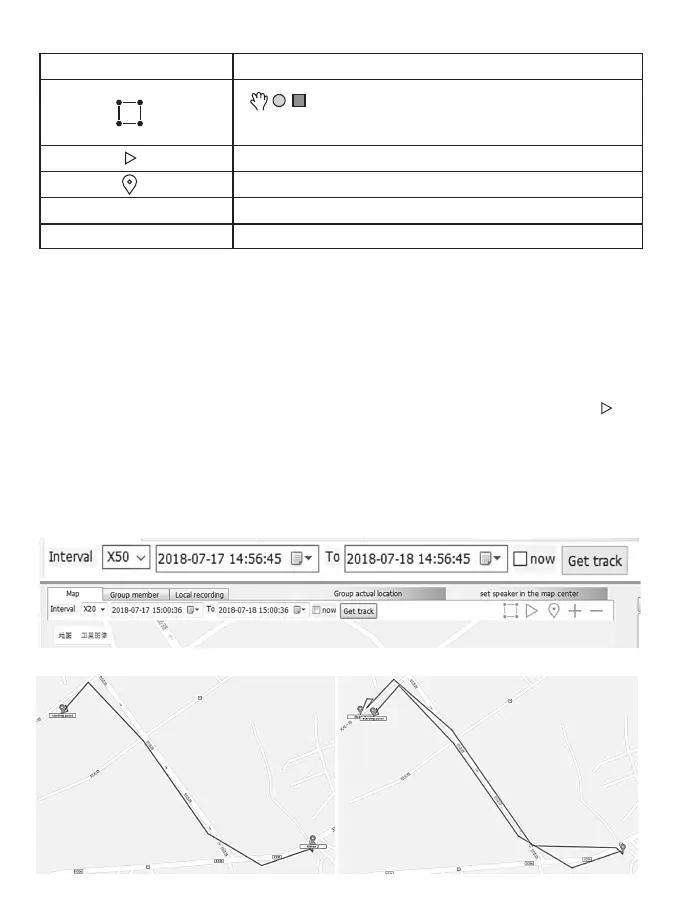
Function Instruction
Terminal Box selected, use the Rectangular
Box or round box to choose the desired area
Track replay
Terminal Location
Map Zoom-in
Map Zoom-out
△
+
-
△
Note: The GPS function only wo rk outside, in the common case, it will open within 1 minutes,
he weather will affected.
If the GPS is succeed get the location, the GPS icon will be black, if not it will be red Icon.
2.6 Get track:
you can check the radio’s activity trajectory within a period of time.
Operation:
1) Click one radio you want to speak to, then right click, you can find three options: Private call/Get location/Get
track
2) After you choose the get location, you can see the radio’s trajectory on the map. You can also click the to
get track
3. Interval: 5/10/20/50S
It means the radio will uploads the GPS information in the chosen time.
4. The activity trajectory records will be saved one month, and every time you can track the activity trajectory
within 24 hours, for example, when the start time is 2018-7-18 14: 56: 45, the end time should be within
2018-07-18 14: 56: 46 to 2018-07-19 14: 56: 44
15


 To Next Page