37
81;2\)"%&#B,)2%
E.%4<&$1\
@#21bE.%4<&/%22+$H&&&&&&&&&&&&&&&&&e
SYSTEM SETTINGS
SOFTWARE UPDATES (Continued)
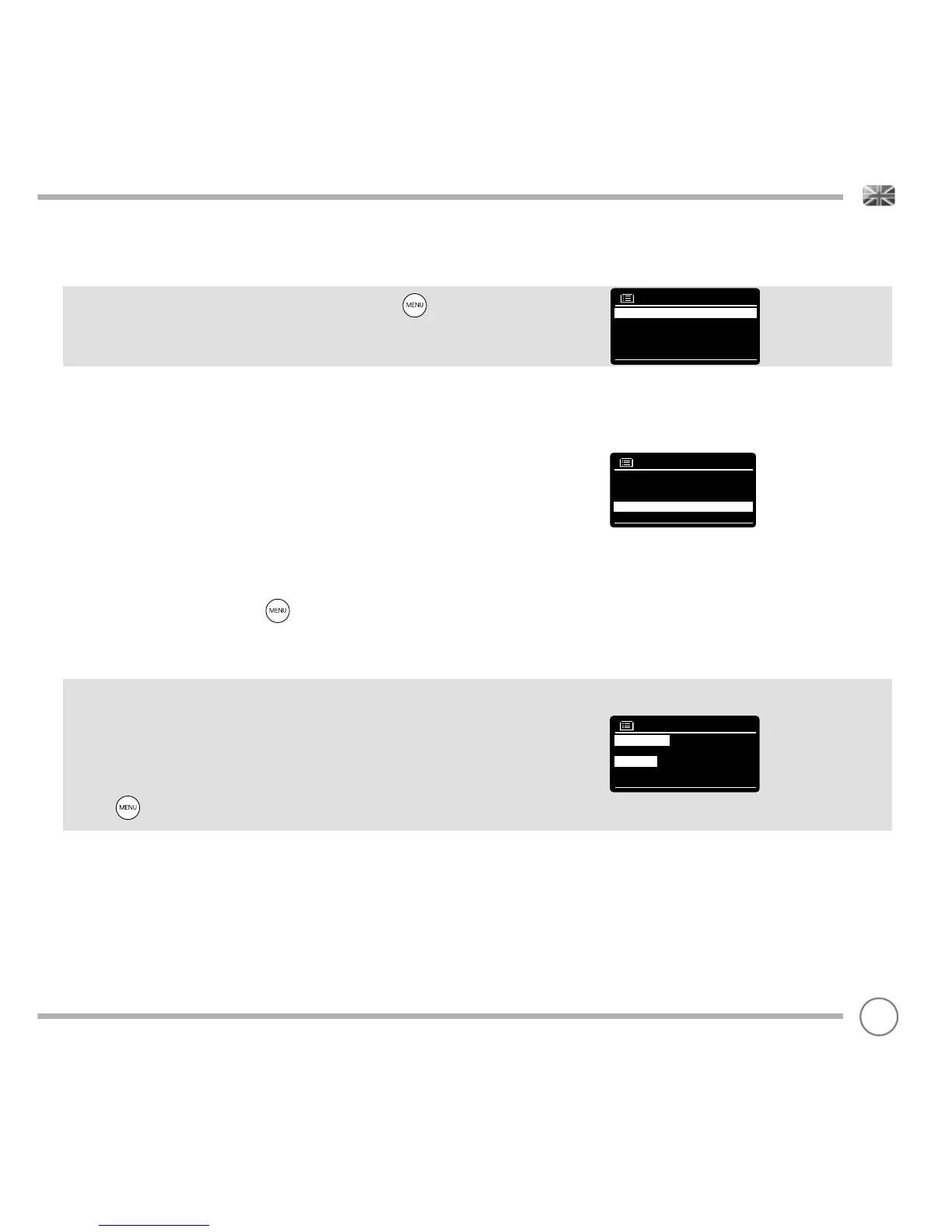
If you’d prefer to manually check for software updates, press
then select MAIN MENU. Now choose SYSTEM SETTINGS, then
SOFTWARE UPDATES. Select AUTO-CHECK SETTING then choose NO
when prompted.
To manually check for updates, select CHECK NOW from the
SOFTWARE UPDATES menu.
CAUTION: Before commencing a software upgrade, ensure that
SuperConnect is plugged into a stable mains power connection.
Disconnecting power during a software update may permanently
damage your radio.
SETUP WIZARD
The SETUP WIZARD simplifi es the set-up of both time/date and internet
settings, by running through a series of questions.
To access the SETUP WIZARD, press then select MAIN MENU,
followed by SYSTEM SETTINGS. Now select SETUP WIZARD from the
menu list.
INFO
When dealing with a technical support issue, you may be asked for
the SOFTWARE VERSION or RADIO ID number. Both these pieces of
information can be found under the INFO heading, in the SYSTEM
SETTINGS menu.
Press then select MAIN MENU, followed by SETTINGS, then INFO.
8C/2%0&/%22+$H/
N)421"C&"%/%2
81;2\)"%&fB,)2%& & &&&
8%2#B&`+G)",&&& & &&&&d
'$;1& & &&&
V)$H#)H%
'$;1
,10+$1o^PR?RI=RPQcQ=bQ
8`&(%"/+1$>
??PP=I??E_M=
F),+1&'M>


 To Next Page