EasyManua.ls Logo

Revolabs xTag - User Manual

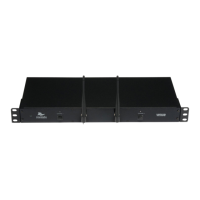
Revolabs xTag
2 pages
Print Icon
To Next Page IconTo Next Page
Loading...
Microphone Loan Program
How to: Connect and configure the Revolabs xTag Microphone in a classroom computer.
Right-Click on the Speaker Icon in the system
tray at the lower right-hand side of your screen.
Select Playback devices.
You will see the Revolabs xTag as the default
device for Playback.
This needs to be changed to whichever other
Sound Card you see on this list. Depending on
the computer you’re using, this could be
different. The Sound Card usually has HD in its
name.
IMPORTANT: If you leave the playback set to
the Revolabs xTag, your Camtasia Relay
recording will not be able to play audio to the
classroom, and more importantly, your Camtasia
Relay recording will not have any audio except
for your voice as recorded through the Revolabs
xTag.
Select and right-click on the non Revolabs xTag
sound device.
Question and Answer IconNeed help?

Do you have a question about the Revolabs xTag and is the answer not in the manual?

Summary

Configure Revolabs xTag Microphone

Access Sound Configuration

Right-click the speaker icon in the system tray and select "Playback devices".

Set Default Playback Device

Change the default playback device from Revolabs xTag to another sound card.

Set Default Communication Device

Right-click and set the desired device as the default communication device.

Configure Recording Device

Ensure the Revolabs xTag microphone is set as the default recording device.

Revolabs xTag Specifications

General IconGeneral
BrandRevolabs
ModelxTag
CategoryMicrophone system
LanguageEnglish

Related product manuals