EasyManua.ls Logo

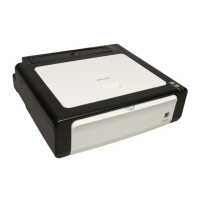
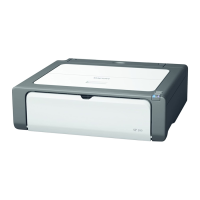
Ricoh Aficio SP 100 e - User Manual

Ricoh Aficio SP 100 e
52 pages
Print Icon
To Next Page IconTo Next Page
Loading...
Operating Instructions
User Guide
For safe and correct use, be sure to read "Safety Information" before using the machine.

Table of Contents

Other manuals for Ricoh Aficio SP 100 e

Questions and Answers

  • W
    William HarrisSep 8, 2025
    Why is the printout from Ricoh Aficio SP 100 e blurred?
    • T
      Tina NelsonSep 8, 2025
      If the printout from your Ricoh printer is blurred, ensure that you are using paper that has been stored properly and is not damp. Also, if you enable [Toner Saving], printing is generally less dense. If rapid changes in temperature or humidity occur, use the machine only after it has acclimatized.
  • L
    Lisa MillerSep 10, 2025
    How to troubleshoot Ricoh Aficio SP 100 e when paper does not feed smoothly?
    • R
      Ryan FergusonSep 10, 2025
      If paper does not feed smoothly in your Ricoh printer: 1. Use supported types of paper. 2. Load paper correctly, making sure that the paper guides are properly adjusted. 3. If the paper is curled, straighten it. 4. Take out the paper from the tray, fan it well, reverse the top and bottom of the paper, and put it back in the tray.
  • J
    jillian92Sep 12, 2025
    How to prevent paper from wrinkling in Ricoh Aficio SP 100 e Printer?
    • G
      Gregory AyersSep 12, 2025
      If the paper gets wrinkles when printing with your Ricoh printer, use paper that has been stored properly and is not damp. If there are gaps between the paper and the paper guides, adjust the paper guides to remove the gaps.
  • E
    edwardstimothySep 14, 2025
    Why is there a delay between print command and printing on Ricoh Aficio SP 100 e?
    • J
      Judy OconnellSep 14, 2025
      If there is considerable delay between the print start command and actual printing with your Ricoh printer, it may be due to the data volume. High volume data, such as graphics-heavy documents, take longer to process, so wait for a while. To speed up printing, reduce the printing resolution using the printer driver.
  • J
    Jennifer AdamsSep 15, 2025
    How to fix printing issues with a specific application on Ricoh Aficio SP 100 e?
    • N
      Natalie SalinasSep 16, 2025
      To resolve printing issues with a specific application or image data on your Ricoh printer, change the print quality settings.
  • Z
    zacharymitchellSep 18, 2025
    How to resolve 'Memory Overflow' error on Ricoh Aficio SP 100 e?
    • V
      Valerie MatthewsSep 18, 2025
      To address the 'Memory Overflow' error on your Ricoh printer, select [600 x 600 dpi] in [Resolution:] to reduce the size of the data.

Summary

Installing the Driver and Software

Installing the Printer Driver

Step-by-step guide for installing the printer driver from the CD-ROM.

Installing the Smart Organizing Monitor

Loading Paper

Supported Paper

Lists the supported paper sizes, types, and the maximum paper capacity for the machine.

Loading Paper

Step-by-step instructions on how to properly load paper into the machine's input tray.

Printing Documents

Basic Operation

Explains how to print a document using the printer driver and outlines available print settings.

Printing on Both Sides of Sheets

Instructions for performing double-sided printing, including reloading paper.

Canceling a Print Job

Describes methods to cancel print jobs, either before or during printing.

Configuring the Machine Using Smart Organizing Monitor

Configuring the Machine Settings

Guide to modifying machine settings via the Smart Organizing Monitor utility.

Updating the Firmware

Instructions for updating the machine's firmware using the Smart Organizing Monitor.

Maintaining the Machine

Replacing the Print Cartridge

Step-by-step procedure for replacing the print cartridge when toner is low or out.

Troubleshooting

Common Problems

A table outlining common issues, their possible causes, and solutions.

Removing Printing Jams

Important safety notes and procedures for safely removing jammed paper from the machine.

Error and Status Messages Appear on the Smart Organizing Monitor

Lists common error/status messages, their causes, and recommended solutions.

Appendix

Ricoh Aficio SP 100 e Specifications

General IconGeneral
Printer TypeLaser
FunctionalityPrint
Print Speed13 ppm
Print Resolution1200 x 600 dpi
Monthly Duty Cycle10, 000 pages
ConnectivityUSB 2.0
Dimensions402 x 368.5 x 119 mm
Weight6.2 kg
Black Print Speed (ppm)13 ppm
Print Resolution (dpi)1200 x 600 dpi
Warm-up Time25 seconds
Paper Input Capacity50 sheets
Paper Output Capacity10 sheets
Resolution1200 x 600 dpi
Paper Capacity50 sheets
Duplex PrintingManual
Supported Paper SizesA4, A5, A6, B5
Supported Operating SystemsWindows, Mac OS

Related product manuals