EasyManua.ls Logo

Ricoh DX 2330 - User Manual

Ricoh DX 2330
88 pages
Print Icon
To Next Page IconTo Next Page
Loading...
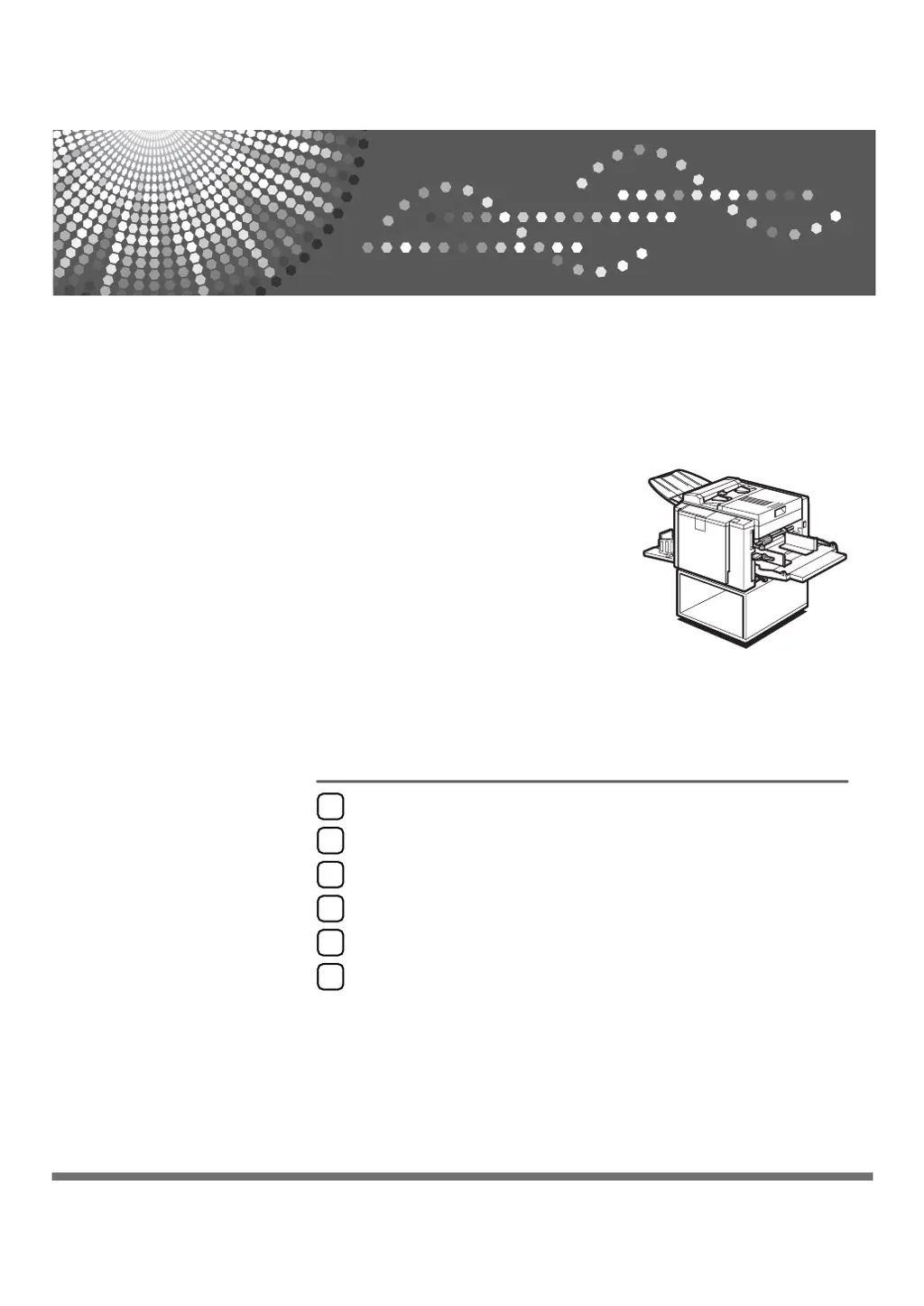
DX 2330 / DX 2430
Operating Instructions
Read this manual carefully before you use this machine and keep it handy for future reference. For safe and correct use, be sure to read “Safety
Information” before using the machine.
Operation
Optional Functions
Replenishing Supplies
Troubleshooting
Remarks
Specifications
1
2
3
4
5
6

Table of Contents

Questions and Answers

  • R
    Rebecca SalazarAug 14, 2025
    Why do black lines or stains appear on prints from my Ricoh All in One Printer?
    • A
      Alexander ParkerAug 14, 2025
      Black lines or stains may appear on prints from your Ricoh All in One Printer if there is no margin or a solid image area near the leading edge of the original. To resolve this, create a margin of at least 5 mm (0.2 inches) at the leading edge. Also, inspect the document feeder and clean it if you notice any dirt.
  • J
    Joseph MillerAug 17, 2025
    What to do if I get white or incomplete prints from my Ricoh All in One Printer?
    • E
      Erica EdwardsAug 17, 2025
      If you are getting white or incomplete prints from your Ricoh All in One Printer, pull out the drum unit. Remove the master from the drum and any paper that is stuck to the drum. Then, re-insert the drum unit until it locks in position, and lower the drum unit lock lever.
  • J
    James GloverAug 20, 2025
    What to do if a paper misfeed occurs in the paper feed section of my Ricoh All in One Printer?
    • C
      Carolyn HensleyAug 20, 2025
      If a paper misfeed occurs in the paper feed section of your Ricoh All in One Printer, lower the paper feed tray adjustment lever and slowly but firmly pull out the paper.
  • E
    Eddie ReyesAug 25, 2025
    What to do if a paper misfeed occurs in the paper delivery section of my Ricoh All in One Printer?
    • S
      Suzanne MartinAug 25, 2025
      If a paper misfeed occurs in the paper delivery section of your Ricoh All in One Printer, remove the misfed paper.
  • M
    Marc ValentineAug 27, 2025
    What to do if the master or paper is wrapped around the drum, or a paper misfeed occurs inside my Ricoh All in One Printer?
    • J
      Jeffrey MarquezAug 27, 2025
      If the master or paper is wrapped around the drum, or if a paper misfeed occurs inside your Ricoh All in One Printer, pull out the drum unit and remove the misfed paper.
  • T
    tscottAug 30, 2025
    What to do if a master misfeed occurs in the master eject section of my Ricoh All in One Printer?
    • M
      Mallory SullivanAug 30, 2025
      If a master misfeed occurs in the master eject section of your Ricoh All in One Printer, pull out the master eject box. Remove the misfed master and return the master eject box to its original position.
  • L
    laura27Sep 3, 2025
    How to resolve original misfeed in the document feeder of my Ricoh All in One Printer?
    • L
      Lindsey BooneSep 3, 2025
      To resolve an original misfeed in the document feeder of your Ricoh All in One Printer, open the cover of the document feeder. Gently pull out the original, and then close the cover of the document feeder.
  • S
    Sara BrownSep 6, 2025
    What to do if the misfeed indicator light is on with other lights on Ricoh Copier?
    • J
      Joshua ZunigaSep 6, 2025
      If the misfeed indicator lights up along with other indicators on your Ricoh Copier, and misfeeds occur repeatedly, it is recommended to contact your service representative for assistance.
  • N
    Noah McintoshSep 10, 2025
    How to fix dirt on the back side of paper from my Ricoh All in One Printer?
    • D
      dominique49Sep 10, 2025
      If you notice dirt on the back side of paper from your Ricoh All in One Printer, especially when using paper smaller than the original, ensure you've selected the correct reduction ratio. Then, turn off the main switch, pull out the drum unit, and clean the pressure roller with a clean cloth. Also, use a clean cloth to remove any ink accumulated on the trailing edge of the drum unit.

Summary

Safety Information

Safety During Operation

Essential safety precautions to follow during machine operation.

Control Panel Functions

Machine Operation

Printing Preparations

Standard Printing Procedure

Standard Printing Steps

Detailed steps for performing a basic printing operation.

Adjusting Print Image Position

Adjusting Image Position (Forward;Backward)

How to shift the printed image position along the paper feed direction.

Adjusting Image Position (Left;Right)

How to shift the printed image position across the paper width.

Adjusting Print Image Density

Density Adjustment (Before Master)

Adjusting print density before creating the master copy.

Density Adjustment (After Master)

Adjusting print density after the master copy has been created.

Changing Printing Speed

Preset Reduce;Enlarge Functions

Preset Reduction;Enlargement Ratios

Guide to selecting predefined ratios for reducing or enlarging images.

Printing on Various Paper Thicknesses

Selecting Original Type

Auto Cycle Printing

How to Use Auto Cycle

Step-by-step instructions for processing masters and making prints automatically.

Combining Two Originals

Combining Originals onto One Sheet

Instructions for printing two originals side-by-side on a single page.

Optional Colour Printing

Making Colour Prints

Guide to using optional colour drums for printing in color.

Replenishing Supplies

Loading Paper

Instructions for adding paper to the machine's feed tray.

Add Ink Indicator Lights

Master Roll Replacement

Troubleshooting

Troubleshooting Machine Operation

Guidance when the machine fails to operate as expected.

Troubleshooting Indicator Lights

Explains indicator lights that signal errors or specific conditions.

Clearing Paper Misfeeds

Clearing Misfeeds

General procedures for clearing paper jams from the machine.

Open Cover;Unit Indicator

Poor Printing Issues

Dirt on Back of Paper

Troubleshooting steps for dirt appearing on the back of printed pages.

Dirt on Front of Paper

Troubleshooting steps for dirt or lines appearing on the front of printed pages.

White or Incomplete Prints

Solutions for prints that are too light or have missing content.

Machine Maintenance

Machine Specifications

Main Frame Specifications

Technical details about the machine's main frame, configuration, and printing process.

Ricoh DX 2330 Specifications

General IconGeneral
BrandRicoh
ModelDX 2330
CategoryAll in One Printer
LanguageEnglish

Related product manuals