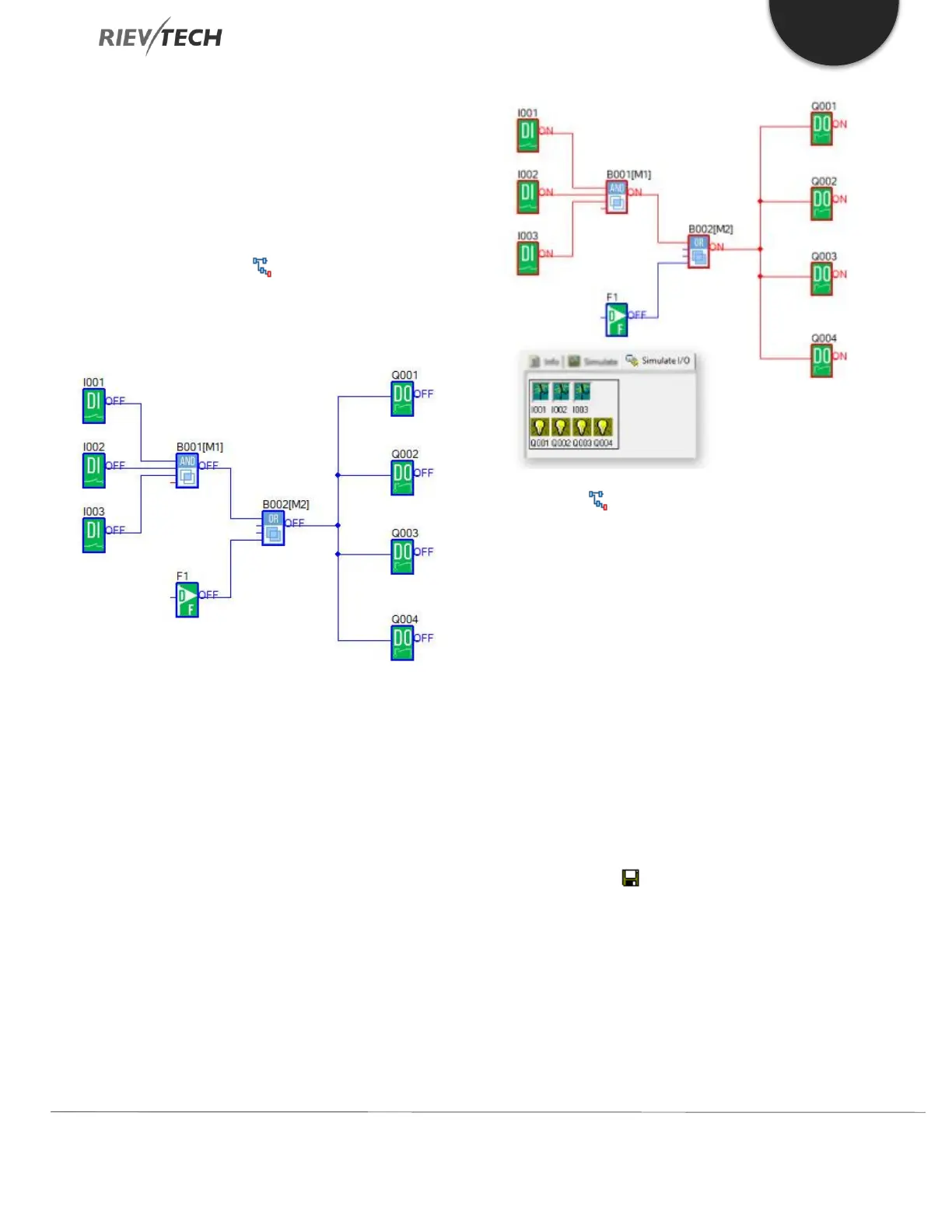
After completing your program, you can use the
Simulation Mode to ensure your program is operating as
you expected it to.
Operation Method:
1. Click “Simulation” under the “Tools” menu with the
left mouse button or click in the simulation toolbar
menu on the left-hand side of your workspace or press
the F3 function key on your computer keyboard.
2. Clicking on a Digital Input block with the mouse will
change the state of the input. The state displays “ON”
and “OFF” on the output side of the block, so you can
observe the state of input or output.
3. Click the button again, will terminate the
simulation of your program.
Attn: In the above program, you can see the “ON” or
“OFF” state of inputs and outputs and the output state
and the current state of all timing and counting blocks.
Through this simulation operation, you can check to
ensure your program executes as you expect it to.
Save and Print
Operation Method of Saving a File
1. To save a Program, click option “Save” or “Save As”
under the “File” menu with the left mouse button or click
Save icon button on the toolbar.
2. You can select path and filename for your program
file.
3. Click “Save” to save file.



 To Next Page