How to Print Your Program File
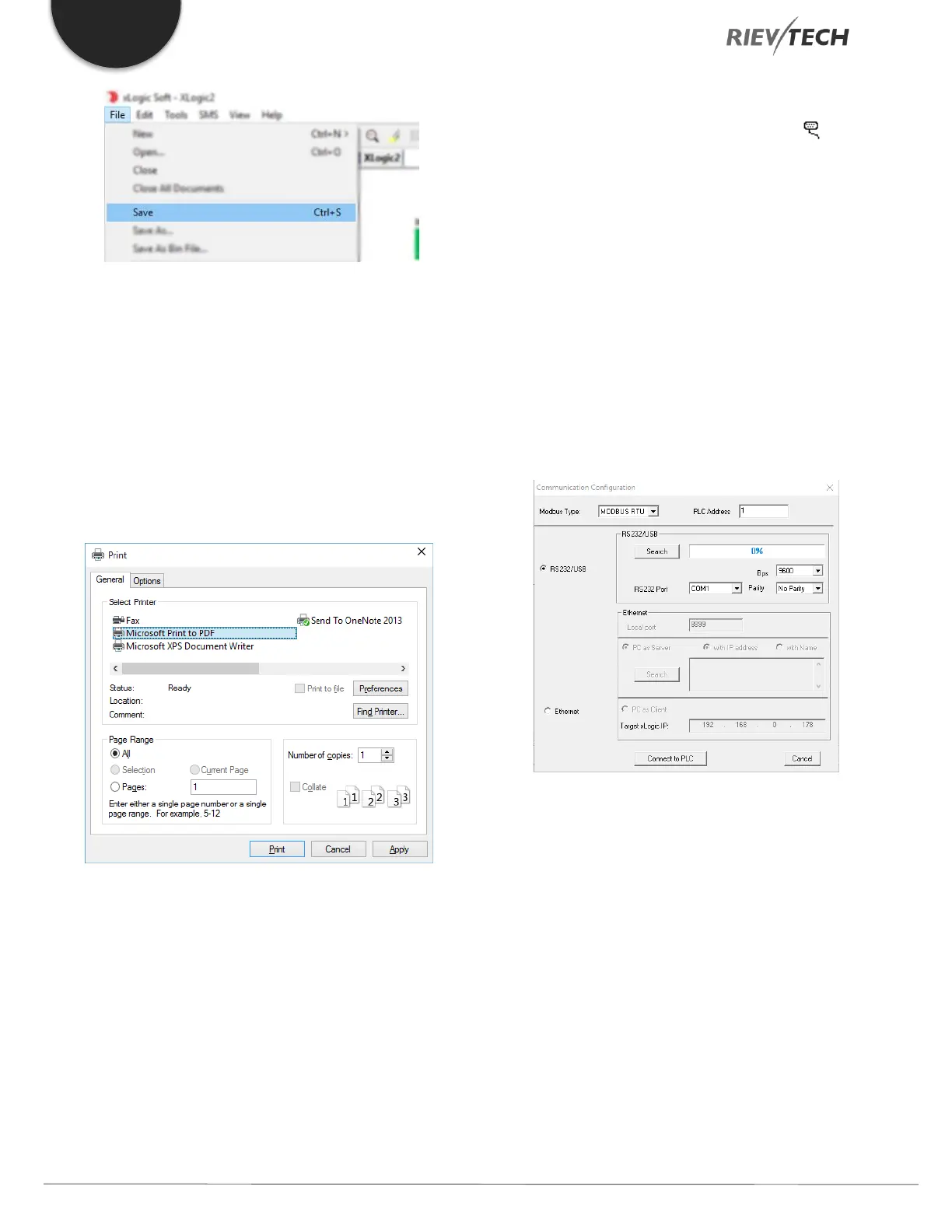
1. Select “Print” from the “File” menu with the left mouse
button.
2. The dialogue box as shown below appears, select your
options and click OK to begin printing.
Modifying Password and Transferring a Program
Operation Method:
a. Firstly, connect your PC running xLogicsoft to your
xLogic PLC using either an RS232 cable, USB cable (USB
driver required) or Ethernet cable.
b. Open application software xLogicsoft, create a new
project, then open computer communication connection
by left-clicking the mouse button on Configuration under
the Tools menu. Alternatively, you can click in the
toolbar. A dialogue box appears as shown below, select
your communication port and speed.
Option A. RS232 – This option is used when you use the
ELC-RS232 or ELC-USB (USB driver required) cable.
Option B. Ethernet – This option is used when you use any
Ethernet xLogic PLC.
Option C. GPRS – This option is used when you have
established the GPRS connection between xLogic and PC.
c. Click connect to PLC button to establish
communications between PC and PLC.
How to Set a Password and Time and Date
Setting Password
xLogic permits you to set up a password for your Program.
Only after entering the correct password, will you be
allowed to write, read and modify your program.
Click “File->Properties” and select “Parameter” tab to see
the dialogue box below. You can input a password into
the dialogue box as shown below.


 To Next Page
 Loading...


