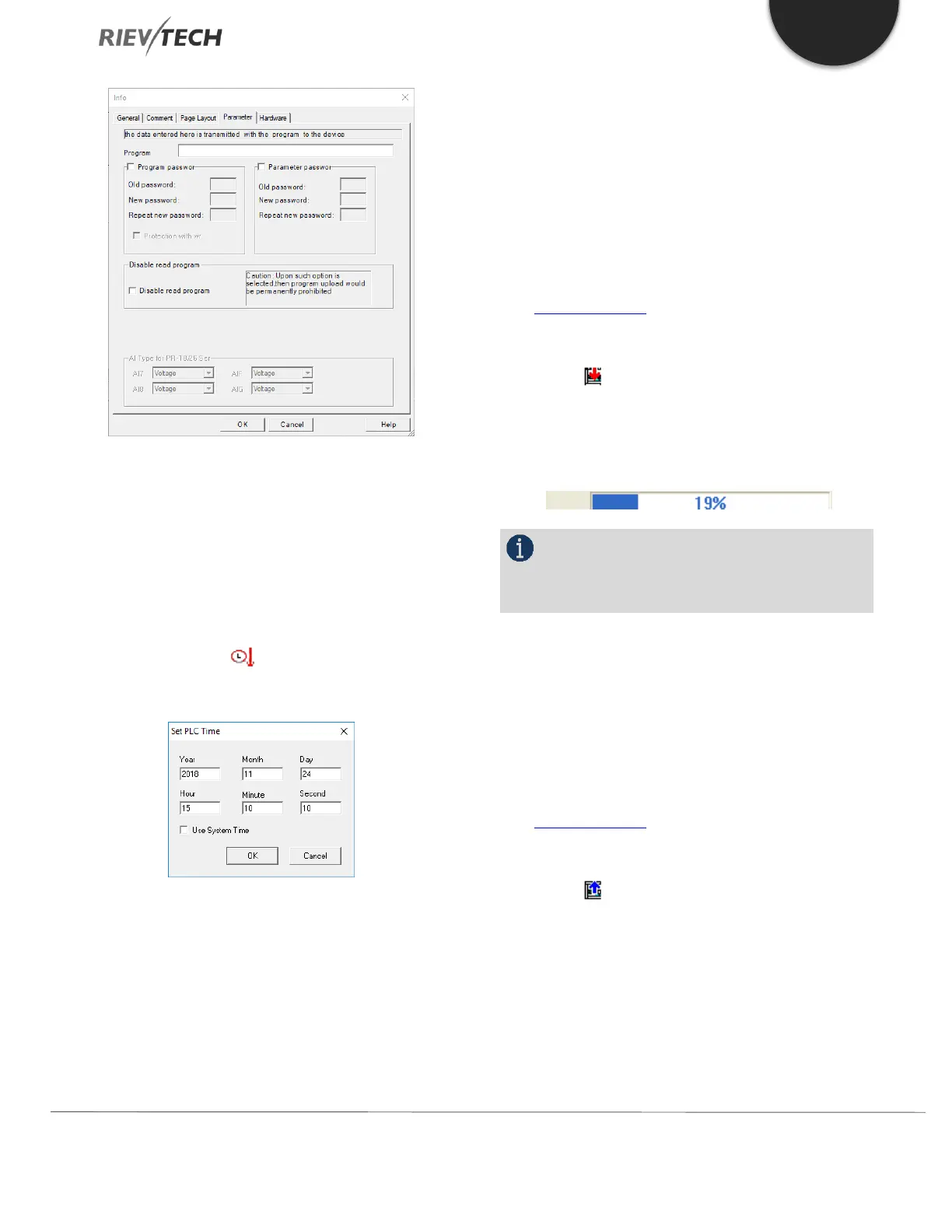
Program password and parameter password can be set
here. You can also directly set the parameter password
by the HMI on the CPU if fitted using “Set..”->”
Password”->“Set password”.
Setting Time and Date
Click option “Tools->Transfer->Set Clock” with the left
mouse button or click on the toolbar to show the
time/date dialogue window shown below.
If you check the tick box “Use System Time” then the PC
time and date will automatically be entered, otherwise
adjust enter parameter as required and when done press
the “Ok“ button.
If the setting has been successful, the dialogue box
below will show “Succeed” message.
Transferring a Program
Downloading a Program to xLogic
After you have created your xLogic control project, you
need to download it to the PLC.
a. Connect your PC running xLogicsoft to your xLogic PLC
as mentioned above.
b. Click option “Transfer->PC->xLogic” under menu “Tools”
or click the icon in the toolbar.
c. Your program will be downloaded to your xLogic PLC
and a Transfer Indication will show percentage complete.
NOTICE:
After the program is downloaded, xLogic will run
it automatically.
Uploading a Program from xLogic
If you need to retrieve a program currently in the xLogic
PLC, you can use the Upload procedure to do so.
a. Connect your PC running xLogicsoft to your xLogic PLC
as mentioned above.
b. Click option “Transfer->xLogic->PC” under menu “Tools”
or click the icon in the toolbar.
The program will be uploaded and displayed in your
xLogicsoft.
On-line Monitoring and Program Checking


 To Next Page
 Loading...


