How to Configure the Network Parameters via
Software
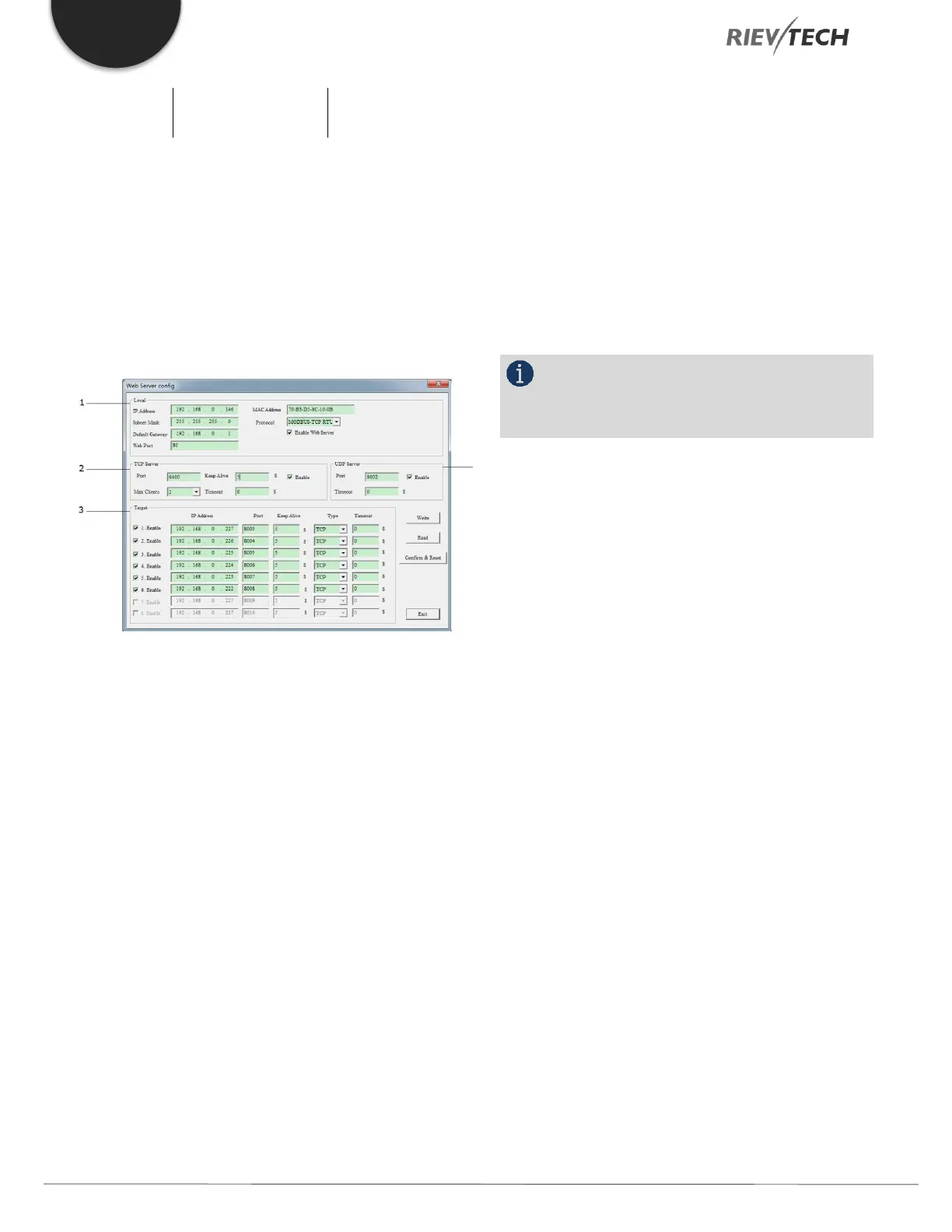
You can use xLogicsoft to configure the Ethernet network
parameters from the menu option, Tools…transfer…Web
server config:
1. Local CPU Network Settings
a. IP Address
b. Subnet Mask
c. Default Gateway
d. Web Port
e. MAC Address
f. Protocol
2. TCP Server Settings – CPU as a TCP Slave
a. Port for TCP Server
b. Keep Alive – Not Used
c. Max Clients – Total TCP connections is 8. If you set
this to 4, you can have 4-clients and 4-servers
connected simultaneously. If set to 8, then the CPU can
no longer work as a Server.
d. Timeout – 0s means that no timeout is set, and the
CPU will remain online. Any other value and the CPU
will restart the connection if no transmission of data
has occurred during the set period.
e. Enable – Check to enable the CPU to act as a Server.
3. Target – Details of Server connections. This is
determined by the setting in 2c above. If 2c is set to a
value of 2, then 6 Server connections will be available for
configuration in this section. You need to tick the “enable”
option and input the remote server IP address and port
number.
a. Fill in the IP Address of each server (Slave) and
the Port number on which communication will occur.
NOTICE:
Each connection MUST have a unique port
number from the others that are used.
4. UDP Server
The CPU can work as a UDP server as well, you can tick
the enable option.
After you have finished the parameter configuration, you
need to download the settings into the CPU by either a
serial or Ethernet connection as you would to download a
program. Finally, you need to click the “Confirm and Reset”
button, then the CPU will restart, and the new settings will
be available.
Create a connection between the PC and the CPU by a
serial cable (RS232/USB cable) or Ethernet (You can check
the CPU IP address and server port number on the LCD
menu).
Connect the CPU with PC through the USB cable: Click the
open com port option, and select the COM port of the
USB cable, here the port number is COM3, then click the
button “connect to PLC”.


 To Next Page
 Loading...


