phone or any device which has a built-in web browser to
control the PLC.
Supported browsers:
Chrome
IE
Firefox
Please ensure that your browser is the latest version.
Supported devices:
PC
iPhone
iPad
Android mobile phone
Android pad
Supported languages:
English
Chinese
German
French
Italian
Spanish
How to Enable the Web Server
Open xLogic software, choose the correct Ethernet model
and connect xLogicsoft to the PLC. You can use a serial
port or network port to connect to the PLC.
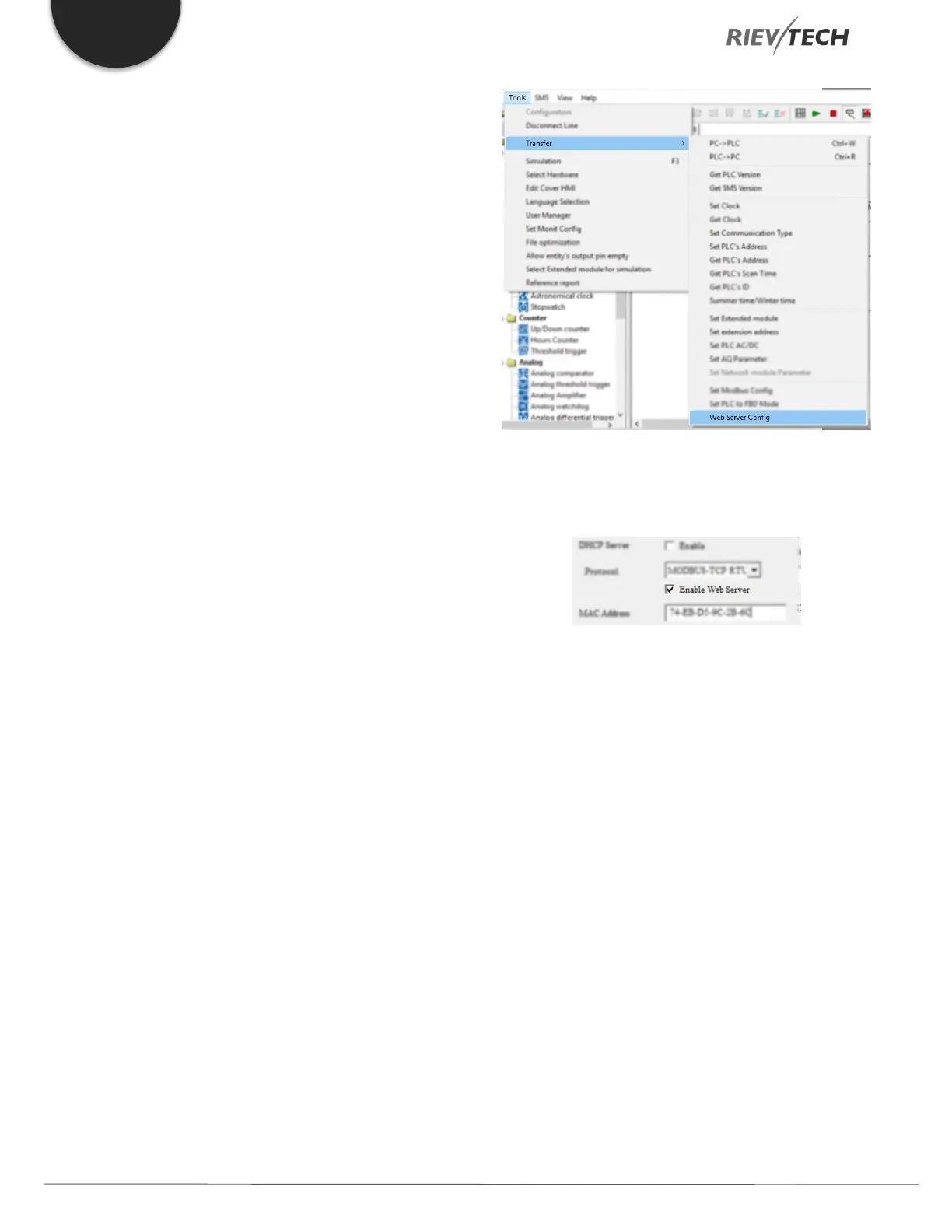
Tools-->Transfer-->Web Server Config
Click Read button to read web server configuration.
The default configuration is as follows:
The web server is enabled by default. If you want to
disable the web server access, you need only untick the
option “Enable web server” and it will be disabled.
How to Logon to the Web Server
First, obtain the IP address of the PLC and enter into the
URL bar of a supported web browser and the login web
page will appear.
The default IP of PLC is 192.168.0.245, the Default port of
PLC is 8008. So, you can use the default IP address to log
on to the web server, you can also use the IP and port of
PLC to connect the xlogic software to the PLC and
configure web server parameters.
If you have changed the IP address, you can view the IP
address by the LCD menu
>Network -> IP Config. -> Local IP ADDR. -> Local IP


 To Next Page
 Loading...


