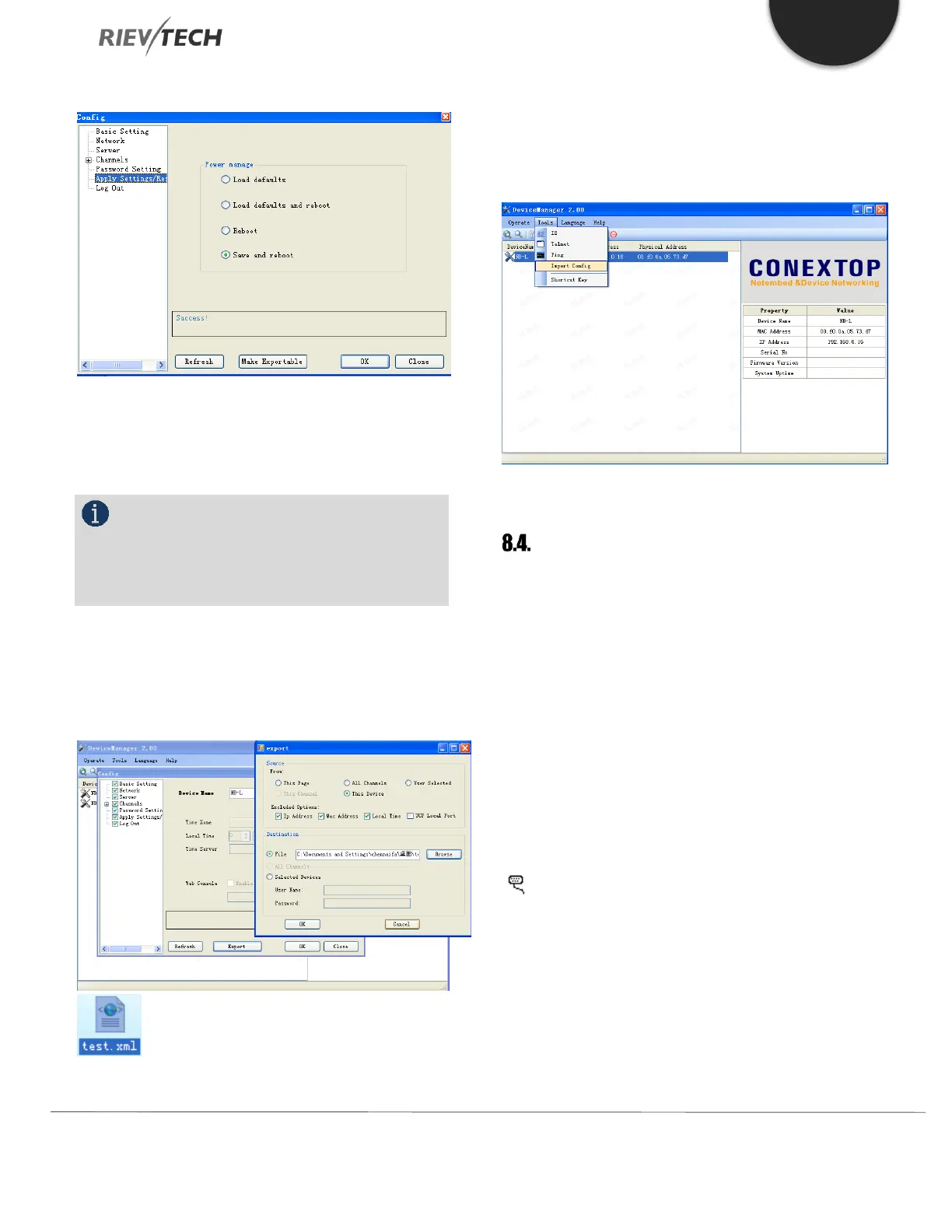
Apply Settings/Reset
To enable any changes to be permanently saved to the
xLogic Ethernet CPU you must select the Save and reboot
option and press the OK button.
NOTICE:
If this step is NOT carried out then the xLogic
Ethernet CPU will lose any settings changes when power
is cycled to the unit.
Export Your Settings
Click Make Exportable button to export your settings and
store them in a .xml file.
You also can import existing configurations from the menu
Tools->Import Config
Establish communication between CPU
and xLogicsoft/SCADA via Ethernet.
The Ethernet port of your xLogic Ethernet CPU can be used
to communicate with peripheral devices such as a
Touchscreen/HMI, PC SCADA using the Modbus/TCP
protocol.
This chapter will introduce how to establish the connection
between CPU and xLogicsoft via Ethernet using a pre-
configured xLogic Ethernet CPU configured as per the
previous section.
In xLogicsoft open “COM PORT” by either clicking the
icon or using the menu Tools -> Configuration
option.
Ethernet CPU as Client and xLogicsoft as Server
a. Select “Ethernet” option
b. Click “Search” button to search for CPU



 To Next Page