c. Select found CPU from the drop-down list
d. Click “Connect to PLC” button
NOTICE:
Both xLogicsoft and CPUs ports MUST have the
same setting.
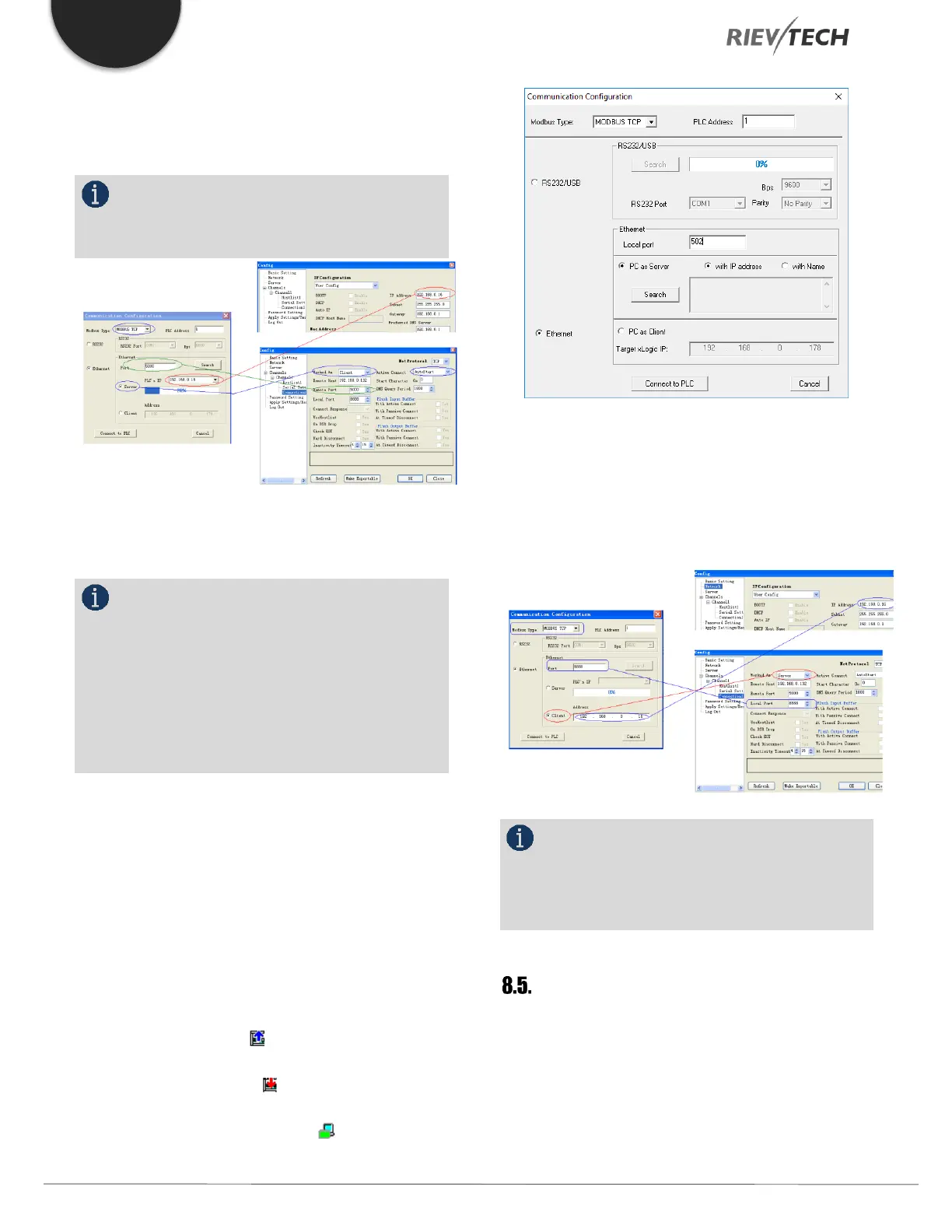
xLogicsoft Com port setting dialogue box LAN port
settings in Device manager
NOTICE:
1. The remote host IP address is the same as
that of the PC in which the xLogicsoft being installed.
2. Modbus Type in xLogicsoft must be MODBUS
TCP.
3. Active Connect must be “Auto Start” in device
manager.
After the xLogic CPU and PC are connected, you will be
able to use the many features of xLogicsoft, e.g. download
user program into xLogic CPU module, uploading the
program into PC and online monitor (monitor real-time
status of xLogic IO) can be done. The only difference is
that you are connected via Ethernet rather than a serial
connection using the ELC-RS232 or USB cables.
A. Upload program: click
B. Download program: click
C. Monitor program run status: click
Ethernet CPU as Server and xLogicsoft as Client
The connection is established as before except that the
option Client is selected in xLogicsoft connection window.
NOTICE:
The configuration of the xLogic Ethernet CPU
MUST be configured as above for this type of connection
to work.
Establish communication between CPU
and xLogicsoft/SCADA via Wi-Fi.
Software requirements: xLogicsoft v3.3.8.8, and above.
Hardware example: PR-26DC-DAI-RT-WIFI, EXM-12DC-
DA-RT-WIFI


 To Next Page
 Loading...


