5.4.4. Set Password
You can set a password to protect your program within
the xLogic CPU.
Set a new password:
A password contains up to 4 characters and each character
is a number from 0 to 9. You can specify, edit or remove
a password directly in xLogic using the “Password” menu
of the function page:
You should first select a FUNCTION PAGE. (Read 4.3)
1. Move the cursor to “Password” by pressing the “UP” or
“DOWN” key.
2. Confirm “Password”: Press OK key.
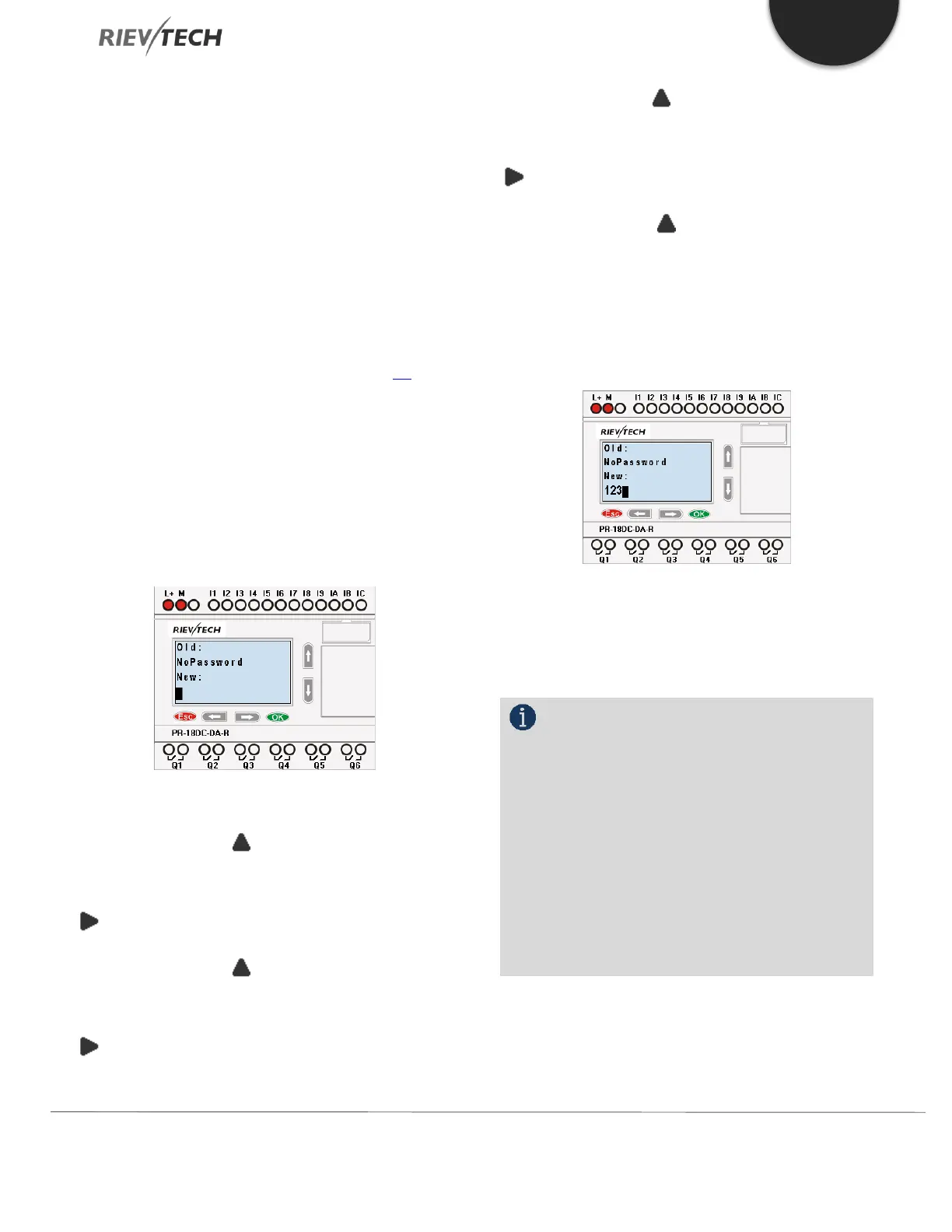
Example: Let’s set “1234” as the password for a program.
Now the LCD displays the following interface:
Select “New” option, and then edit it.
3. Select “1”: press “UP” key once.
4. Move the cursor to the next character: press “Right”
key.
5. Select “2”: press “UP” key twice.
6. Move the cursor to the next character: press “Right”
key.
7. Select”3”: press “UP” key three times.
8. Move the cursor to the next character: press “Right”
key.
9. Select “4”: press “UP” key four times.
Now display:
10. Confirm password: press OK key.
Now, the program is protected by the password of “1234”,
and then you can return to the main menu.
NOTICE:
You can cancel a password newly-set by
pressing the ESC key. In this instance, xLogic will return
to the main menu without saving the password. This
password protects unauthorised changes to ay
parameters, which means that to make any changes via
the LCD, the password is required. The program
password should be set in xLogicsoft by the menu
File->Property-> Parameter to protect the program itself
from unauthorised changes/copying.
Modify password:


 To Next Page
 Loading...


