To modify the password, you are required to enter the
current password first.
In the menu of the FUNCTION PAGE:
1. Move the cursor to “Password”: Press “UP” or “DOWN”
key.
2. Confirm “Password”: Press OK key.
Select “Old” and input current password (in our instance
is “1234”), the process is the same as the step 3 to step
10 mentioned above.
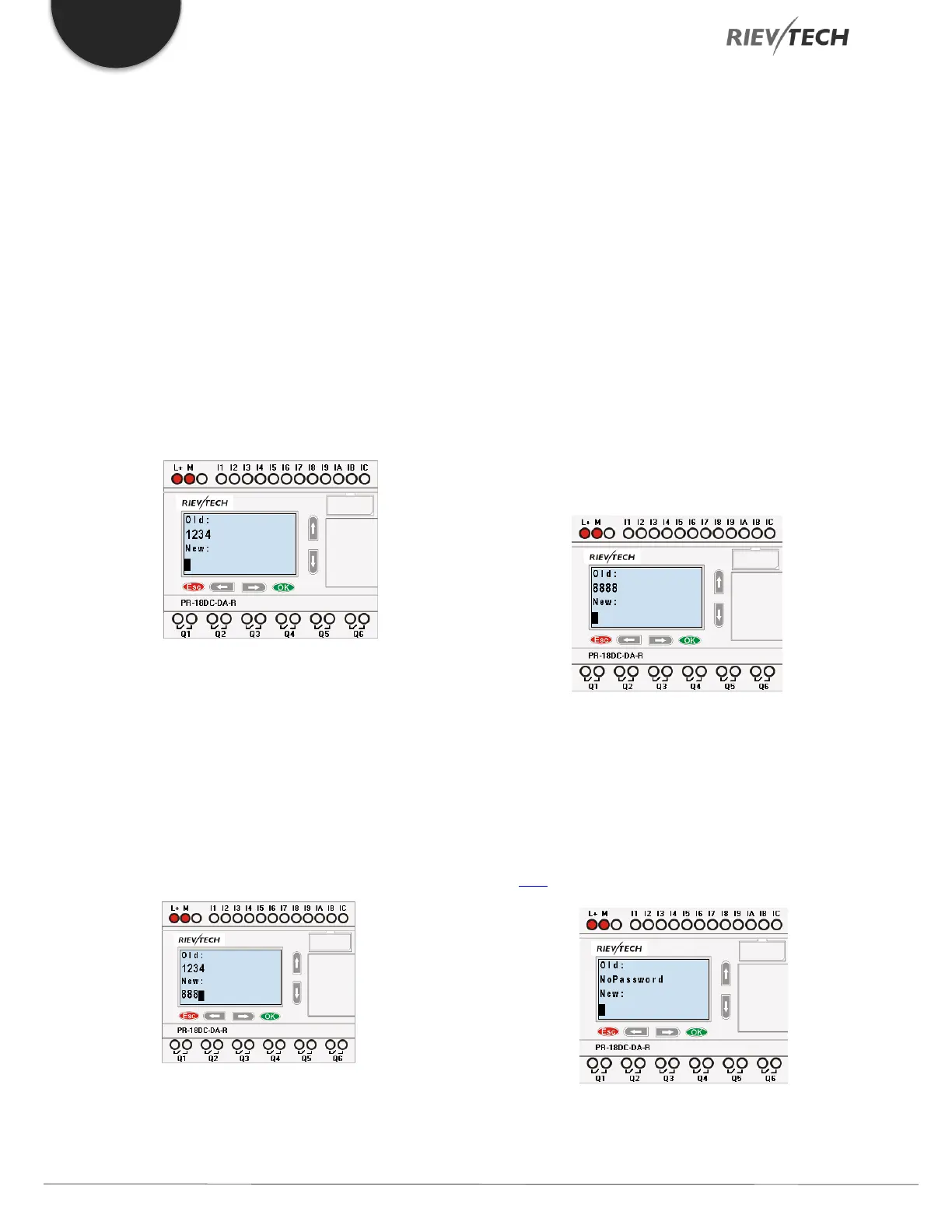
LCD displays:
Select “New” to input new password such as “8888”:
3. Select “8”: press “UP” key.
4. Move the cursor to the next character: press “Right” key.
Repeat the step 3 and 4 to enter the third and fourth
characters.
LCD displays:
5. Confirm new password by pressing the OK key.
How to remove the password:
If you need to remove the password e.g. allow the other
users to edit your program, then you must know the
current password. The process for removing a password is
the same as that for modifying it.
In the menu of the FUNCTION PAGE:
1. Move the cursor to “Password”: Press “UP” or “DOWN”
key.
2. Confirm “Password”: Press OK key.
Select “Old” and input current password (in our instance
is “8888”), the process is the same as the step 3 to step
10 mentioned above.
LCD displays as follows:
Input nothing under the “New” and press OK to clear the
password.
4. Confirm “blank” password: press OK key. Now you have
cleared the password and can return to the main menu. If
you want to set a password next time, repeat steps above
in 4.3.3.
Password settings in xLogicsoft.


 To Next Page
 Loading...


