If xLogic has several alarms in the same period, it only
displays the message with the highest priority in the
function block. You may cycle through all current alarm
messages by pressing or key.
NOTICE:
The message text block within xLogicsoft is
treated as a parameter page only when it has no input
connected to it, otherwise, it will be regarded as an
alarm page. When the input pin sees a rising edge, the
LCD will display an alarm message.
Selecting a Function Page
Press ESC key to change from running mode to function
page mode.
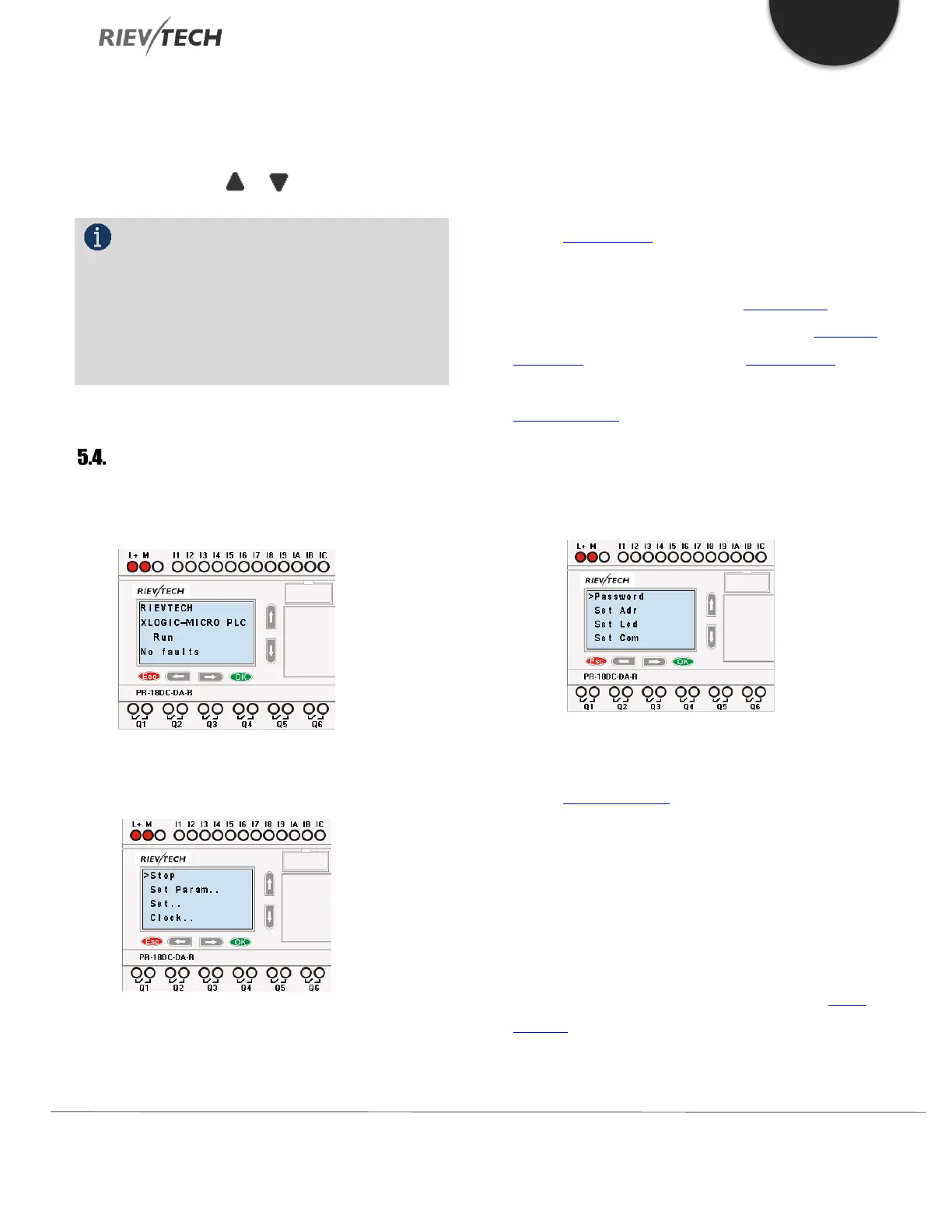
After pressing ESC key, xLogic switches to function page
and the function menu will be shown as below.
5.4.1. Function Page Options
Run/Stop
Select this menu to switch the xLogic status between RUN
and STOP. Refer to section 4.3.1 for details.
Set Param
To set/change a function block parameter. Refer to
section Set Parameter for details.
Set…
Used to set/modify a password (see Set Password), set an
address of CPU or expansion unit (see Expansion
Addressing), LCD settings (see LCD Settings) and
communication parameters settings (see
Communications) for details.
1. Press ”UP” or “DOWN” key to move the cursor to
“Set….”
2. Then press the OK key, xLogic will display as follows:
Clock
To set and modify date and time. Refer to
section Set Time & Date for details.
Network (This only for Ethernet CPU)
Recovery ET: Pressing OK whilst the cursor is on this
option will be reset the CPU to default settings.
5.4.2. How to Switch Between RUN and
STOP
You should first select a FUNCTION PAGE. (Read Select
Function)


 To Next Page
 Loading...


