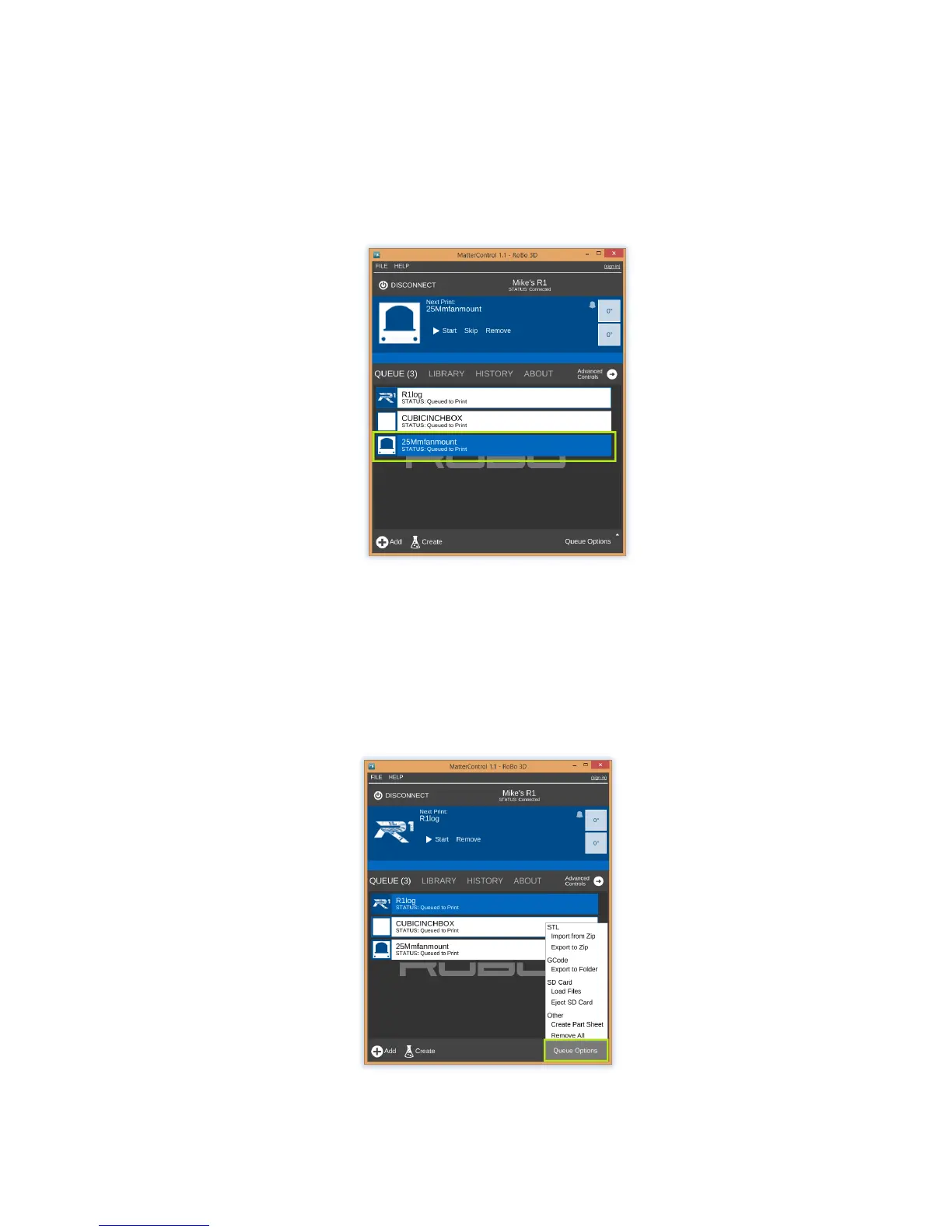
If you have loaded multiple files into the queue, then you will see them listed out in the
middle of the screen
When you click on a file listed in your queue, it will become highlighted and a preview
picture will show in the top portion of your screen. This means that this file is lined up to
be printed next. (4.2a)
(4.2a)
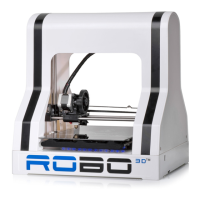
On the bottom right hand corner of your screen you will see a “Queue Options” button.
(4.2b) From here you will be able to access a few different options for customizing your
queue. You can import and export .STL files, export .GCODE files to folders (like an SD
card for printing without a computer) or load files from a connected SD card into your
queue.
(4.2b)


 To Next Page