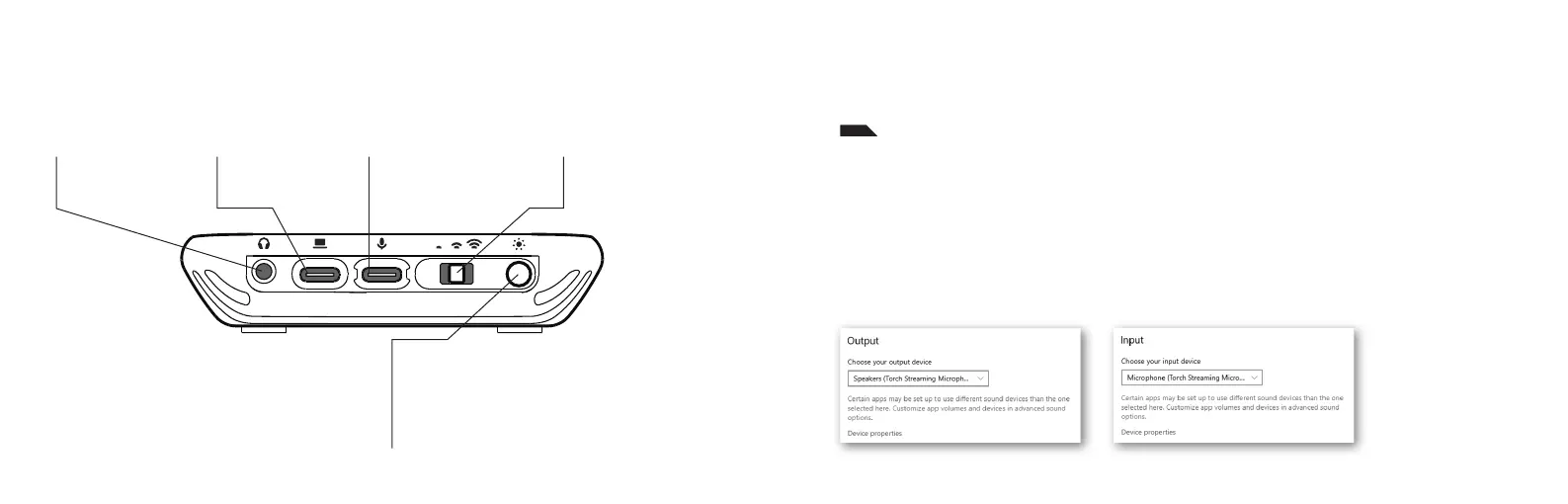
REAR BASE CONTROLS
COMMANDES À L‘ARRIÈRE DU SOCLE
USB-C to PC
USB-C vers PC
Contactless Quick-Mute
Distance Adjuster
Ajusteur de distance de
désactivation sans contact
3.5mm Jack
Prise jack 3,5mm
USB-C to Microphone
USB-C vers microphone
LED Brightness Toggle: Réglage de la luminosité des voyants LED:
1. All LED’s Off
2. 25% Brightness
3. 50% Brightness
4. 75% Brightness
5. 100% Brightness
1. Voyants LED éteints
2. 25% de luminosité
3. 50% de luminosité
4. 75% de luminosité
5. 100% de luminosité
1. Connect the Torch base to your PC using the USB-C to USB-A cable
2. Connect the Torch base to the Torch Microphone using one of the
USB-C cables
3. When Powered On, the microphone should automatically be
selected as your input and output
If your device does not automatically connect:
1. Navigate to the Windows Sound Setting via the Control Panel
2. Select Torch as an input device
3. Select required output device, E.g. Latency free rear headphone jack or PC Speakers
PC SETUP | INSTALLATION SUR PC
EN


 To Next Page