9RF-FLBTAD
Using the software in Windows Vista or Windows 7
After you have installed the software and restarted the computer, the
Bluetooth icon appears on the desktop and in the task bar.
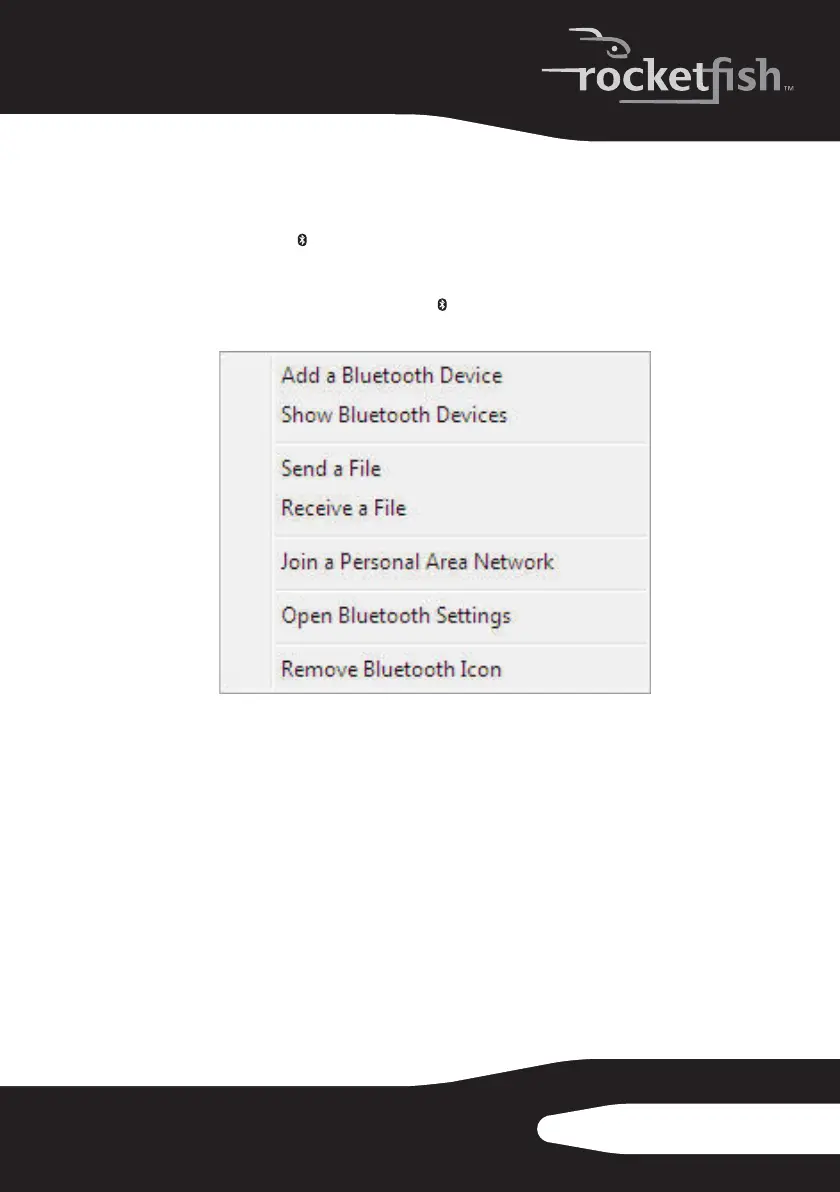
To use the right-click menu:
• Right-click the Bluetooth icon . A menu opens with the following
options:
• Add a Bluetooth Device— Click to add a new Bluetooth device.
• Show Bluetooth Devices—Click to show a list of all detected Bluetooth
devices.
• Send a File—Click to send a file using Bluetooth File Sharing.
• Receive a File—Click to receive a file using Bluetooth File Sharing.
• Join a Personal Area Network—Click to join a private Bluetooth network.
• Open Bluetooth Settings—Click to open the Bluetooth Devices screen.
• Remove Bluetooth Icon—Click to remove the Bluetooth icon from the
task bar.


 To Next Page