Cable/Satellite
Box
OR
Blu-ray
Player
Game
Console
Back
Power LED
HDMI IN
DC power
5V/1A
HDMI OUT 1
HDMI OUT 2
Package contents
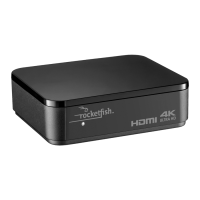
• HDMI splitter
• AC power adapter
• Quick Setup Guide
You will need:
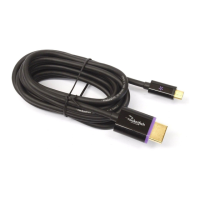
• High-speed HDMI cables,
such as Rocketsh,
available in 6' - 24' lengths.
Features
• Sends HDMI A/V signals from a single source,
such as a Blu-ray/DVD player or set-top box to
two destinations, such as a TV and A/V receiver
• Supports full 1080p video resolution
• Supports 3D video
• Compatible with most TV and PC monitor
video resolutions
• Gold-plated connectors for maximum signal
transfer and corrosion resistance
• Supports HDMI CEC commands for remote
control functionality
NOTE: If you want to watch 3D sources, make sure that your TV or projector supports the same HDMI 3D video
format as your sources. A 3D image cannot be delivered to a TV or projector that does not support 3D video formats.
You also need to use HDMI cables that are compatible with 3D video, such as Rocketsh high-speed HDMI cables.
Front
HDMI splitter basics
This Rocketsh two-way HDMI splitter will send HDMI audio and video signals
from a single source, such as a Blu-ray/DVD player or cable/satellite box, to two
destinations, such as a TV and A/V receiver. It is ideal for sending audio signals
from a 3D Blu-ray player to an A/V receiver that does not support 3D video
pass-through, and a 3D TV.
TM
Setting up your HDMI splitter
1 Connect one end of a high-speed HDMI cable (not included) to your video
source and the other end to the IN port on the HDMI splitter.
2 Connect one end of another high-speed HDMI cable to your HDMI splitter’s
OUT 1 port, then connect the other end of the HDMI cable to the IN port of a
destination component, such as an A/V receiver, projector, or HDTV.*
3 Connect one end of another high-speed HDMI cable to your HDMI splitter’s
OUT 2 port, then connect the other end of the HDMI cable to the IN port of
another destination component, such as an A/V receiver, projector, or HDTV.
4 Connect the included AC adapter to the DC jack on the HDMI splitter and a
standard 110/120V AC outlet. The LED indicator lights green. Turn on all
connected devices and operate.
IN
OUT1
OUT2
5V 1A
Connecting 1 component to AV receiver and display
Projector
Connecting 1 component to 2 displays
DC connector
IN
OUT1
OUT2
5V 1A
HD TV
AV Receiver
HD TV
HDMI
HDMI
HDMI
HDMI
HDMI
HDMI
DC connector
IN
OUT1
OUT2
5V 1A
QUICK SETUP GUIDE
RF-G1182, 2-way HDMI Splitter
Cable/Satellite
Box
OR
Blu-ray
Player
Game
Console
*When connecting one source device to two displays, make sure the display with the lowest resolution capability is
connected to OUT 1 on the splitter. When connecting one source device to one display and an A/V receiver, make
sure the display is connected to OUT 1 on the splitter. The splitter recognizes the EDID (extended display
identication data) from the display connected to OUT 1.



 To Next Page

 General