47
2.2.3 Locomotive Address Mode
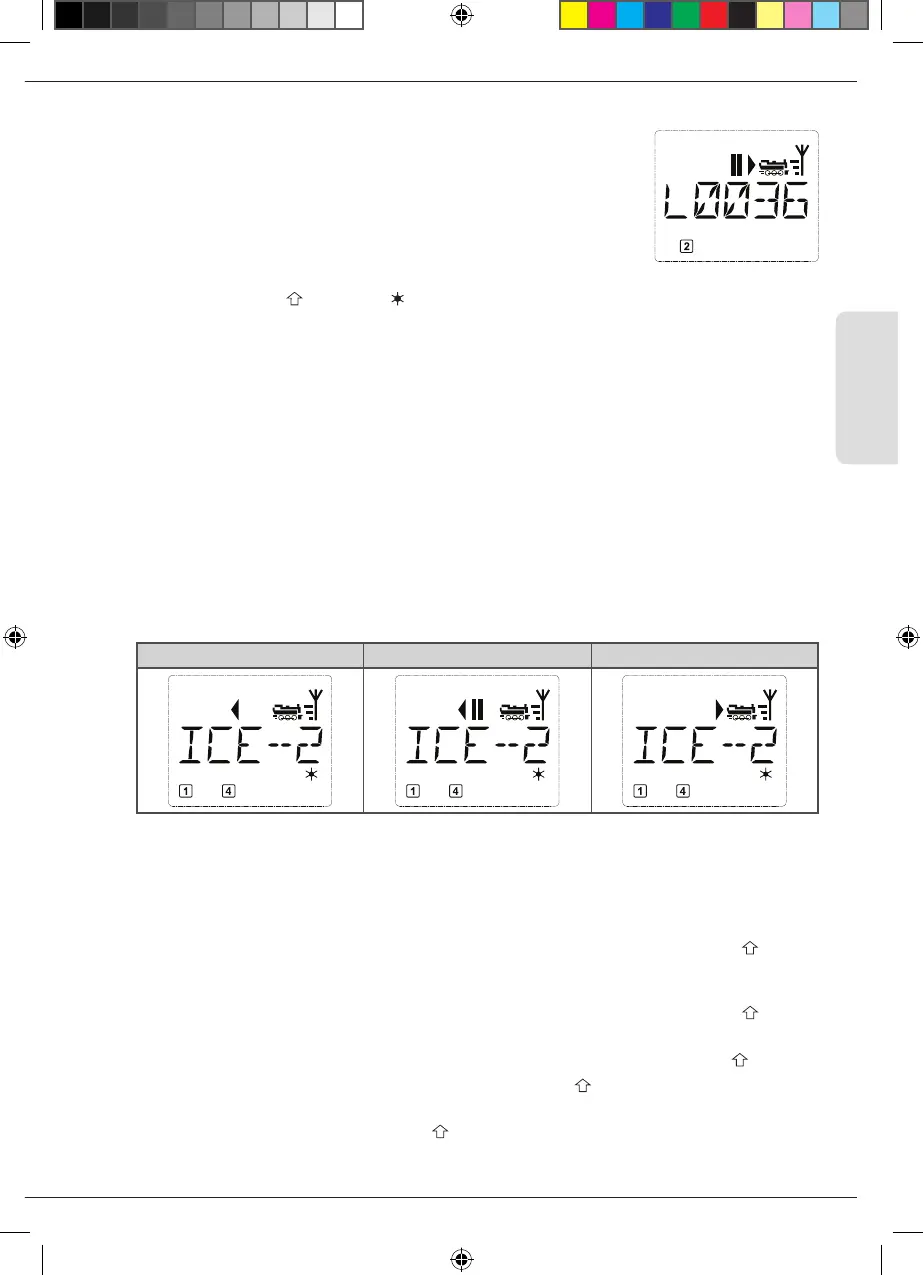
The WLANmaus also gives you the option of controlling your locomotives
using the decoder address only. The display screen shows the locomotive
address with the letter “L” before it (in this case, locomotive address 36),
the locomotive symbol and all the selected functions.
You can select another locomotive (address) in two different ways:
▪
using the arrow keys,
▪
directly, by entering the number with the function keys after
having pressed the -key and the OK-key at the same time.
Changes to the speed steps can either be made in the “LOCO” > “EDIT” menu (see Part 3 “Menu
functions”) or using the key combination “MENU” and one of the arrow keys. You make the switch
using one of the arrow keys. To return to locomotive address mode, press the STOP-key.
Information on how to program a new locomotive address using CV1 can be found in chapter 2.6 page 52.
2.3 Driving and Functions
If you have selected a locomotive from the library or are directly using the locomotive address, it is
immediately ready to drive. You can determine the direction of travel and the speed by turning the
large controller. Both the direction of travel and a standstill are shown on the display screen above
the locomotive name or locomotive address.
▪
If the locomotive is at a standstill (display “II”), the last direction of travel is also shown. Thus it is
easy to discern whether the locomotive lighting is switched on correctly, i.e. white light for the front
of the train, red light at the rear.
Backwards Standstill Forwards
If another WLANmaus/
multi
MAUS/Lokmaus, or Smartphone/Tablet/PC is used to control a locomotive,
the locomotive symbol ashes.
▪
The locomotive functions, e.g. the noises of a sound locomotive, are activated using the function
keys. You can trigger the rst 10 functions directly by pressing the corresponding keys.
For functions F11 –F20 you must press the respective function key together with the -key. The
display shows the activated functions. In the gures above functions F1 and F4 are shown as ex-
amples.
For functions F11 –F20 you must press the respective function key together with the -key. The
display shows the activated functions.
You can check the activated functions of the second level (F11 –F20) by pressing the
-key.
In the following gure, F12 and F20 are activated. The arrow “ ” stands for the multiplier of tens,
i.e. is interpreted as “1” for F11 –F 19 and as “2” for F20.
F21-F28: A short double clicking on the
-key results in the symbol ashing. The F21–F28 status
is then displayed with “1“–“8“ and this can be amended. This display is quitted after the – key
has been pressed again.
Operation - Driving and Switching
8010813920.indd 47 13.07.2017 10:27:46


 To Next Page
 Loading...