Adjusting Headphone Levels
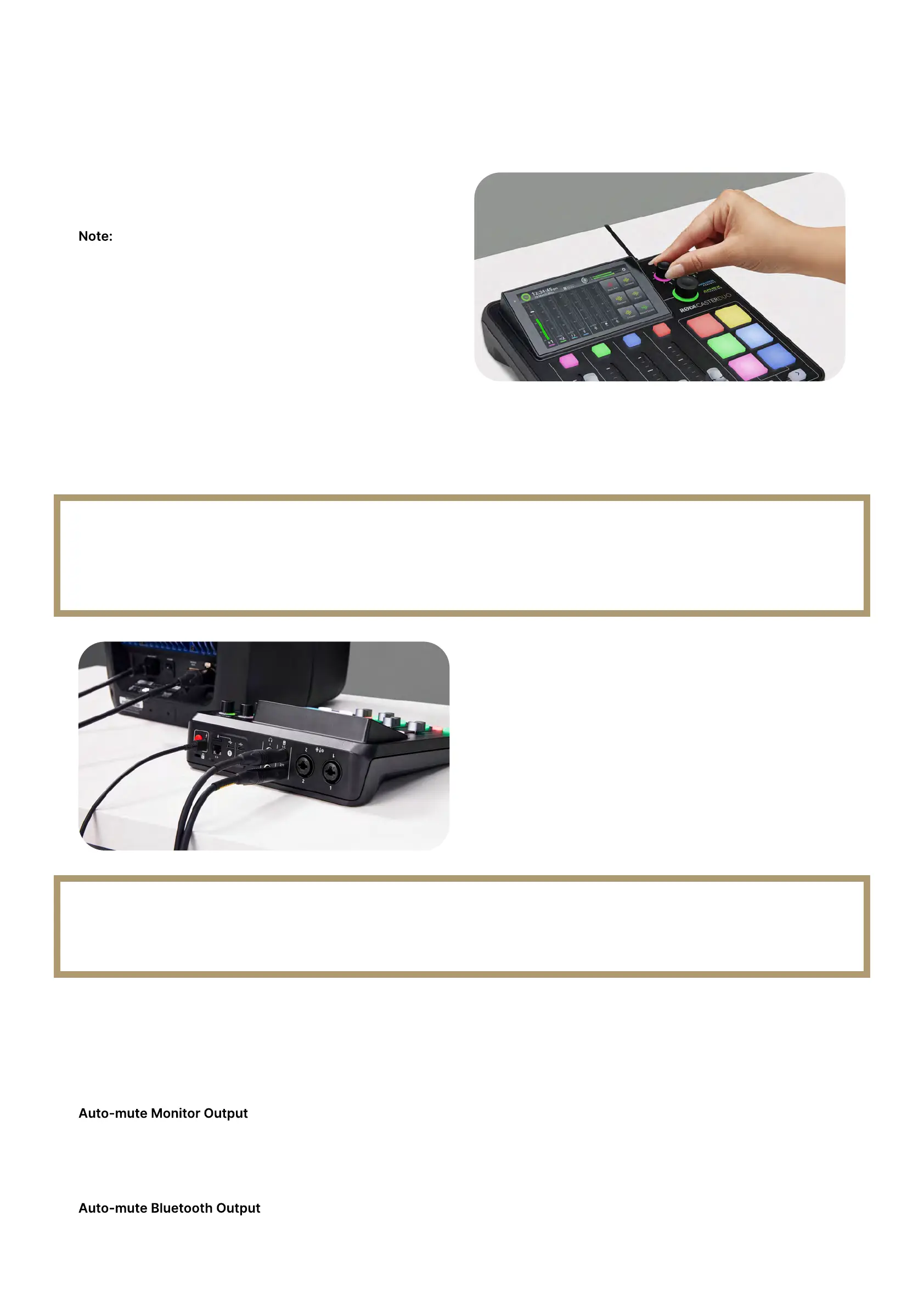
Both headphone outputs have an independent level
control. These are located at the top-right of the unit and
are labelled 1 and 2. These allow you to easily control the
volume of your headphones and balance the levels for
others you are recording with.
The ‘1’ encoder also controls the output level of the
headset connected to the headset input on the front.
You can also optimise the output level for the type of
headphones you are using (i.e., whether they are high
sensitivity or low sensitivity). To do this, tap the settings
cog, then ‘Outputs’ > ‘Headphones’, then select your
headphone type. High sensitivity models have more output
while low sensitivity models have less output. Selecting the
correct setting for your headphone type will optimise the
gain structure to make setting headphone levels as
consistent as possible.
Pro Tip
To avoid unexpected loud sounds in your headphones, we recommend always starting with your headphone levels low
before setting up your inputs for recording, then turning them up to a comfortable level.
Connecting and Using
Speakers/Monitors
There are two balanced 1/4-inch line outputs on the back
of the RØDECaster Duo for connecting a pair of
speakers/monitors. These are clearly labelled left and right.
The monitor output level is controlled using the rotary
encoder on the front of the unit and there is an icon on the
top of the mixer screen to check your level.
Pro Tip
To avoid interference or electrical noise when using speakers/monitors, we recommend using balanced TRS cables.
Monitor Output Settings
You can access two additional settings for the monitor
outputs by tapping the settings cog, then ‘Outputs’ >
‘Monitor’.
When enabled, the monitor output will automatically be
muted whenever a microphone channel fader is turned up
in order to prevent feedback.
When enabled, the Bluetooth output will be muted when a
microphone channel fader is lifted to prevent feedback.
RØDECaster Duo / Getting Started With The RØDECaster Duo
RØDECaster Duo | How to Get Started With the RØDECaster Duo | RØDE
https://rode.com/en/user-guides/rodecaster-duo/how-to-get-started-with-the-rodecaster-duo
3 van 7


 To Next Page