EasyManua.ls Logo

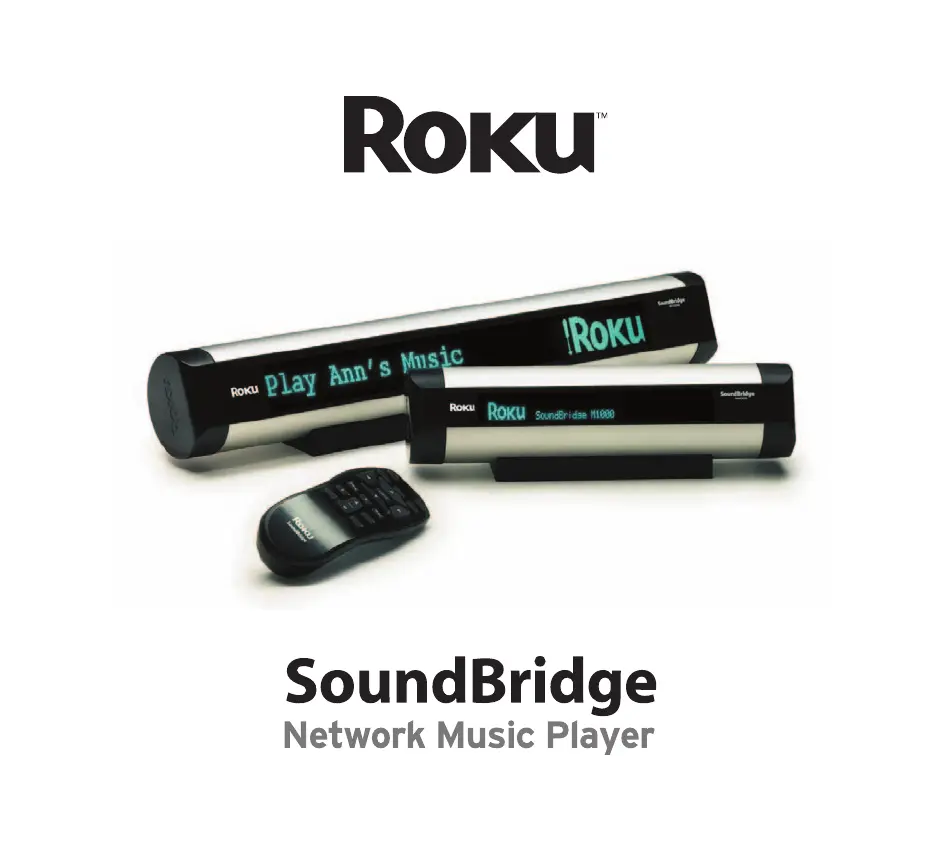
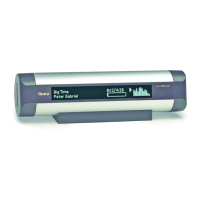
Roku SoundBridge Series - User Manual

Roku SoundBridge Series
64 pages
Print Icon
To Next Page IconTo Next Page
Loading...
User Guide

Questions and Answers

  • D
    Derek BrownAug 18, 2025
    What to do if Roku Media Player can’t connect to network with Wired Ethernet?
    • L
      lleonardAug 18, 2025
      If your Roku Media Player can't connect to the network using a wired Ethernet connection: * Check that your Ethernet cable is securely connected to both your Roku Media Player and your home networking hardware. * Make sure the 'link' light is illuminated.
  • M
    Michelle HouseAug 20, 2025
    What to do if there is no sound from my Roku SoundBridge?
    • A
      Autumn ByrdAug 20, 2025
      If you're not getting any sound from your Roku Media Player, here are a few things to check: * First, ensure that a song is actually playing. * Next, verify that the volume on your Roku Media Player is turned up sufficiently. * If you're using powered speakers, confirm they are powered on and the volume is at an audible level. * If connected to an audio receiver or amplifier, ensure it's on, the correct input is selected, the volume is up, and the speakers are properly connected.
  • A
    Aimee JohnsonAug 23, 2025
    How to fix a Roku SoundBridge that won't turn on?
    • R
      Robert DouglasAug 23, 2025
      If your Roku Media Player isn't turning on, check the following: * Ensure the AC power adapter is fully inserted into the power plug located under the right removable end cap. * Verify that the power supply is properly connected to the wall outlet. * If the AC adapter is plugged into a power strip, make sure the power strip is switched on.
  • V
    vblackburnAug 26, 2025
    Why is my Roku SoundBridge Media Player remote control not responding?
    • S
      samuelhardingAug 26, 2025
      If your Roku Media Player remote isn't responding, try these steps: * Make sure you've inserted two fresh AAA batteries into the remote. * Ensure there are no obstructions blocking the IR receiver window, located on the right side of the unit below the Roku logo.
  • S
    Scott HillAug 28, 2025
    Why can’t I see some of my music files while browsing on my Roku Media Player?
    • M
      Megan ThomasAug 28, 2025
      If you can't see some of your music files while browsing on your Roku Media Player, it may be because your ID3 data tags are missing. To add or edit your ID3 tags, open iTunes, select the file(s) to edit, then click on File/Get info, and click on the Info tab.
  • M
    Mr. John McculloughAug 30, 2025
    Why won't my music file play on my Roku SoundBridge Media Player?
    • M
      Michael JohnstonAug 30, 2025
      If your music file won't play on your Roku Media Player: * Ensure that Playback mode is enabled (music isn’t paused) by pressing the Play button until you see the Play icon on the screen. * Browse or search for the track(s) you want to play, and press Select twice to play them immediately, or Add to add them to your Song Queue. * Confirm that your file is in a supported format: MP3, AAC, AIFF, or WAV. * If your audio file is in WMA, FLAC, or Ogg-Vorbis format, you will need to install and use the SlimServer software. * If your files are in WMA format, iTunes can convert them into the AAC format.
  • A
    Amber McknightSep 2, 2025
    What to do if I can’t get to main menu on Roku SoundBridge startup?
    • B
      Billy EnglishSep 2, 2025
      If you can't reach the main menu when starting your Roku Media Player, it could be because your music library isn't being detected due to an inactive network connection. Check your network connections, including the cables and power supply.
  • J
    Joshua WilliamsSep 4, 2025
    How to fix Roku Media Player when it can’t connect to network wirelessly?
    • R
      robin25Sep 4, 2025
      If your Roku Media Player can't connect to the network wirelessly, check that your Wi-Fi adapter CF card is securely inserted under the left end cap of the device, and the power light on the CF card is lit.
  • M
    Morgan EdwardsSep 7, 2025
    Why does my Roku SoundBridge Media Player have bad sound (clipping/distortion)?
    • D
      Daniel BensonSep 7, 2025
      If you're experiencing bad sound quality (clipping/distortion) with your Roku Media Player: * Ensure your audio cables are properly plugged into both the Roku Media Player and your speakers or audio system. * Verify the source file is of good audio quality by playing it back on your computer.
  • A
    Angel SchneiderSep 9, 2025
    Why can’t I find playlists that I saved on my computer on Roku SoundBridge?
    • S
      Steven MatthewsSep 9, 2025
      If you can't find playlists you saved on your computer on your Roku Media Player, make sure your playlist was created in iTunes and is visible within your iTunes application.

Summary

Introduction and Initial Setup

Welcome to SoundBridge

Introduces the Roku SoundBridge and its capabilities.

Registering Your SoundBridge

Guide to registering the device for software updates and notifications.

Keeping Software Up-to-Date

Instructions for maintaining the latest software for enhanced functionality.

Getting Started

Software Requirements

Outlines the software prerequisites, primarily iTunes, for SoundBridge operation.

Home Network Connection Setup

Instructions for connecting SoundBridge to your network via Ethernet or Wi-Fi.

Audio Output Connections

Guides on connecting SoundBridge to speakers or stereo systems for audio playback.

Power and Remote Control Usage

Steps for connecting the AC power adapter and operating the SoundBridge with its remote.

Network Configuration

Wired and Wireless Network Setup

Detailed steps for establishing both wired Ethernet and wireless Wi-Fi network connections.

Selecting Your Music Library

How to choose and access your music library after network setup is complete.

Preferences and Mounting Options

Adjusting display settings and options for mounting the SoundBridge unit.

Checking for Software Updates

Procedure to verify and install the latest available software for SoundBridge.

Music Playback Overview

Audio Formats and Navigation Guide

Lists supported audio formats and explains list navigation using the remote.

Screen Icons Explained

Interpretation of various icons displayed on the SoundBridge interface during operation.

Music Playback Tutorial

Main Menu and Browsing Music

Navigating the main menu and browsing music content by album.

Browsing Music by Artist, Composer, Genre

Finding and selecting music organized by artist, composer, or genre.

Search Options

Using search functions to locate specific music tracks, albums, artists, or keywords.

Internet Radio Access

Guide on how to access and play Internet radio stations through the SoundBridge.

Advanced Features

Display and Settings Menu

Adjusting display settings and accessing the main SoundBridge settings menu.

Visualizer and Safe Mode

Customizing the visualizer display and understanding Safe Mode for software recovery.

Wi-Fi Setup

Wi-Fi Benefits and Configuration

Explains the advantages of Wi-Fi and provides step-by-step configuration instructions.

Troubleshooting Wi-Fi Connectivity

Addresses common issues and solutions for Wi-Fi setup and connection problems.

Apple AirPort Network Setup (Mac)

Configuring an Apple AirPort for Mac users, including network name identification.

Apple AirPort Network Password

Obtaining the necessary network password for Apple AirPort configuration.

Apple AirPort Network Setup (PC)

Guide for PC users on configuring an Apple AirPort base station for network access.

Linksys WAP54 G Setup Guide

Instructions for setting up a Linksys WAP54G wireless access point.

Netgear WG602 Setup Guide

Steps for configuring a Netgear WG602 wireless access point for network use.

Troubleshooting and Customer Support

Common Problems and Solutions

Addresses frequent issues like unit not powering on or remote control unresponsiveness.

Network Connection Troubleshooting

Solutions for problems encountered with wired Ethernet or wireless network connections.

Audio Playback Troubleshooting

Resolving issues related to the absence of sound or poor audio quality from the device.

Playlist and File Browsing Issues

Troubleshooting problems with playlists and the visibility of music files during browsing.

Playback and Sound Quality Fixes

Solutions for music files not playing or experiencing bad sound quality (clipping/distortion).

Song Queue Management

Information and limitations regarding managing and viewing the song queue.

Warranty Information

Limited Warranty and Service Process

Details the one-year limited warranty and the procedure for obtaining service.

Warranty Scope and Limitations

Outlines what the warranty covers, excludes, and any legal limitations or disclaimers.

Technical Specifications

Model and Audio;Network Specifications

Details of model dimensions, audio outputs, supported protocols, file formats, and network interfaces.

Power, System Requirements, and Accessories

Power supply specifications, system requirements for OS, and optional accessories.

Safety and Regulatory Compliance

FCC and Canada Compliance Information

Information on FCC rules, Part 15 compliance, and Canadian Class B statements.

VCCI Statement and Safety Guidelines

VCCI Class B statement and essential safety instructions for proper product operation.

User Cautions and European Directives

User cautions regarding FCC certification and compliance with European Community directives.

Roku SoundBridge Series Specifications

General IconGeneral
ModelSoundBridge Series
Audio OutputDigital Optical
ConnectivityEthernet
Supported Audio FormatsMP3, WMA, WAV, AIFF, FLAC
DisplayLCD Screen
Remote ControlIncluded
Additional FeaturesInternet Radio, Alarm Clock

Related product manuals