Convenient Functions
8
Using the VT-4 As a USB Audio Interface
By using a commercially available USB 2.0 cable to connect the VT-4 to
your computer, you can use the VT-4 as a USB audio interface.
* You must install the USB driver before connecting the VT-4 to
your computer.
Download the USB driver from the Roland website.
For details, refer to Readme.htm which is included in the download.
http://www.roland.com/support/
Playback
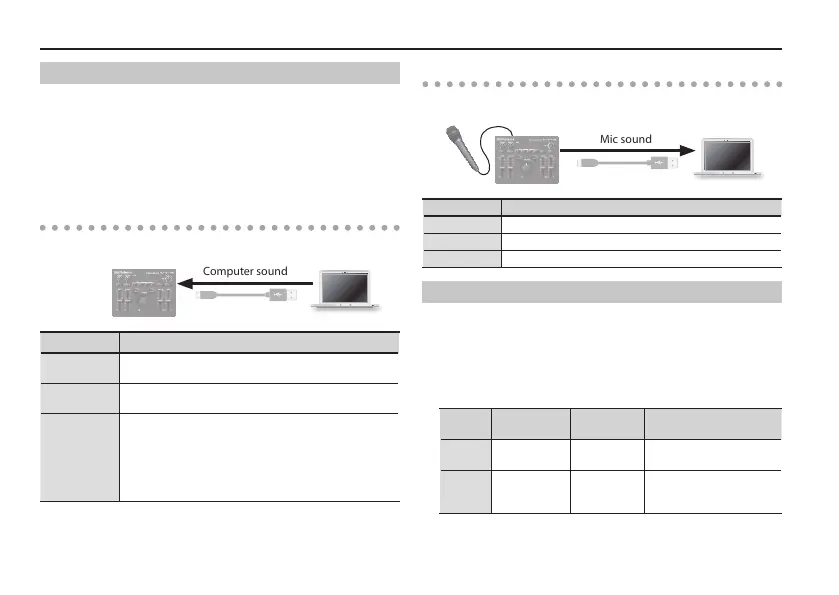
Sound played back by your computer can be output from the VT-4 via
the following routes.
Computer sound
Route Explanation
OUT
Output from the LINE OUT jacks and PHONES jack (no
eect is applied).
TO MIC IN
Output from the VT-4 as sound that’s input from the
MIC IN jack.
TO CARRIER
The sound of an external synthesizer that’s input to
“TO CARRIER” of the USB port can be used as the signal
(tonality and pitch) that is the basis of the vocoder
voice.
Turn the external carrier setting (p. 9) “On” when
using this.
Recording
The mic sound processed by the VT-4 can be recorded on your
computer.
Mic sound
Sound Explanation
MIX The sound of the LINE OUT jacks is input.
WET The eect-processed sound is input.
DRY The sound before being eect-processed is input.
Making Settings for Other Functions
1. Turn on the power while holding down the [ROBOT]
button.
The [MANUAL] button blinks.
2. Turn the [KEY] knob to select the parameter that you
want to set.
[KEY]
knob
Parameter Value Explanation
C MIDI channel
Omni (0),
1–16 Ch
Species the MIDI
transmit/receive channel.
D Saver time
O (0), 1–20
min
Changes the time until
the screen saver is
applied.


 To Next Page