
 Need help?
Do you have a question about the Roland WM-1 and is the answer not in the manual?
Instructions for installing and replacing the AAA battery in the WM-1 unit.
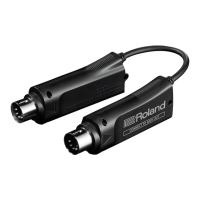
Details the WM-1 wireless MIDI adaptor and its connection via MIDI connectors.
Details the WM-1D wireless MIDI dongle and its connection via a computer's USB port.
Guide to connecting up to three BLE MIDI devices to a single WM-1 unit.
Instructions for rapidly pressing the MODE switch twice to toggle between modes.
Procedure to reset the WM-1/WM-1D connection settings by holding the MODE switch.
The Roland WM-1 and WM-1D are wireless MIDI adaptors designed to facilitate wireless MIDI communication between MIDI devices, computers, tablets, and smartphones. These devices transmit and receive MIDI messages wirelessly, leveraging Bluetooth LE technology, officially known as "MIDI over Bluetooth Low Energy."
The WM-1 is a wireless MIDI adaptor that connects directly to a device equipped with MIDI connectors (IN, OUT). It is powered by a single AAA battery, which needs to be installed correctly, observing polarity. To turn on the WM-1, simply connect it to your MIDI device and power on the connected device; the WM-1 will power on in tandem. Conversely, turning off the connected MIDI device will power off the WM-1. The WM-1 features a [MODE] switch and a MODE indicator. The color of this indicator changes depending on the communication mode, providing visual feedback on the device's status. A blinking red indicator signifies a low battery, prompting the user to replace it as soon as possible.
The WM-1D, on the other hand, is a wireless MIDI dongle designed for use with computers. It connects to a computer's USB port, from which it draws power. Upon connection, the WM-1D powers on automatically and is detected as a general-purpose USB MIDI device, with its driver installing automatically. Similar to the WM-1, the WM-1D also has a [MODE] switch and a MODE indicator, whose color indicates the current communication mode. To view the MODE indicator clearly, it is recommended to observe it at a 45-degree angle from the USB connector, as viewing it directly from above might obscure the color. To turn off the WM-1D, simply disconnect it from the computer.
Both the WM-1 and WM-1D offer two primary communication modes: STANDARD mode (BLE MIDI) and FAST mode. STANDARD mode allows connection to a Mac or smartphone that supports BLE MIDI, or to a WM-1D connected to a computer. In this mode, up to three BLE MIDI devices can be connected to a single WM-1 unit, including WM-1Ds, Macs, or smartphones. STANDARD mode itself has two sub-modes: STANDARD (Host) and STANDARD (Remote). The WM-1 is initially set to STANDARD (Host) mode, while the WM-1D is initially set to STANDARD (Remote) mode. FAST mode provides lower latency communication compared to STANDARD mode. In FAST mode, one WM-1/WM-1D unit can be connected to another WM-1/WM-1D unit. However, smartphones cannot be connected in FAST mode, and for Mac users wishing to use FAST mode, connection via a WM-1D is required.
Switching between STANDARD and FAST modes is achieved by holding down the [MODE] switch for two seconds. Each long press toggles the mode. The MODE indicator's color will change to reflect the current mode: red for STANDARD (Host), green for STANDARD (Remote), and orange for FAST mode.
Pairing is the process of registering MIDI devices with the WM-1/WM-1D, authenticating them for data transmission and reception. For the WM-1 with an iPhone: Connect the WM-1 to your MIDI device. The system will begin searching, and the MODE indicator will blink red. Then, from your iPhone app, select the WM-1 directly. Once pairing is complete, the indicator will change from rapid blinking to slow blinking. For the WM-1 with a Mac: Connect the WM-1 to your MIDI device. The system will search, and the MODE indicator will blink red. On the Mac, open Audio MIDI settings, then from the [MIDI Studio] menu, select [Open Bluetooth Configuration]. Ensure the WM-1 is shown and click [Connect]. If the WM-1 is not shown, briefly press its [MODE] switch to make the indicator blink red again. Upon successful pairing, the indicator will transition from rapid to slow blinking. For the WM-1 with a Windows computer (using a WM-1D): Connect the WM-1 to your MIDI device, causing its MODE indicator to blink red as it searches. Then, briefly press the WM-1D's [MODE] switch, and its indicator will blink green as it searches. Pairing is only possible if one unit is in STANDARD (Host) mode and the other in STANDARD (Remote) mode. If both are in the same sub-mode, pairing will not occur. Once paired, both indicators will change from rapid to slow blinking. For FAST mode pairing: Both WM-1/WM-1D units must first be set to FAST mode. Connect the WM-1 to your MIDI device. Both units will search, and their MODE indicators will blink orange. If no target is found, the indicator will go dark; a brief press of the [MODE] switch will resume pairing. Once paired, the indicators will change from rapid to slow blinking.
Advanced features include multi-connection capabilities in STANDARD (Host) mode, allowing up to three BLE MIDI devices (iPhone, Mac, or WM-1/WM-1D in STANDARD (Remote) mode) to connect to one WM-1/WM-1D. To set a WM-1/WM-1D to STANDARD (Remote) mode, rapidly press the [MODE] switch twice. The indicator color will change accordingly. When using multi-connection, only one unit of the same device type (e.g., one iPhone, one Mac) can be connected.
To initialize the unit's connection settings (factory reset), hold down the [MODE] switch for ten seconds. The MODE indicator will blink orange, and then go dark once the operation is complete.
It's important to note several limitations: The WM-1/WM-1D cannot be used with BLE MIDI devices from other manufacturers. In multi-connection scenarios, tempo synchronization might be unstable; reducing the number of remote devices can help. When using MIDI Sync, inserting an empty measure at the beginning of the song in your DAW can improve synchronization stability. Additionally, using the unit with a computer that has a USB 3.0 peripheral device connected might cause interference, especially with USB flash drives or hard disk drives. To mitigate this, it's recommended to create distance between the USB 3.0 peripheral and the WM-1D, possibly by using a USB extension cable.
 General
| Quantity | 1 |
|---|---|
| Compatibility | Roland WM |
| Product color | Black |




 To Next Page