
EasyManua.ls Logo

rollease acmeda Automate Paradigm - User Manual

rollease acmeda Automate Paradigm
16 pages
Print Icon
To Next Page IconTo Next Page
Loading...
AUTOMATE
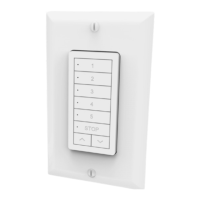
Paradigm Flush Wall Switch
FEATURES:
• Multi channel selectable
• Retrofit Ready
• Group Control
• Compatible with screwless decorator cover plates
• Optionally functions as handheld remote
AUTOMATE
| Paradigm flush wall switches feature a contemporary design and a
wirefree deployment, making them retrofit ready for any location. Paradigm 5 channel
switches are perfect for individual shade, room and whole home control.
The Paradigm flush mount switch can be mounted on top of any surface. Its slim profile
eliminates the need for any holes to be cut in walls.
MTRF-WS5-FLUSH_PRGM_v1.4 MAY 2021
433 MHz

Other manuals for rollease acmeda Automate Paradigm

Questions and Answers

  • T
    Thomas MillerJul 27, 2025
    Why can't I set limits on a single motor, and multiple motors respond when using the Rollease Acmeda Switch?
    • J
      juanfordJul 27, 2025
      If you cannot set limits on a single motor and multiple motors respond when using a Rollease Acmeda Switch, it may be because you are using “Group” channels to adjust motor limits. Always reserve an individual channel for programming functions. As a best practice, provide an extra 15 channel switch in your multi motor projects, that provides individual control for each motor for programming purposes.
  • N
    nrosarioAug 1, 2025
    Why is my rollease acmeda Automate Paradigm motor not responding?
    • D
      Dr. Christy WilsonAug 1, 2025
      Several factors can cause a motor to not respond. It could be due to: * Incorrect battery insertion: Ensure the battery polarity is correct. * Radio interference/shielding: Position the remote away from metal objects and keep the motor's or receiver's aerial straight and away from metal. * Excessive distance: Move the remote closer to the receiver or consider using a repeater. * Power failure: Verify the power supply to the motor is connected and active. * Incorrect motor wiring: Check that the wiring is correctly connected, referring to the motor installation instructions.
  • C
    Cassandra HudsonAug 6, 2025
    What to do if my rollease acmeda Switch motor will pair, but I can't set limits?
    • S
      Sally PaulAug 6, 2025
      If your motor pairs but you cannot set limits, the switch might be in a locked state. To unlock it, press and hold the STOP button for 15 seconds until the locked state changes.
  • J
    Jill ThomasAug 11, 2025
    What to do if rollease acmeda Switch motor will not go down after setting the top limit?
    • J
      Jo HernandezAug 11, 2025
      If the motor doesn't go down after setting the top limit, it's likely that the top limit was set incorrectly using the DOWN and STOP buttons. To fix this, reset the motor and begin the programming sequence again. Remember to set the upper limit using the UP and STOP buttons, and the down limit using the DOWN and STOP buttons.
  • S
    Stephanie DavisAug 16, 2025
    How to prevent multiple rollease acmeda Automate Paradigm motors responding when setting limits on a single motor?
    • E
      Edward MartinezAug 16, 2025
      When setting limits, if multiple motors respond, it's likely you're using channel 0 to adjust motor limits on a multi-channel remote. Always reserve an individual channel for programming functions. As a best practice, provide an extra 15 channel remote in your multi motor projects, that provides individual control for each motor for programming purposes.
  • J
    Jennifer PalmerAug 21, 2025
    What to do if my rollease acmeda Automate Paradigm Switch motor is not responding?
    • A
      Alexandria AlexanderAug 22, 2025
      If the Rollease Acmeda Switch motor isn't responding, there might be several reasons. First, check the battery polarity to ensure it's correctly inserted. Radio interference could be the issue; reposition the switch away from metal objects, making sure the motor or receiver antenna is straight and clear of metal. The distance between the receiver and remote may be too far; try moving the switch closer. Verify the motor's power supply is connected and active. Finally, incorrect wiring could be the cause; double-check that the wiring is correctly connected, referring to the motor installation instructions.

Summary

Product Technical Data and Specifications

Safety Information and Warnings

Important Safety Instructions

Crucial safety guidelines to read before installation and use.

Battery Hazard Warning

Warning regarding the chemical burn hazard from ingesting coin cell batteries.

FCC & ISED Compliance

Regulatory compliance statements for radio frequency emissions.

Installation Guide

Kit Components

List and identification of all items included in the product package.

Battery Replacement

Step-by-step instructions for replacing the device's battery.

Magnetic Wall Clip Installation

Guide for attaching the switch to a wall using the magnetic clip.

Fixed Wall Clip Installation

Guide for permanently mounting the switch to a wall using the fixed clip.

Functional Overview

Understanding the Buttons

Explanation of the functions of each button on the switch.

Channel Selection

Procedure for selecting and deselecting operational channels on the switch.

Programming Instructions

Programming with Motor P1 Button

Steps to program the switch using the motor's P1 button for grouped control.

Programming with Existing Controller

Method to program the switch using a pre-existing controller.

Initial Setup and Configuration

Check Motor Direction

Procedure to verify and reverse the motor's operational direction.

Set Motor Limits

How to establish the upper and lower travel limits for the motor.

Locking Limit Settings

Procedure to prevent unintended changes to the set motor limits.

Adjusting Motor Limits

Adjust Upper Limit

Detailed steps to set the highest position for the shade.

Adjust Lower Limit

Detailed steps to set the lowest position for the shade.

Favorite Positioning

Set Favorite Position

Process for defining and saving a preferred shade position.

Send to Favorite Position

How to recall and move the shade to its saved favorite position.

Delete Favorite Position

Procedure to remove a previously saved favorite shade position.

Troubleshooting Guide

Notes

rollease acmeda Automate Paradigm Specifications

General IconGeneral
Radio Frequency433.92 MHz
ColorWhite
CompatibilityAutomate motors
Control MethodRF (Radio Frequency)
ControlUp/Stop/Down
MountingWall mounted
RangeUp to 30 meters (open space)

Related product manuals