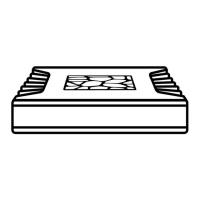
Supports 2.5" HDD or SSD with a drive height of up to 15mm.
Setup
1. Connect and power up nucleus
The first step is making power and network connections and starting Nucleus.
Learn more...
2. Update Nucleus firmware
Before using Roon with Nucleus for the first time, it's important to make sure your firmware is
up to date.
Note: Not updating Nucleus firmware could lead to data loss or a failed migration.
Learn more...
3. Prepare your storage and audio devices
Nucleus will discover devices connected via USB, HMDI, and ethernet at any time, but it's
simplest to have these devices connected and powered on before you get started.
Learn more...
4. Start using Nucleus
Now that your equipment is connected, it's time to install the Roon app (for Mac and
Windows PC) and/or the Roon Remote app for iPad, iPhone, and Android devices, and
connect to Nucleus. From here, you can migrate an older Roon installation to Nucleus as well.
Learn more...
Maintenance
Nucleus comes with an administrative interface that can be loaded using any web browser.
Learn more...
Support
If you need help getting started with Nucleus, you can contact our support team by starting a
new topic in the Nucleus Support category on our community site.


 To Next Page
 Loading...