Need help?
Do you have a question about the Roon Nucleus and is the answer not in the manual?
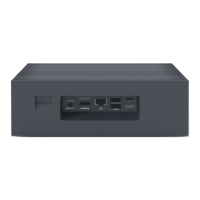
Connect the power supply to Nucleus and plug it in. Use an ethernet cable to connect to your router or switch.
Connect USB drives or NAS devices containing your music files to Nucleus or the network.
Ensure all USB, HDMI, and networked audio devices are connected and powered on.
Download the Roon Remote app for iOS and Android devices from your device's app store.
Download Roon for Mac and Windows from the Roon Labs website.
The Roon app will find Nucleus on your network automatically. Connect to it to continue.
Create a Roon account or log in with your email and password to proceed.
Specify where your music files are stored (Nucleus, MyPassport, Music folder) for Roon to build its database.
Connect a TIDAL account to access millions of lossless tracks and enhance your music library.
Enable connected audio devices (USB, HDMI, Ethernet, WiFi) to be used as zones within Roon.
Access comprehensive documentation for installing, configuring, and using Nucleus and Roon.
Find FAQs, step-by-step tutorials, and instructions for raising support issues.
Engage with the Roon support team and a community of users for information and discussion.
 General
| Networking | Gigabit Ethernet |
|---|---|
| USB Ports | 2 x USB 3.0 |
| Operating System | Roon OS |
| Power Input | 19V DC |
| RAM | 4GB |
| Storage | 64GB SSD |
| Power Supply | 19V DC |
| Dimensions | 212mm x 156mm x 74mm |
| Audio Output | HDMI |

 To Next Page