EasyManua.ls Logo

Ross HDR-8610USB - User Manual

Ross HDR-8610USB
32 pages
Print Icon
To Next Page IconTo Next Page
Loading...
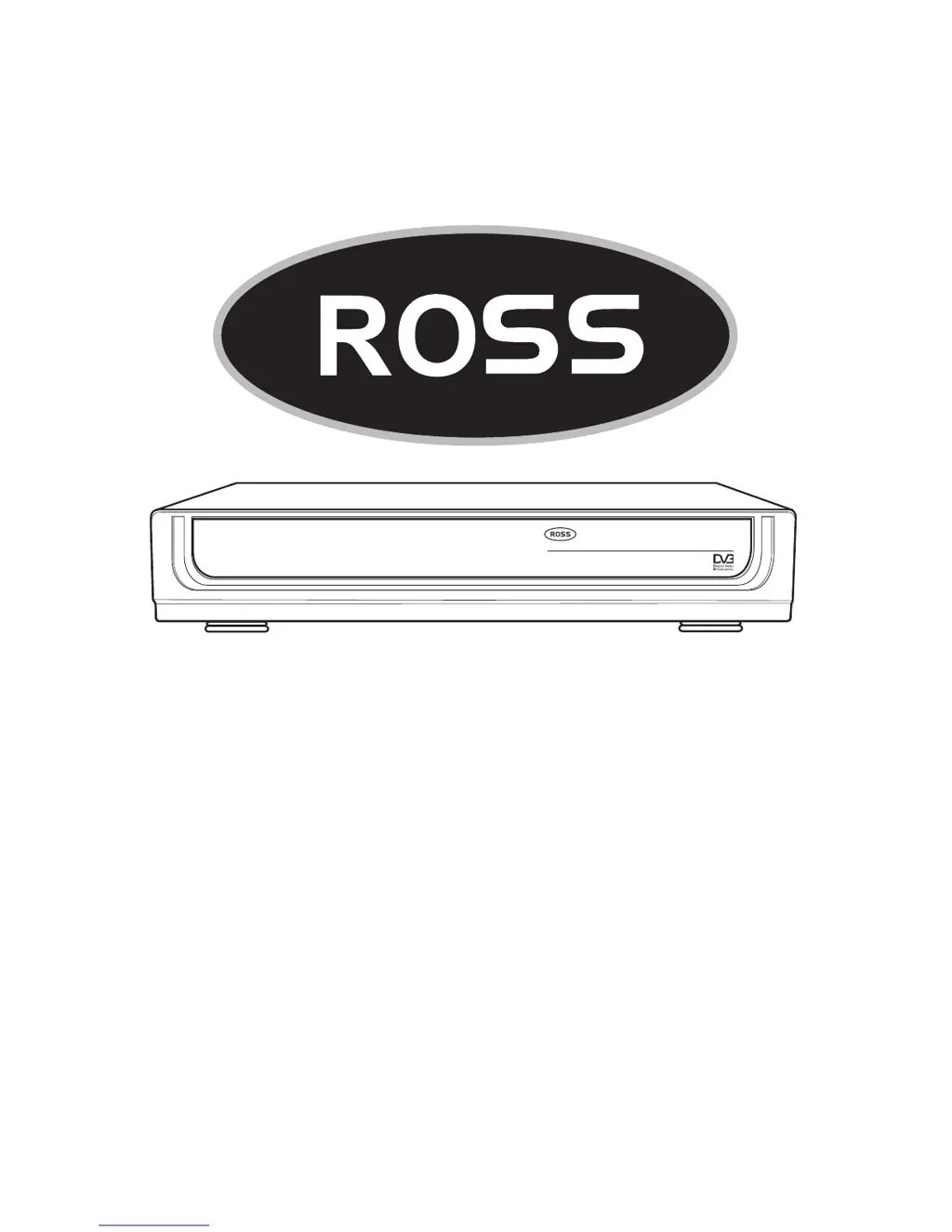
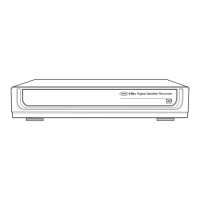
HD+ Digital Satellite Recorder
User Manual
MODEL NUMBER
HDR-8610USB
Please read this Manual thoroughly before using your
Recorder and then retain for future reference.
HD+ Digital Satellite Recorder

Questions and Answers

  • K
    Kathryn HaleJul 31, 2025
    What to do if Ross HDR-8610USB shows “No signal” on TV?
    • M
      Michael SullivanJul 31, 2025
      If your Ross Receiver displays a “No signal” message on your TV or you can't switch to the correct input, first, check all the connection cables between your TV and the set top box. If that doesn't work, try pressing the V-format button on the remote to cycle through different video formats, as the current format may be incompatible.
  • B
    Brian GarciaAug 4, 2025
    Why Ross HDR-8610USB cannot find any channels?
    • R
      Ronald HughesAug 5, 2025
      If your Ross Receiver set top box has power but cannot find any channels or shows any signal strength, there might be several reasons: 1. The satellite dish may not be installed correctly. Try reinstalling and calibrating it. 2. The LNB inputs might not be connected properly. Reconnect the cables to the LNB and receiver. 3. Bad weather can interfere with the signal. Try again later when the weather is better. 4. The settings may be incorrect. Set the proper parameters of the received program in the system settings menu.
  • K
    Kathy JordanAug 10, 2025
    What to do if video stops on Ross Receiver?
    • M
      michelledoughertyAug 10, 2025
      If the video on your Ross Receiver stops or disappears, it might be because the V-format was changed. The set top box requires a few seconds to adjust to the new output format. Please wait, and the video and audio should return shortly.
  • B
    brittney60Aug 15, 2025
    Why does Ross HDR-8610USB Receiver TV program play a strange sound?
    • B
      Bryan StaffordAug 15, 2025
      If your Ross Receiver is playing a TV program with a strange sound, it may be because the channel has multiple audio tracks or languages. Use the “Audio” button on the remote to select the correct audio track or language for the program.
  • J
    Javier JonesAug 20, 2025
    Why I cannot watch another program when recording on Ross Receiver?
    • J
      James AndersonAug 20, 2025
      If you cannot watch one TV program while recording another on your Ross Receiver, ensure that both LNB inputs are connected and that the tuner is set to the same satellite.
  • E
    eddiebeardAug 25, 2025
    How to fix Ross HDR-8610USB Receiver with no display on screen?
    • C
      carolwestAug 25, 2025
      If your Ross Receiver has power but there is no display on the screen or lights on the set top box, remove the plug and reinsert it into the socket to ensure it is correctly inserted.

Summary

Safety and General Information

Safety Information

Crucial safety guidelines for operating the satellite receiver, covering electrical hazards, ventilation, and proper handling to prevent injury or damage.

General Information and Package Contents

General Information

Product overview, environmental disposal guidelines, and EU conformity statement for general user understanding.

In the Box

Lists all essential items included in the product packaging, such as the recorder, remote, cables, and manual.

Controls and Interfaces

Front Panel Controls

Identifies and explains the buttons and indicators located on the front of the satellite receiver for basic operation.

Rear Panel Connections

Details all the input and output ports on the rear of the unit, including HDMI, SCART, and LNB inputs.

Remote Control Operation

Remote Control Layout

Presents a visual guide to the remote control, labeling each button with its number for easy identification.

Remote Control Functions Part 1

Provides detailed explanations for the initial set of remote control buttons, covering power, timers, EPG, and navigation.

Remote Control Functions Explained

Remote Control Functions Part 2

Continues the explanation of remote control buttons, covering functions like subtitles, recall, and PVR operations.

Initial Setup and Installation

Dish and Recorder Connection

Guides on connecting the satellite dish, recorder, and TV, including remote preparation and TV format setup.

Channel Acquisition and Setup

Satellite Signal and Channel Scanning

Explains how to check satellite signal strength and perform channel scans for available programs.

Fast Channel Setup

Describes accessing pre-programmed channels from popular satellites without requiring a manual scan.

Menu System Navigation

Installation Menu Options

Details the Installation Menu, including selecting satellites and scan modes for channel setup.

Satellite Selection and Scan Modes

Guides on choosing the correct satellite and scan mode for acquiring channels from various sources.

Channel Management Features

Channel Edit Menu

Introduces options for editing TV and radio channels, such as locking, deleting, and renaming.

TV Channel Editing

Explains specific TV channel editing actions like locking, moving, renaming, and editing channel data.

Channel Organization and Favorites

Radio Channel Editing

Details the process for editing radio channels, similar to TV channel editing functions.

Setting Favorites for TV and Radio

Allows users to create personalized lists of favorite TV and radio channels for quick access.

Program Backup and Restore

Explains how to create a backup of the channel configuration for later restoration or transfer.

System Settings and Time Configuration

System Settings Overview

Guides on adjusting TV type, screen mode, format, SPDIF, and frame rate for optimal display.

Local Time and Date Setup

Details how to set the current date and time, including GMT offset options for accurate timekeeping.

Timer and System Information

Timer Programming Guide

Explains how to set up to 8 timers for recording programs, including timer control and cycle options.

System Information Display

Provides details about the software and hardware versions installed on the recorder for reference.

User Preferences and Security

User Settings Menu

Covers parental controls, OSD settings, multimedia access, and factory default resets for user customization.

Parental Control Configuration

Allows users to set passwords and locks for menus, channels, and installation to restrict access.

Multimedia and Storage Management

OSD Control Options

Customizes On-Screen Display settings like menu language, standby display, and information bar timeout.

HDD Management Functions

Explains how to manage the internal Hard Disk Drive (HDD), including formatting, creating, and deleting partitions.

Media File Organization and Operations

Media and Folder Management

Details how to select partitions, manage folders, copy/paste files, and update software or channel databases.

File Operations and System Updates

File Copy, Paste, and Deletion

Guides on copying, pasting, deleting, and renaming files and folders within the HDD or USB storage.

Software and Channel Database Updates

Explains how to update the recorder's software and reinstall channel databases using approved files.

Personal Video Recorder (PVR) Features

Time-Shift Recording (TSR)

Explains how to pause, rewind, and fast-forward live TV using the Time-Shift function for flexible viewing.

Recording and Playback Functions

Instant and Timed TV Recording

Guides on performing instant video recordings and setting up timed recordings for future programs.

Recording Playback and Management

Details how to play back recorded content and manage recorded files within the PVR system.

USB Storage for Recording and Playback

Recording to USB Device

Explains how to record live TV onto a USB stick or portable HDD and play back recordings from USB.

Picture-in-Picture (PIP) Functionality

Advanced PIP Controls and Usage

Details controls for the PIP feature, including moving, zooming, and switching between PIP and main windows.

Advanced Installation Procedures

Antenna Setting Configuration

Covers adjusting LNB type, frequency, tone control, DiSEqC, and scan modes for satellite setup.

Transponder Settings for Advanced Tuning

Transponder Editing and Scanning

Explains how to edit transponder settings, including frequency, symbol rate, and polarization for channel scanning.

Motorized Dish and USALS Setup

Motor Configuration (DiSEqC1.2)

Guides on setting up a motorized satellite dish system, including continuous movement and step adjustments.

USALS (DiSEqC) Setup

Details how to configure the USALS system by inputting latitude and longitude for automatic dish positioning.

Tuner Configuration and Setup

Tuner Set-Up Options

Explains tuner connection types and LNB power settings for optimal signal reception.

Software Update and Maintenance

Troubleshooting Common Problems

Ross HDR-8610USB Specifications

General IconGeneral
BrandRoss
ModelHDR-8610USB
CategoryReceiver
LanguageEnglish

Related product manuals