12
RDV-03
12
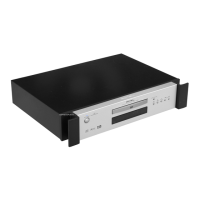
RDV-03 DVD Player
2525
English
About Rotel
A family whose passionate interest in music led
them to manufacture high fidelity components
of uncompromising quality founded Rotel 40
years ago. Through the years that passion has
remained undiminished and the family goal of
providing exceptional value for audiophiles
and music lovers regardless of their budget,
is shared by all Rotel employees.
The engineers work as a close team, listening
to, and fine tuning each new product until it
reaches their exacting musical standards. They
are free to choose components from around
the world in order to make that product the
best they can. You are likely to find capacitors
from the United Kingdom and Germany, semi
conductors from Japan or the United States,
while toroidal power transformers are manu
-
factured in Rotel’s own factory.
Rotel’s reputation for excellence has been
earned through hundreds of good reviews
and awards from the most respected review
-
ers in the industry, who listen to music every
day. Their comments keep the company true
to its goal – the pursuit of equipment that is
musical, reliable and affordable.
All of us at Rotel, thank you for buying this
product and hope it will bring you many
years of enjoyment.
Getting Started
Thank you for purchasing the Rotel RDV-03
DVD. With its precision transport, comprehen
-
sive digital processing, and Rotel’s Balanced
Design, the RDV-03 ensures the highest level
of audio performance. When used in a high-
quality audio system, your DVD player will
provide years of enjoyment.
The RDV-03 is a multipurpose player equipped
to handle video and audio discs in a wide
range of formats including DVD-Video, Au-
dio CD, Video CD, SVCD, MP3, WMA,
and JPEG.
Video Features
• Asia version supports both NTSC and PAL
TV monitors (selectable with back panel
switch. Euro version supports PAL TV moni-
tors. Both versions can play both PAL and
NTSC discs, converting the signal to the
appropriate output.
• Progressive scan for both PAL and NTSC
systems, optimized for both video and
film sources.
• Special playback functions such as frame-
by-frame, zoom, and variable slow-motion
and high-speed play.
• DVD-Video features include Multi-angle,
Multi-language subtitles, and Multi-lan
-
guage audio.
Audio Features
• Supported audio formats include sampling
frequencies up to 96 kHz, linear PCM en
-
coding, up to 24-bit resolution. DVD-Video
supports 2 channels at sample rates of 48
and 96 kHz at 16, 20, or 24 bit resolu
-
tion. Audio CD/Video CD is limited to 2
channels, 44.1 kHz at 16 bits.
• Supports the following digital audio formats:
Dolby Digital
®
DTS
®
(Digital Theater Systems)
MP3 (MPEG 1, Layer 3)
WMA (Windows
®
Media Audio)
MPEG multichannel
Linear PCM
• Virtual surround sound simulates surround
sound with the conventional 2-channel
(stereo) audio system.
• Audio outputs include stereo analog out
-
puts plus both coaxial and optical digital
audio outputs.
Other Features
• User-friendly On-Screen Displays.
• Full-featured remote control.
• Parental lock.
Supplied Accessories
• Audio/video cable with stereo analog
audio and composite video cable (1)
• S-Video cable (1)
• 75 ohm coax digital audio cable (1)
• Remote Control Unit (1)
• R03(LR03)/AAA batteries (3)
• Instruction manual (1)
• AC Power Cord (1)
Manufactured under license from Dolby Laboratories. “Dol-
by”, “Pro Logic”, and the double-D symbol are trademarks of
Dolby Laboratories.
Manufactured under license from Digital Theater System, Inc.
US Pat. No. 5,451,942 and other world-wide patents issued
and pending. “DTS” and “DTS 2.0+Digital Out”, are trade-
marks of Digital Theater Systems, Inc.”
This product incorporates copyright protection technology
that is protected by method claims of certain U.S. patents
and other intellectual property rights owned by Macrovision
Corporation and other rights owners. Use of this copyright
protection technology must be authorized by Macrovision
Corporation, and is intended for home and other limited
viewing uses only unless otherwise authorized by Macrovi-
sion Corporation. Reverse engineering or disassembly is
prohibited.
To disable the PBC feature, start play
by entering the scene number using the NU
-
MERIC buttons instead of pressing PLAY
.
See the next topic for direct access selection
using the NUMERIC buttons.
To reactivate the PBC feature: If you
have disabled the PBC feature and want to
reactivate it, press STOP
to halt playback,
then PLAY
to display the PBC menu.
Entering a Chapter
or Track Number
You can directly access a Chapter or Track
by entering the number using the NUMERIC
buttons on the remote. To select Chapter 2,
press the 2 button. To select item 24, press
the +10 button twice and then the 4 button.
To select item 30, press the +10 button twice
and then the 10 button. Playback of the se
-
lected scene begins automatically.
On DVD-Video discs, this feature selects a
Chapter number when the disc is playing or a
Title number when the disc is stopped.
On SVCD and Video CD discs, this fea
-
ture selects a Track number when the disc is
stopped or playing in non-PBC mode.
On Audio CD discs, this feature selects
a Track number, wether the disc is playing
or stopped.
From the status bar menus:
When playing a DVD-Video disc, you can
also directly access a Chapter from the sta
-
tus bar menus:
1. Press the ON SCREEN button on the re
-
mote twice. A display window appears
on the TV screen.
2. Press the CURSOR
buttons to select
the CHAP
➪ field.
3. Enter the new selection number using the
NUMERIC buttons, For example, to select
the 4th Chapter, press 4. To select the 10th
Chapter, press 1, then 0.
4. Press the ENTER button to begin play at
the selected point.
Find a Location
with Time Search
You can play a DVD-Video, Video CD, SVCD,
or Audio CD disc from a desired location by
specifying the elapsed time from the begin-
ning of the current Title using the Time Search
function. This direct access feature is avail-
able any time a menu screen not displayed
on the TV screen.
1. Press the ON SCREEN button on the re
-
mote twice. The status bar menus appear,
varying slightly depending on the type of
disc.
2. Press the CURSOR buttons to select
the
field. Then, press the ENTER but-
ton.
3. In the pop-up time window, enter the de
-
sired time in HOURS:MINUTES:SECONDS
(for DVD-Video) or MINUTES:SECONDS
(for SVCD, Video CD, or Audio CD) using
the NUMERIC buttons (0 – 9).
DVD-Video example: to start play at
2 hours, 34 minutes, press 2, 3, then 4:
SVCD, VCD, CD example: To start play
at 23 minutes, 40 seconds on an SVCD,
VCD, or Audio CD, press 2, 3, then 4:
It is not necessary to enter trailing zeros.
They will fill in automatically. If you make
an error, use the CURSOR buttons
to move back to the incorrect digit and
make changes.
4. Press the ENTER button begin play at the
selected point.
Repeat Play
The Repeat Play feature is available for DVD-
Video, Audio CD, Video CD, and SVCD
discs. The feature continuously repeats a
single selection or all of selections until you
stop play.
On a DVD-Video disc, you can repeat a single
Chapter or the all of the Chapters in an entire
Title. On other discs, repeat a single Track
or the entire disc.
Repeat play is not available on Video CD/
SVCD discs with the PBC feature active.
To begin Repeat Play:
Press the REPEAT button on the remote con
-
trol. Each press of the button advances to the
next REPEAT mode (ALL, SINGLE SELECTION,
OFF) as follows:
DVD-Video:
ALL (TITLE) ➪ CHAPTER ➪ OFF
CD and Video CD/SVCD:
ALL ➪ TRACK ➪ OFF
The repeat indicator
appears in the front
panel display in the REPEAT ALL mode and
appears in the REPEAT SINGLE mode.
In addition, an On Screen display shows the
current repeat mode on the TV screen.
To stop Repeat play
:
Press STOP
to stop playback. On a DVD-
Video disc, the repeat mode is cancelled
entirely. On all other discs, playback stops
but repeat mode remains active. To cancel
repeat mode, press the REPEAT button until
the OFF mode is selected.
RDV03.indd, Spread 12 of 18 - Pages (12, 25) 4/6/2005 6:05 PM


 To Next Page