18
RDV-03
18
RDV-03 DVD Player
1919
English
NOTE: An inhibit symbol on screen indicates
that this feature is not available on the cur
-
rent disc.
ZOOM Button
Press the ZOOM button to magnify the image
on the TV. Each press of the ZOOM button
changes the size of the picture: 1.8x, 4x, 8x,
16x, 32x, 64x, and back to normal size.
While zoomed, video image can be moved
up, down, left, or right by pressing the CUR
-
SOR
buttons on the remote.
REPEAT Button
Press the REPEAT button to repeat the currently
playing Chapter (usually the current scene).
Press the button a second time to repeat the
current Title (usually the entire disc). Press a
third time to cancel repeat play.
NOTE: The repeat function varies with different
kinds of discs. See the detailed instructions
in the Using the RDV-03 section.
VFP/P.SCAN Button
Press this button quickly to display the Video
Fine Parameters menu, which allows you to
customize the picture quality.
Press and hold the VFP/P.SCAN button for
several seconds to activate the progressive
scan video output to an HDTV monitor. Press
and hold the button a second time to revert
to standard definition.
On the Asia version of the RDV-03, the VFP/
P.SCAN button only works when the rear
panel video selector switch is set to the RE
-
MOTE position. In the other two positions,
the unit is locked into either the interlaced or
progressive output modes.
NOTE: Do not use progressive scan with con-
ventional analog TV sets. Do not activate the
progressive scan feature on PAL systems when
the SCART setting as the active video output
in the setup menus; progressive scan signals
can only be used with the Component Video
(Y P
R PB) output setting.
TITLE/GROUP Button
Press the TITLE/GROUP button for directly se-
lecting a Title or Group using the NUMERIC
buttons on the remote.
RETURN Button
Press the RETURN button to cancel a menu
and return to the previous menu.
ON-SCREEN Button
Press the ON SCREEN button to display a
status bar on the TV monitor, showing cur
-
rent playback information. Press the button
a second time to add drop down menu items
to the status bar.
VSS Button
Press this button to activate the Virtual Surround
Sound feature or change its settings.
DIM Button
Press the DIM button to step through four
brightness settings for the front panel display:
bright, medium, dim, and off.
CANCEL Button
This button is used to cancel the initial setup
procedure or to remove Tracks when setting
up Program Play lists.
REPLAY Button
Press this button to skip back to a point 10
seconds earlier and resume disc play.
PAL/NTS button
PAGE Button
These two buttons on the remote control are
not used in the operation of the RDV-03.
USING THE RDV-03
This section of the manual provides detailed
instructions for operating the RDV-03. It is di
-
vided into several topics, starting with basic
information needed to get started watching
a DVD, followed by information about more
advanced features and operations:
• Initial setup
• Information about the types of discs that
can be played
• Basic operating features
• Advanced operating features
• Finding specific locations on a disc
• Playing MP3 or WMA files
• Displaying JPEG images
Initial Setup
The first time the RDV-03 is turned on, a simple
initial setup sequence is presented with three
basic configuration options. More complete
setup options are available using the Choice
menu system described later in Setup section
of this manual.
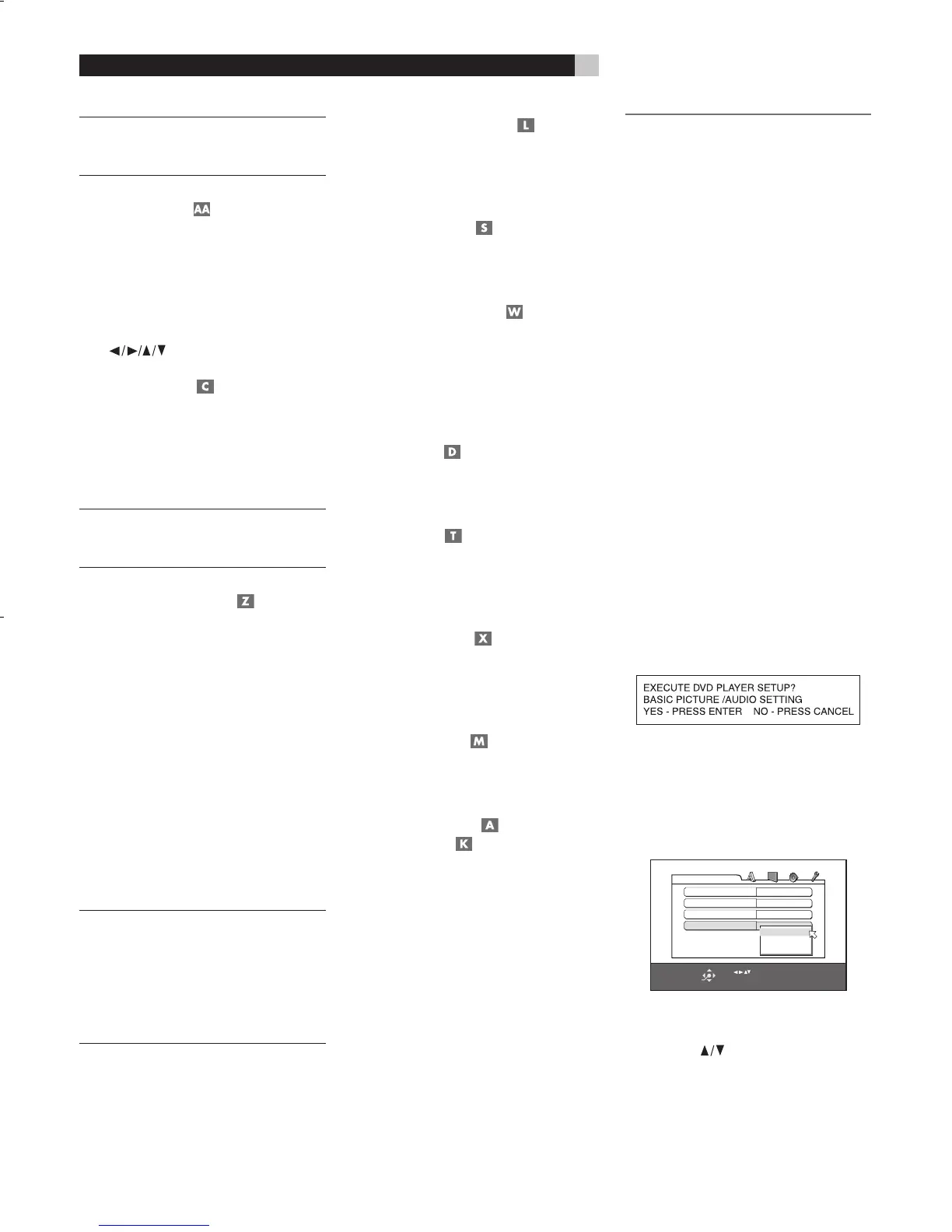
1. When you turn the RDV-03 on for the first
time, the following message appears on
the TV monitor:
2. Press the CANCEL button to skip the ini-
tial setup, if you would prefer to do the
more comprehensive setup. Press the
ENTER button on the remote to proceed
with the initial setup. The following menu
appears.
SELECT
ENTER
USE TO SELECT, USE ENTER TO CONFIRM
TO EXI
T, PRESS CHOICE.
MENU LANGUAGE
ENGLISH
AUDIO LANGUAGE
ENGLISH
SUBTITLE
OFF
ON SCREEN LANGUAGE
ENGLISH
DVD PL
AYER SET UP
ENGLISH
SPANISH
FRENCH
4. This menu selects a language for the On
Screen messages and menus. Press the
CURSOR buttons on the remote to
select the desired language.
5. Press the ENTER button. A second menu
screen appears.
SELECT
ENTER
USE TO SELECT, USE ENTER TO CONFIRM
TO EXI
T, PRESS CHOICE.
MONITOR TYPE
4:3 L.B.
PICTURE SOURCE
AUTO
SCREEN S
AVER
ON
MP3&WMA/JPEG
MP3&WMA
DVD PL
AYER SET UP
16:9 NORMAL
16:9 AUTO
4:3 LB
4:3 PS
6. This menu configures the RDV-03 for a
standard 4:3 aspect ratio TV or a wide
screen TV. Press the CURSOR buttons
to select the desired setting from the pop-
up window. More detail on these options
is available in the Setup section of this
manual, but to get started, select one of
the two most common settings:
* 16:9 AUTO: Select this setting if you
have a wide screen TV monitor.
• 4:3 LB: Choose this setting if you have
a standard aspect ratio TV monitor.
You can go back and make a different
selection later when you do the compre
-
hensive setup, but one of these two settings
should work with every TV monitor.
7. Press the ENTER button to confirm the new
setting and bring up the final menu:
SELECT
ENTER
USE TO SELECT, USE ENTER TO CONFIRM
TO EXI
T, PRESS CHOICE.
DIGITAL AUDIO OUTPUT
DOLBY DIGI
TAL/PCM
ANALOG DOWN MIX
DOLBY PROLOGIC
D RANGE CONTROL
ON
STANDARD
OUTPUT LEVEL
DVD PL
AYER SET UP
PCM ONLY
DOLBY DIGI
TAL/PCM
STREAM/PCM
8. This menu tells the RDV-03 what kind of
digital surround sound processor, if any,
is receiving the digital output signal. This
setting has no effect if you have not con
-
nected the digital audio output to an audio
system. Press the CURSOR buttons on
the remote to make a selection:
• PCM ONLY: Use this setting if your re
-
ceiver or surround processor does not
have Dolby Digital decoding.
• DOLBY DIGITAL/PCM: Use this setting
if your surround processor has Dolby Digi
-
tal decoding, but does not have DTS or
MPEG decoding.
• STREAM/PCM: Use this setting if your
surround processor has Dolby Digital,
DTS, and MPEG decoding.
9. Press the ENTER button to complete the
initial setup and return to the normal dis
-
play on the TV monitor.
NOTE: You can return to these and other setup
Choice menus by pressing and holding the
CHOICE button on the remote control. See
the Setup section of the manual.
About Discs
This section covers basic information on
the types of discs that can be played in the
RDV-03.
Disc Formats
The RDV-03 can automatically detect and play
several different types of disc formats.
Look for the standard logo on the packaging
for each of the following types of disc the
RDV-03 can play:
The RDV-03 can also play:
• DVD-R and DVD-RW discs written in the
DVD-Video format and finalized.
• CD-R and CD-RW discs written in the
SVCD, Video CD or Audio CD format
and finalized.
• CD-R and CD-RW discs written with MP3 or
WMA or JPEG files in accordance with
the “ISO 9660” format.
DVD Region Codes
DVD-Video discs are encoded with region
codes which also appear on the packag
-
ing:
A disc can only be played if its region code
matches the code printed on the back-panel
of the RDV-03.
The RDV-03 can play discs encoded in either
the NTSC or PAL video formats, outputting
the correct video signal in PAL format (Euro
model) or as set by the back-panel PAL/NTSC
switch (Asia model).
Disc Structure
Each type of disc has its own organization,
allowing you to locate various portions of the
program recorded on the disc. Depending on
the type of disc, these may be called Titles,
Groups, Chapters, or Tracks:
DVD-Video:
Chapter 1
Chapter 2
Chapter 1
Chapter 2
Title 1
Title 2
A DVD-Video disc is comprised of Titles and
each Title may be divided into Chapters. For
example, a DVD-Video disc may contain sev-
eral movies, each with its own Title number,
and each movie may be divided into several
Chapters. In a DVD-Video karaoke disc, each
song usually has its own Title number and
does not have Chapters
.
Audio CD:
An Audio CD, Video CD or SVCD simply
contains Tracks
.
RDV03.indd, Spread 18 of 18 - Pages (18, 19) 4/6/2005 6:05 PM


 To Next Page